
One of the first steps to setting up your Ribbon site is to add vendors to your site.
You can upload multiple vendors at once using the bulk import feature.
- Begin by logging into your Ribbon URL (companyname.meetribbon.com).
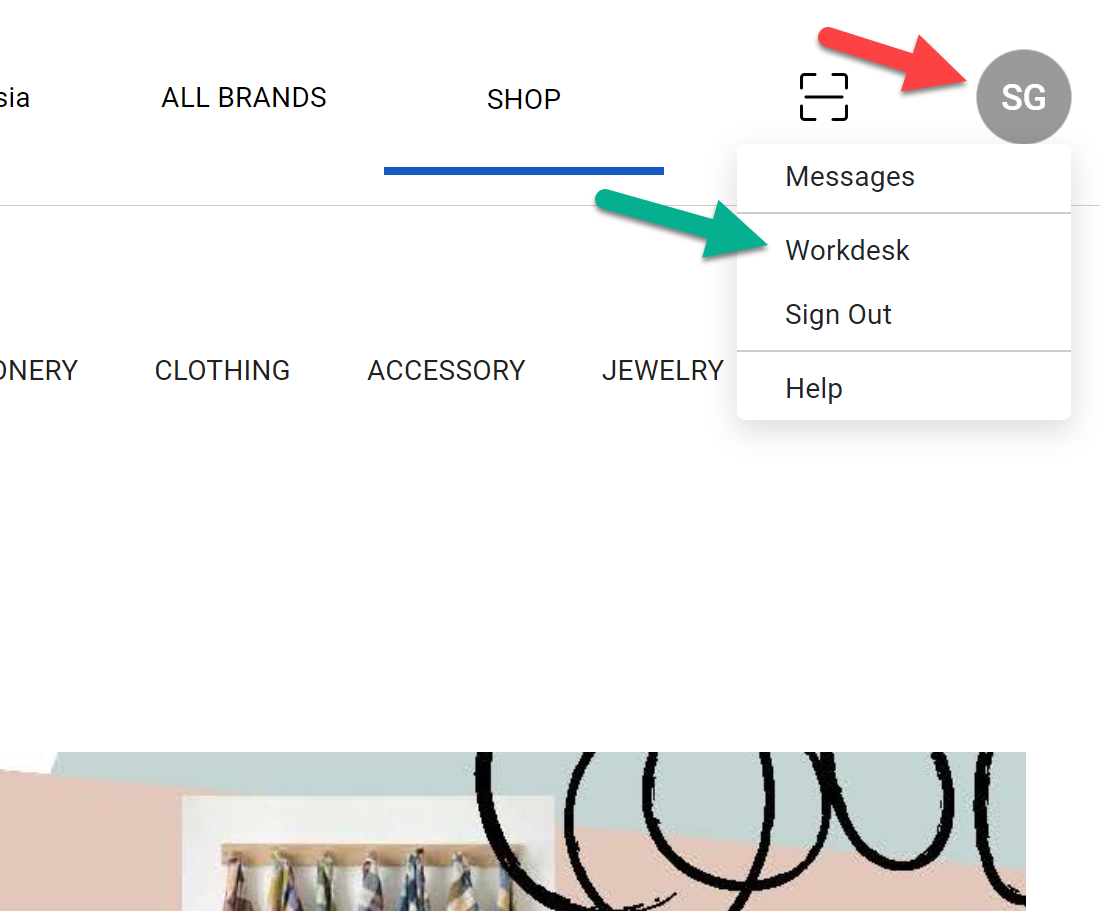
- Click on your initials in the upper right corner
- Then click on Workdesk
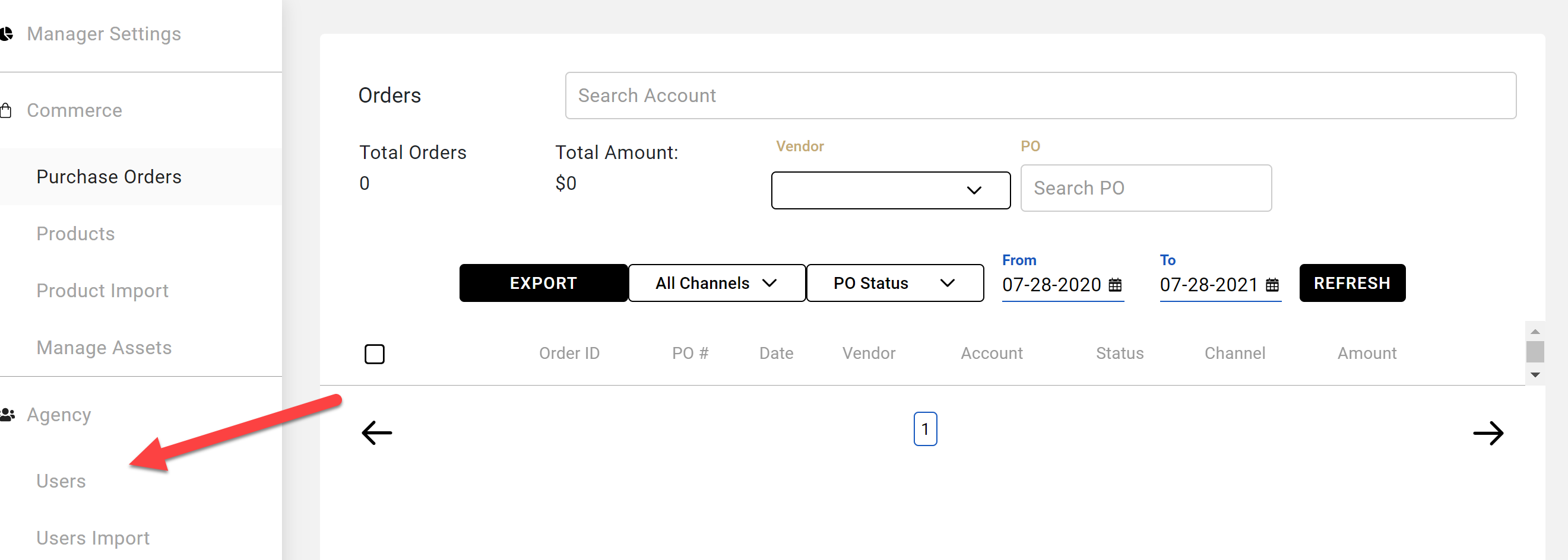
- Click on Users
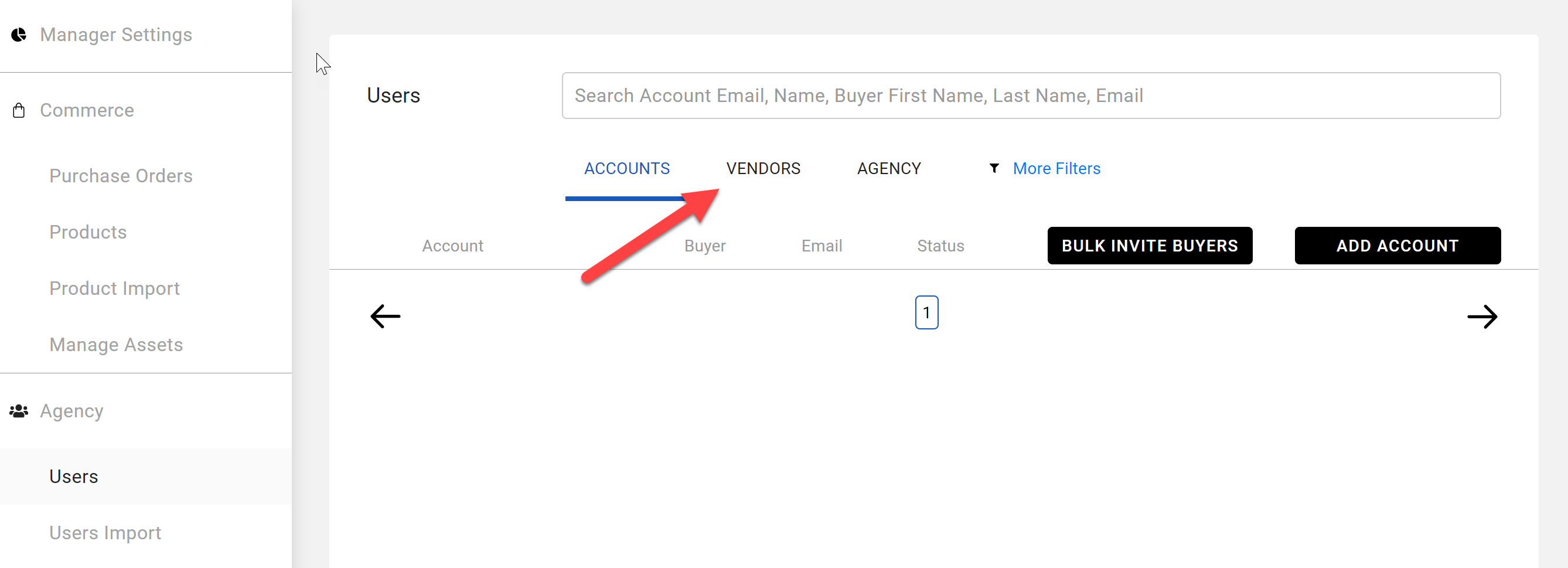
- Click on Vendors
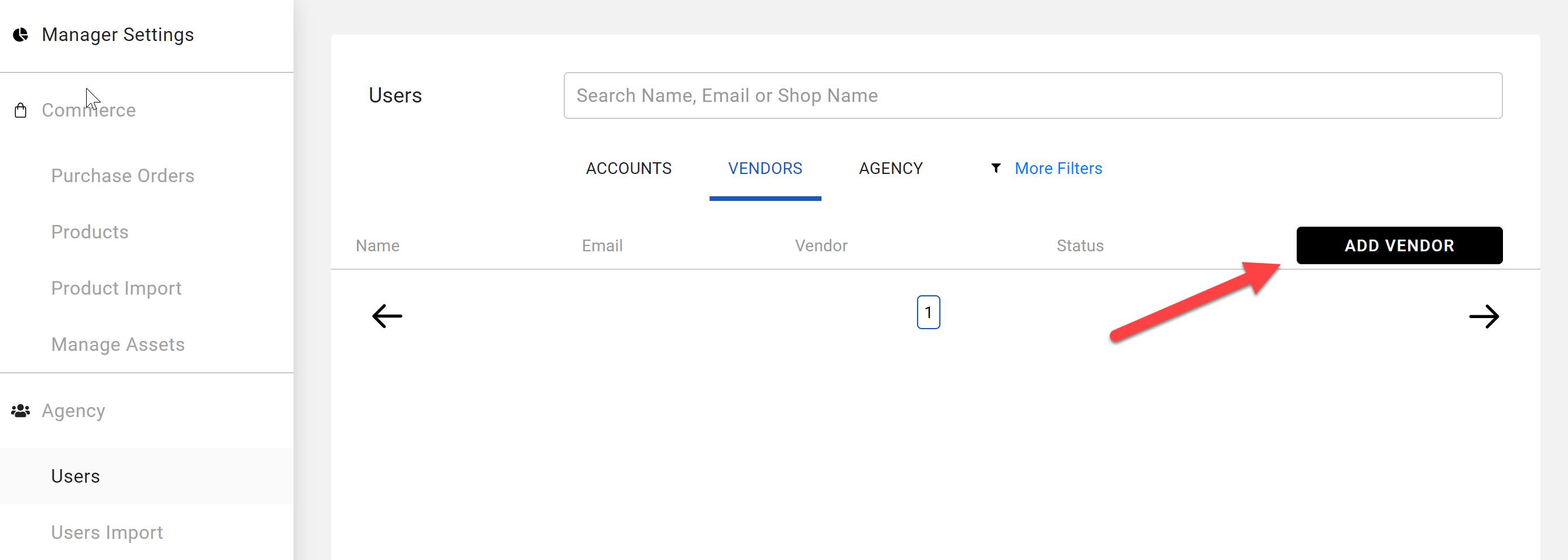
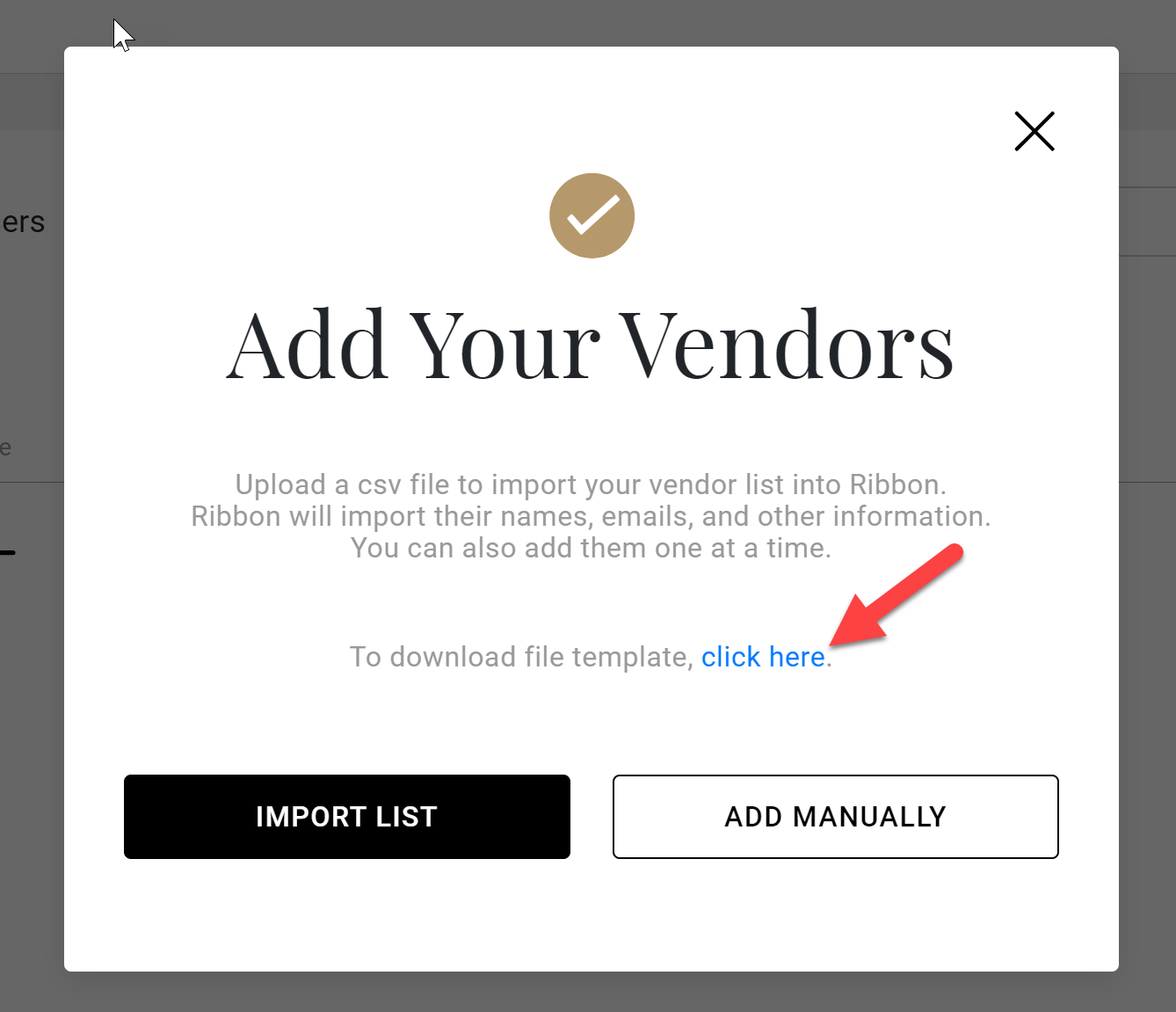
- Click on Add Vendors
- Download Vendor Import Template (.csv file)
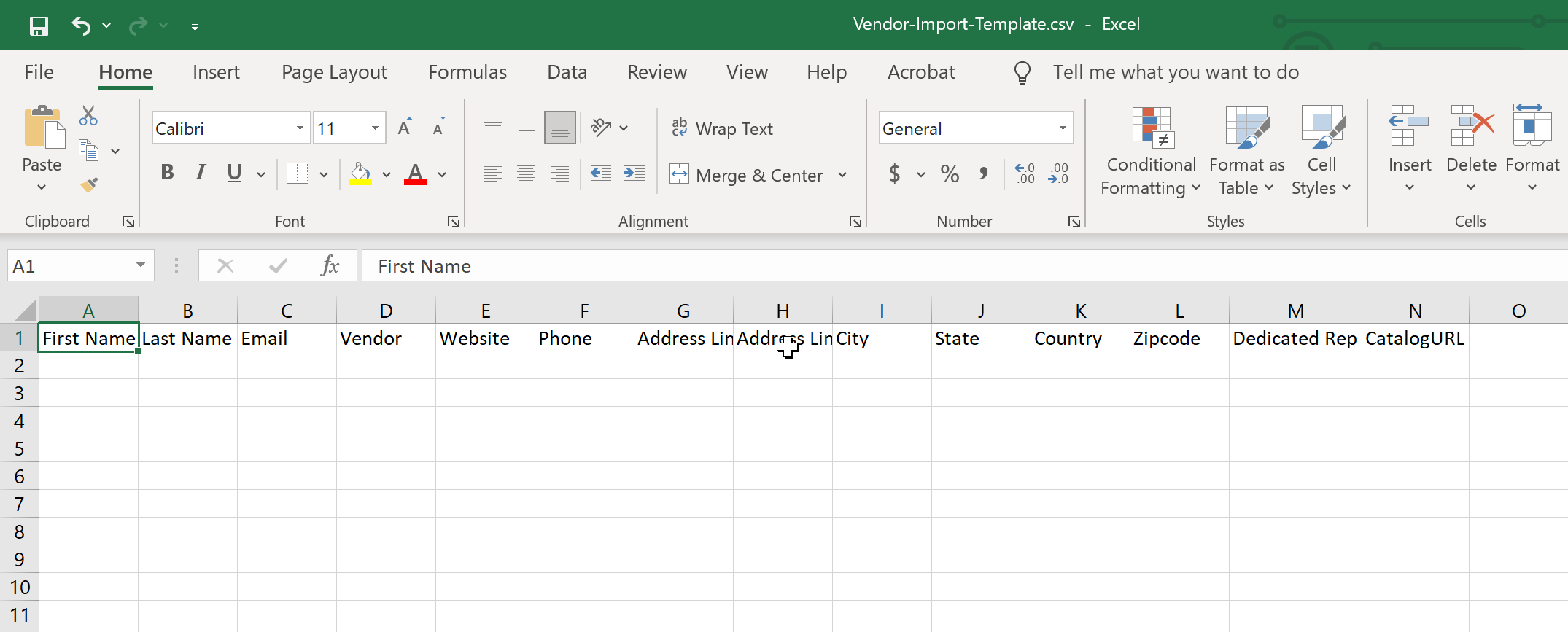
- Fill out template
- Vendors information
- Contact first and last names
- Vendor email
- Vendor/Brand name
- Website
- Phone
- Street Address
- City
- State (if applicable)
- Zip code/postal code
- Dedicated rep (email address)
- Catalog URL / link to product catalog
- Save spreadsheet (make sure it is saved as .csv file)
- Vendors information
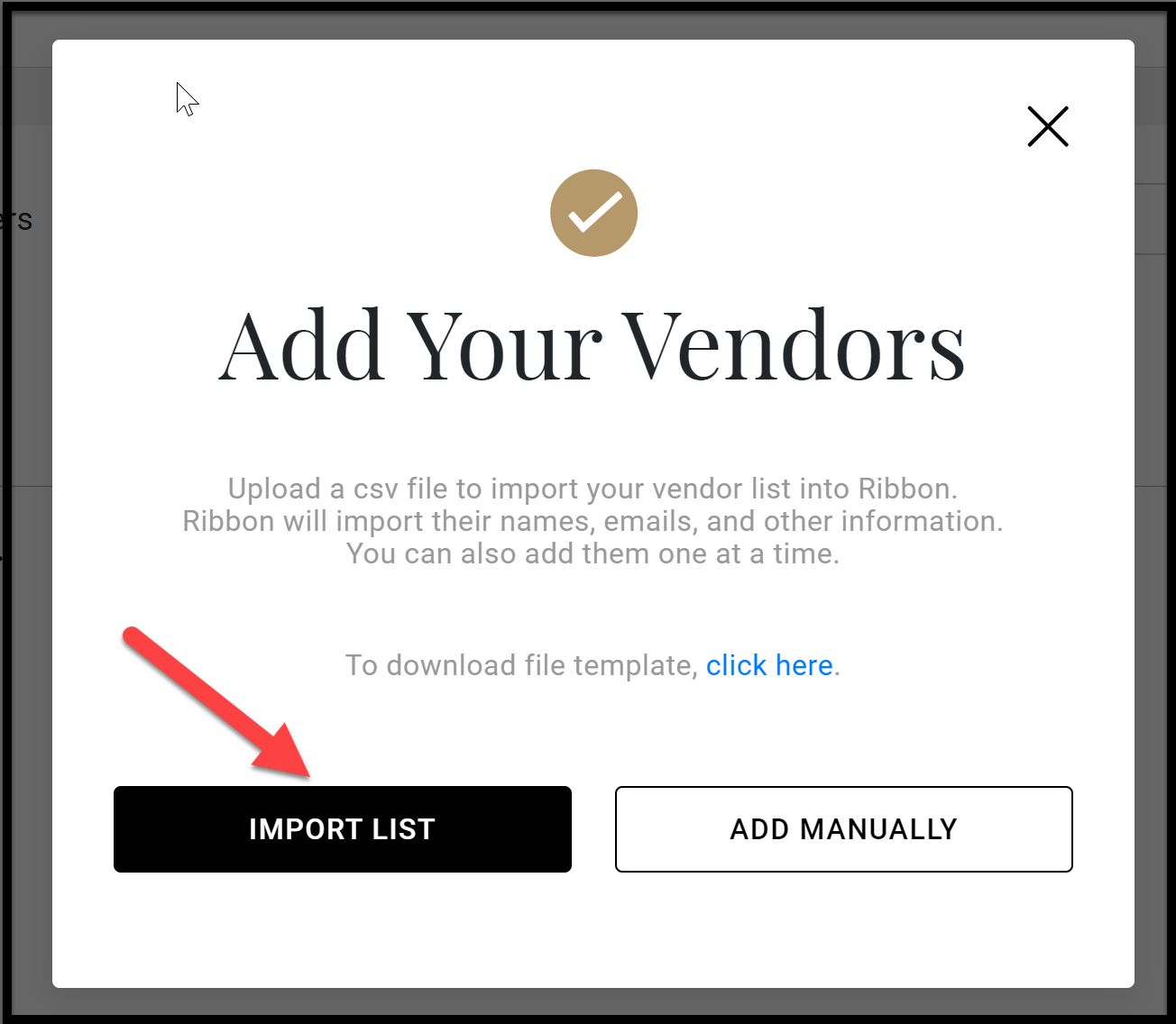
- Click on Import List
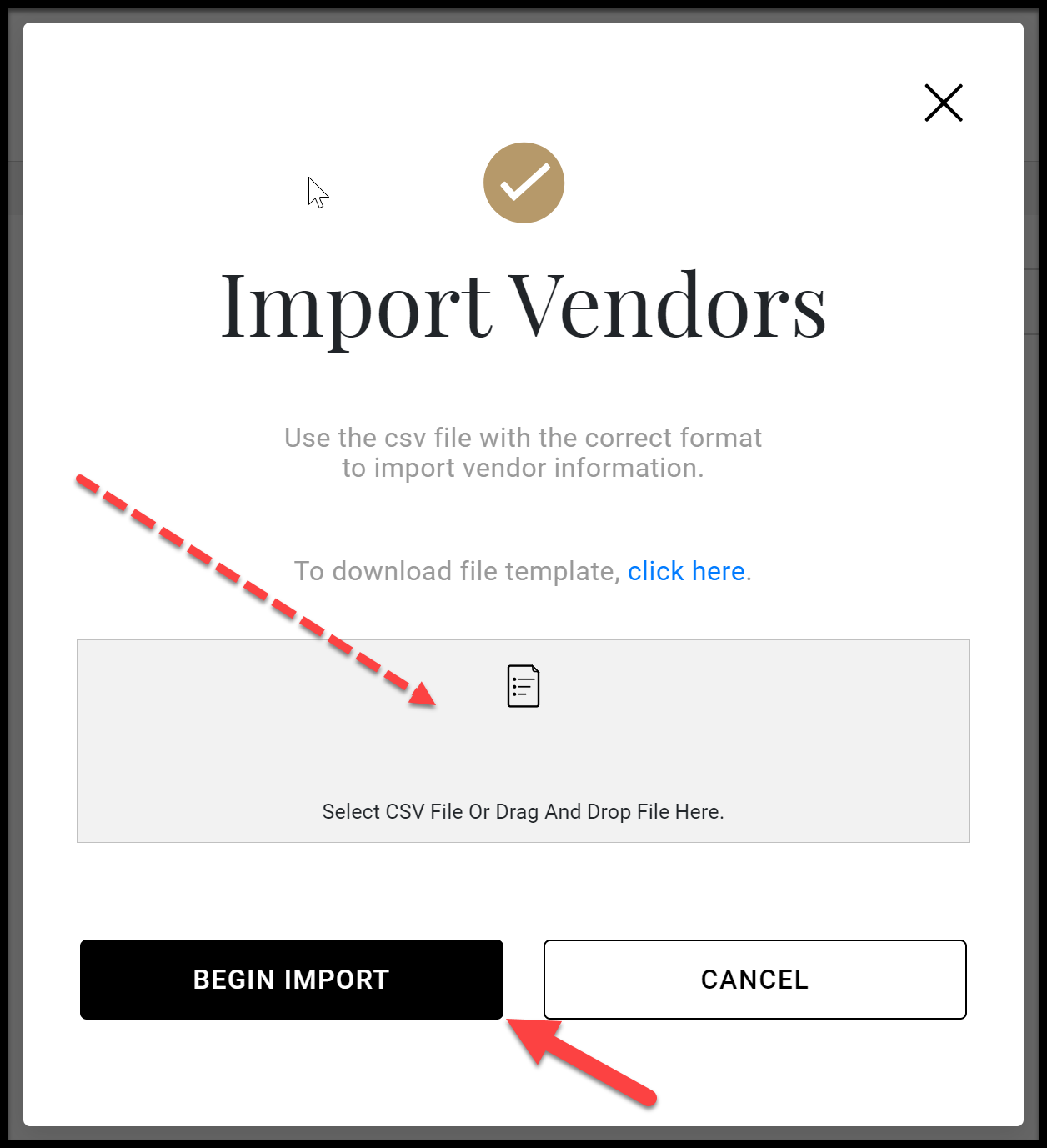
- Drag and drop your completed .csv file into the box and click Begin Import
- Exit back to workdesk and click Users Import
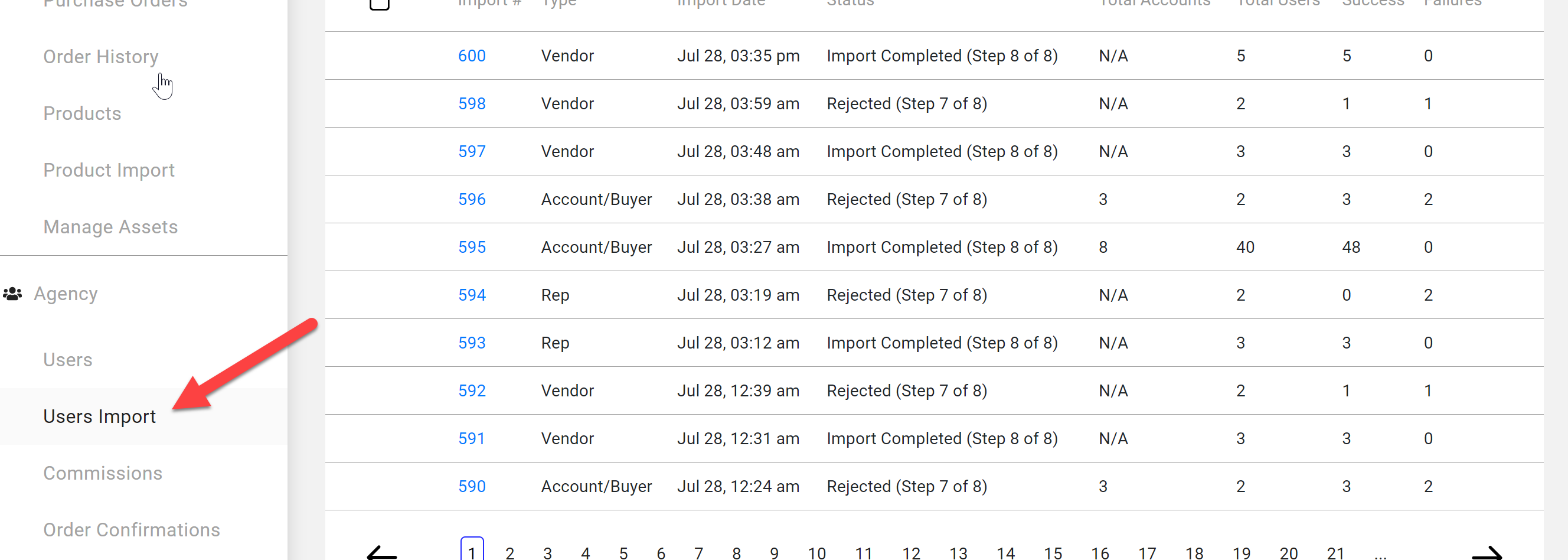
- Your upload should show up at the top of the list
- It may take a bit for the download to cycle, anywhere from 5 to 30 min
- Once the status reaches "Step 5 of 8" you need to click APPROVE in order to complete the upload
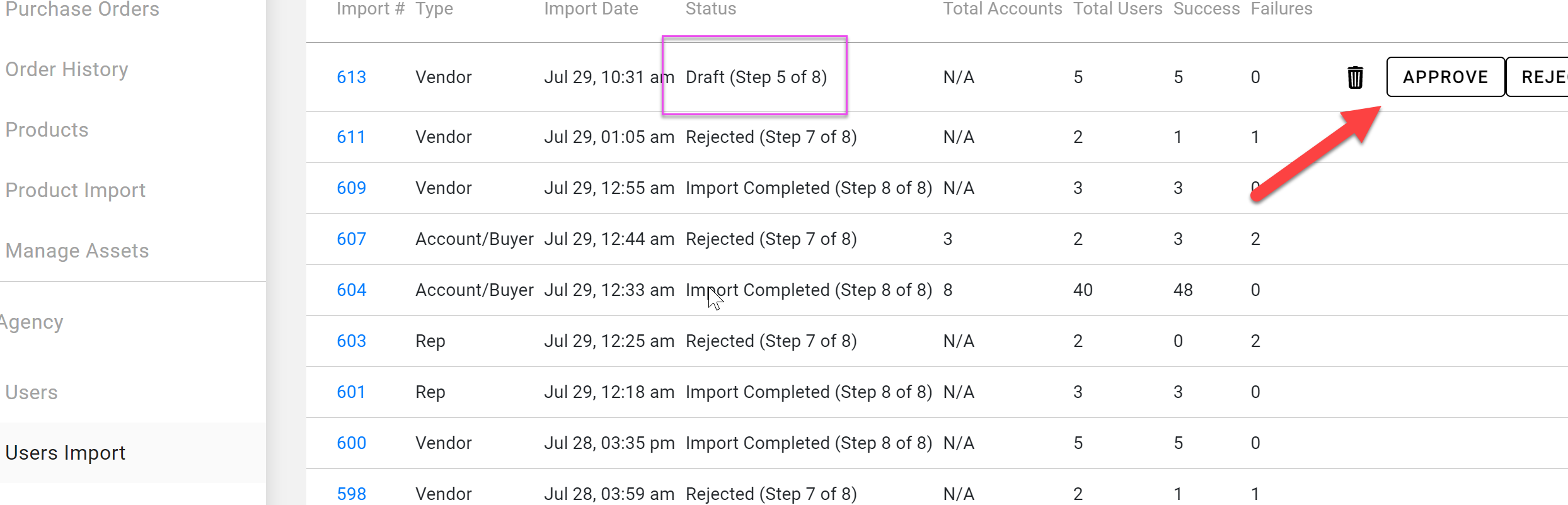
-
- Status of upload should change from "draft" to "approved"
- Let the download continue until status reads "Import Complete (Step 8 of 8)"
- This may take an additional 5-20 min
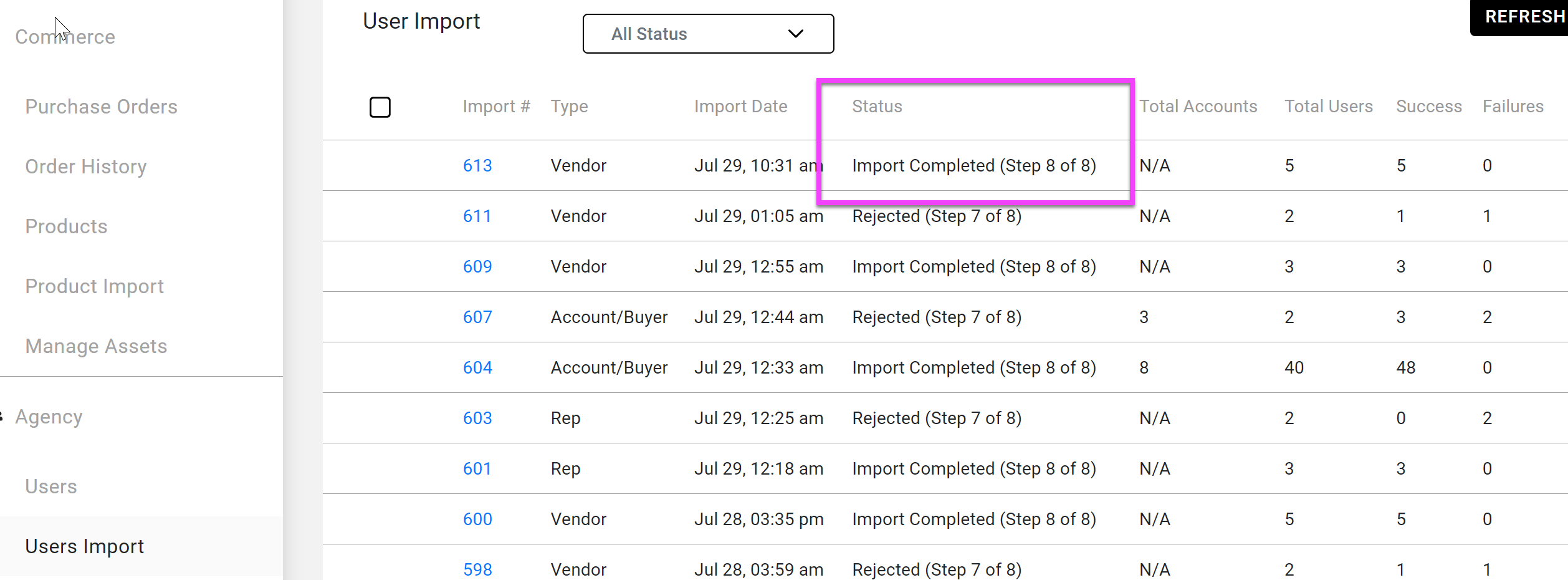
- You have now successfully uploaded a batch of Vendors
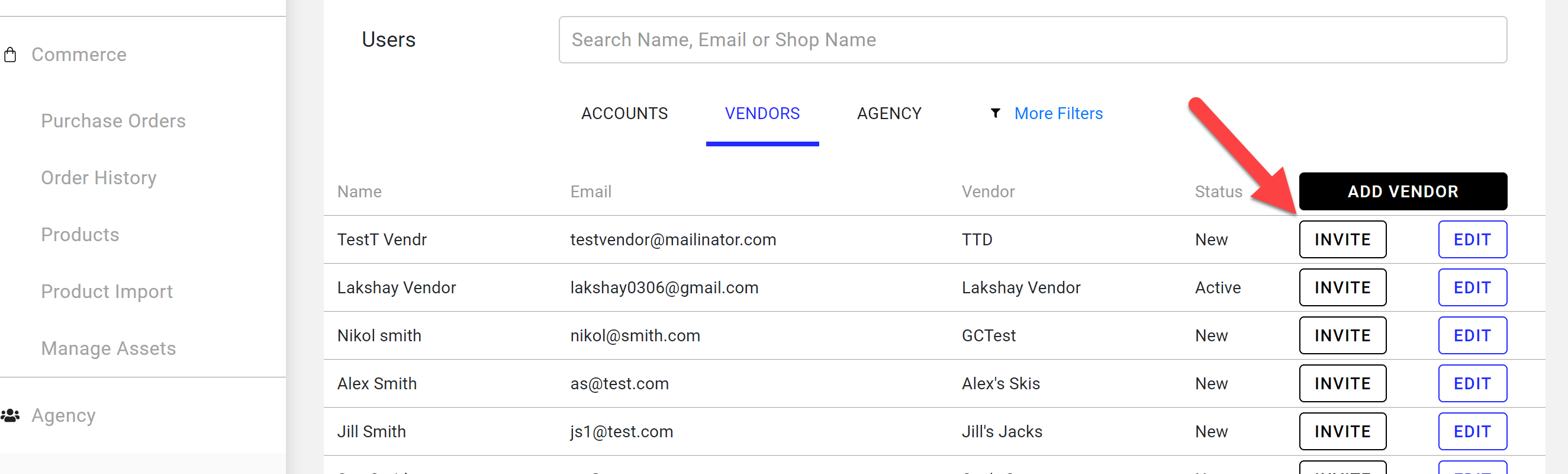
- They are now searchable on the Users/Vendors screen
Note: You can now invite your vendors to log on to their profile page
-
- You must do this in order for your vendors to access their profiles
Comments
0 comments
Please sign in to leave a comment.