
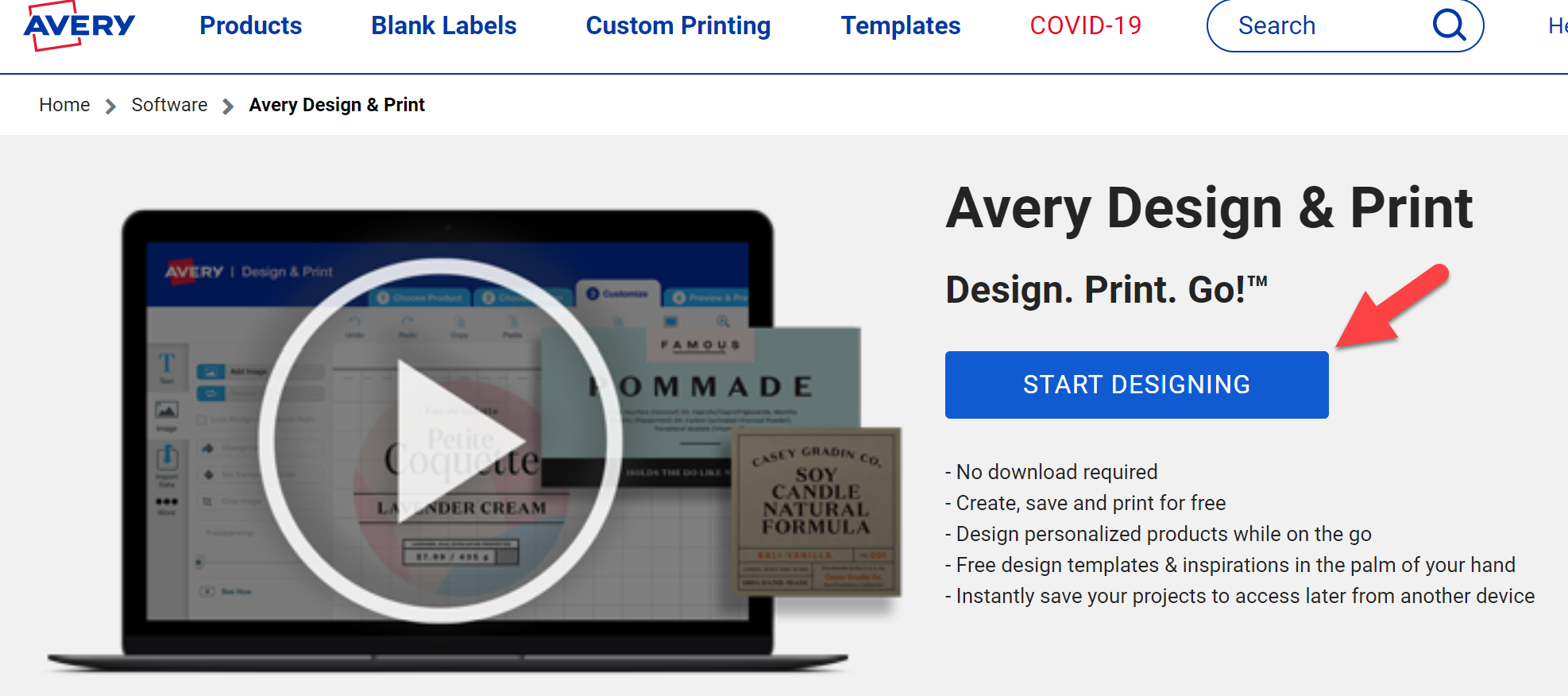
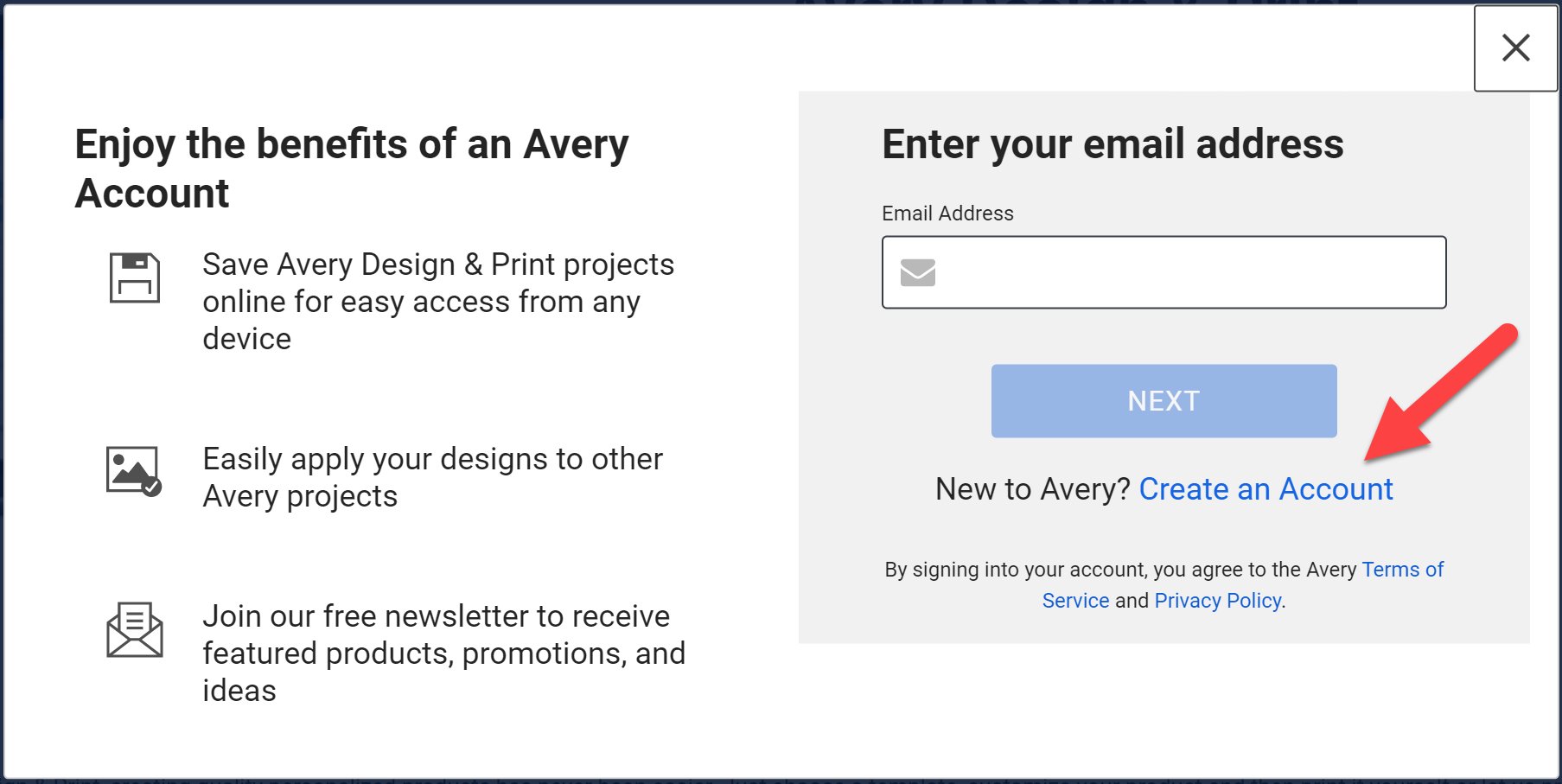
- Start by going to avery.com to create an account (its free with no download)
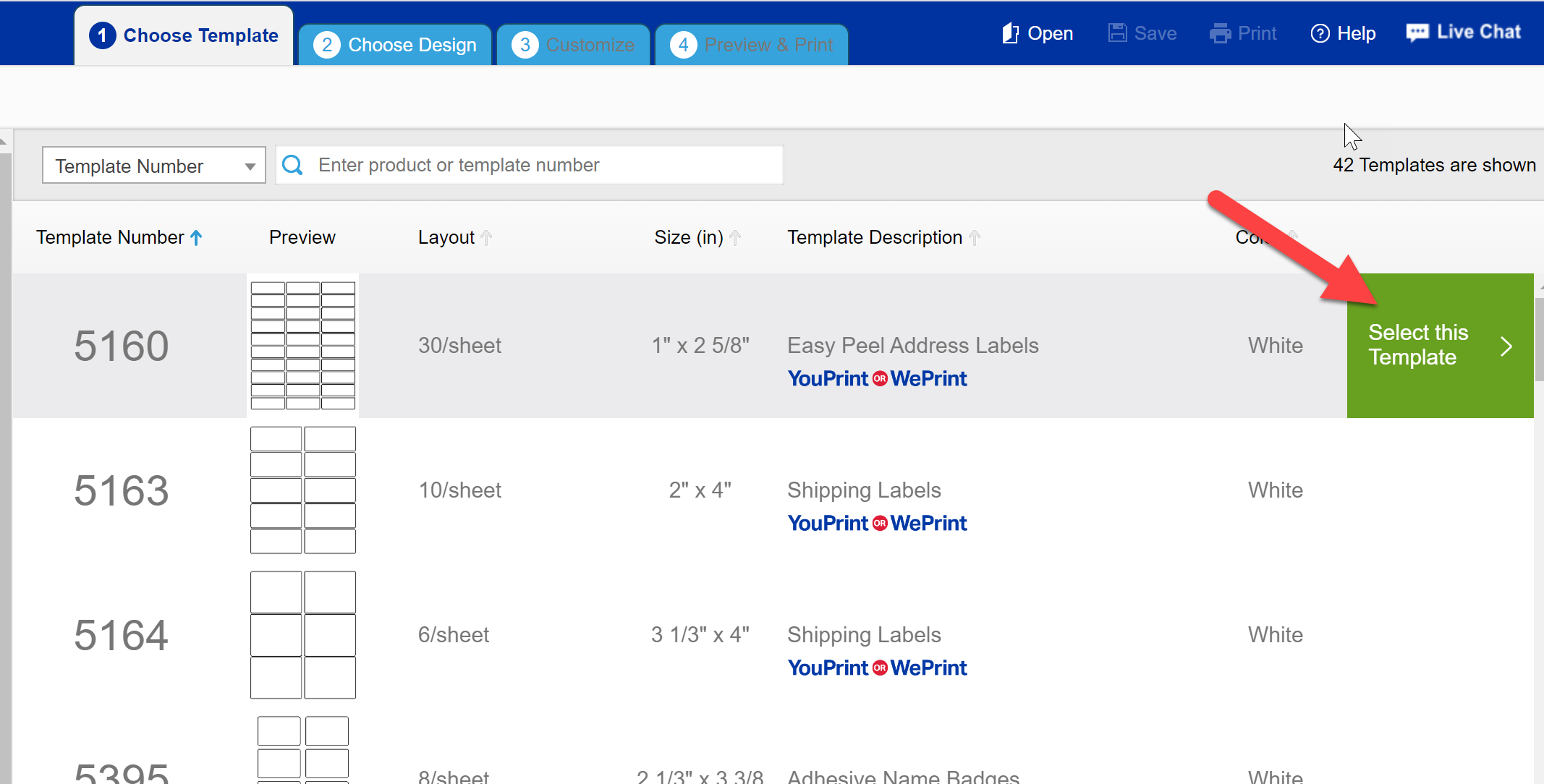
- Choose your label (template 5160 works well for this application but feel free to select your preference)
- Click label you want and then click “Select this Template”
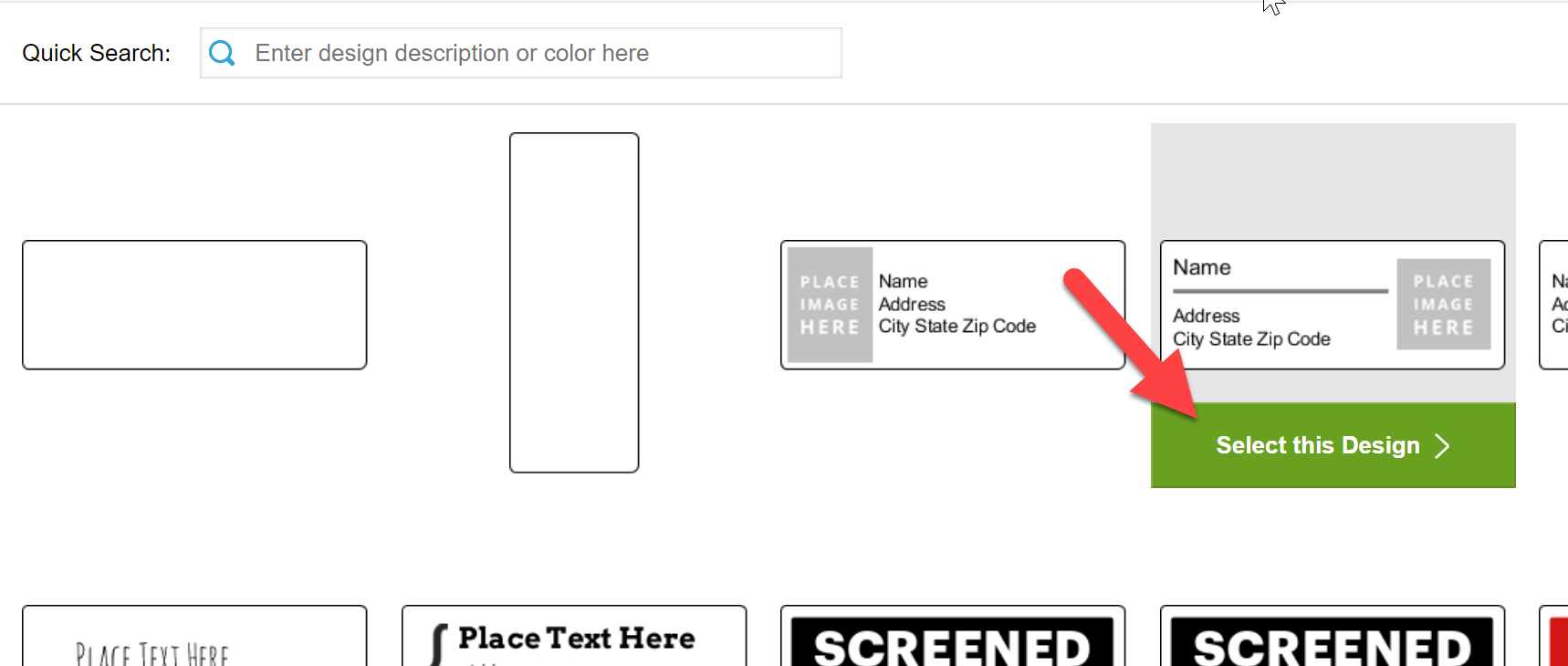
- Choose design for label
- Click design you want and then click “Select this Design”
- Customize template label
- Click on “Place Image here”
- Click on “Replace Image” on left work plain
- Add Logo if desired
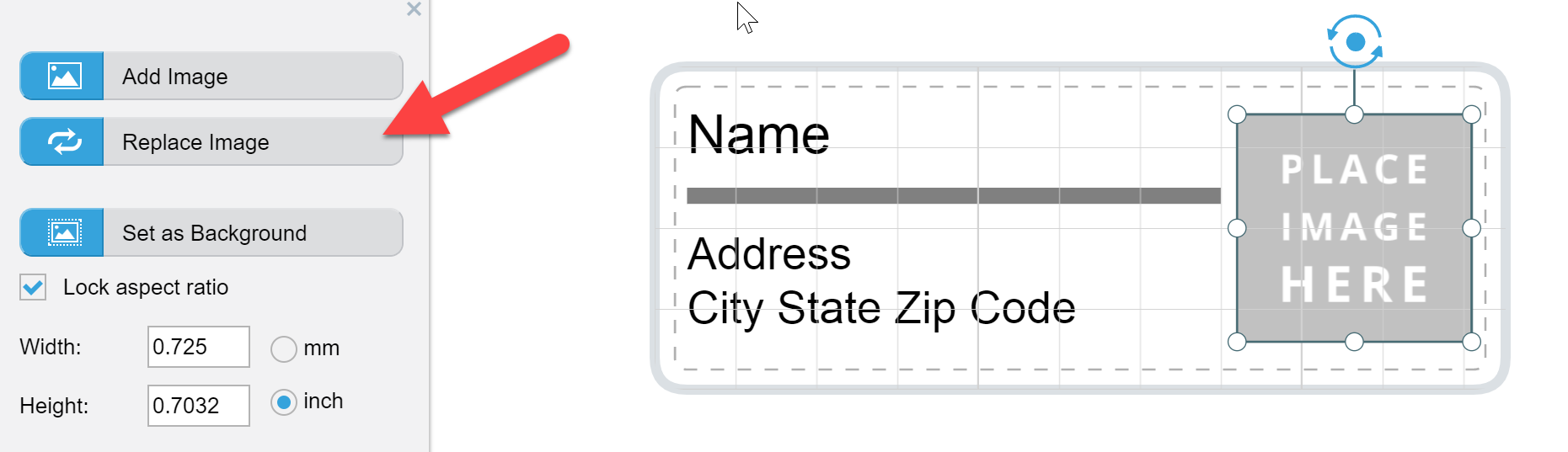
- Choose Logo image from your files
- Move and resize as necessary
- Set text using import data/Mail Merge
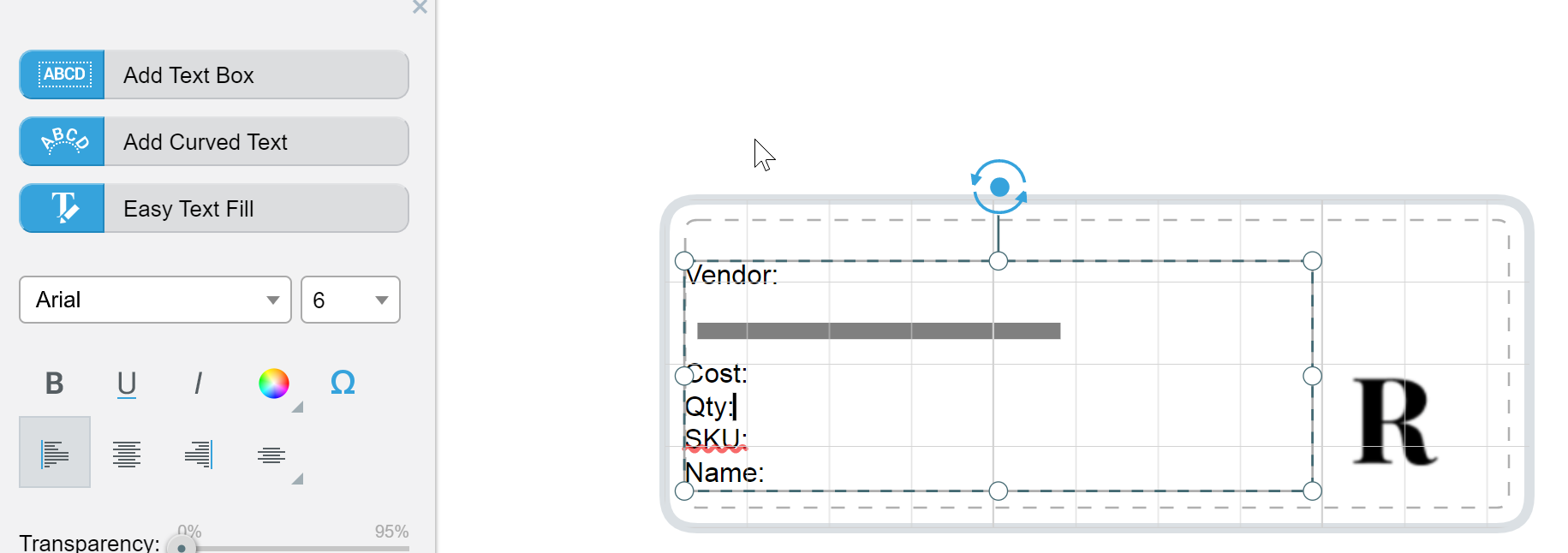
- Edit template to create one text box in order to list categories (Vendor, name, SKU, UPC, qty, price, color, etc.)
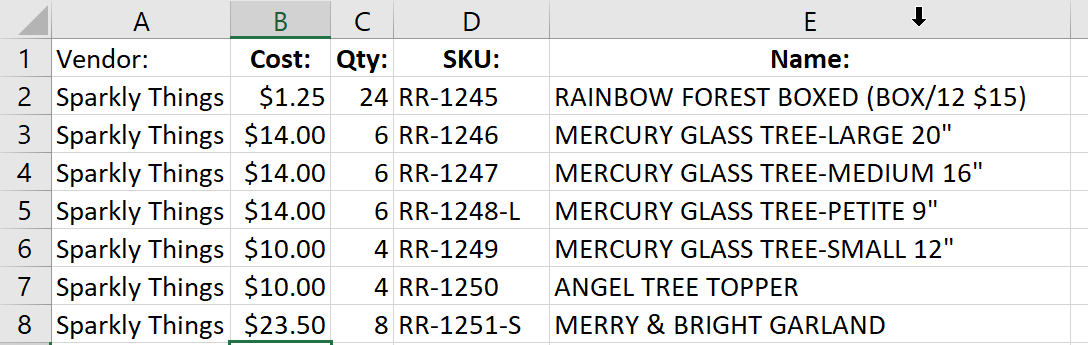
- Create a simple excel spreadsheet with info you would like listed on label and save the spreadsheet
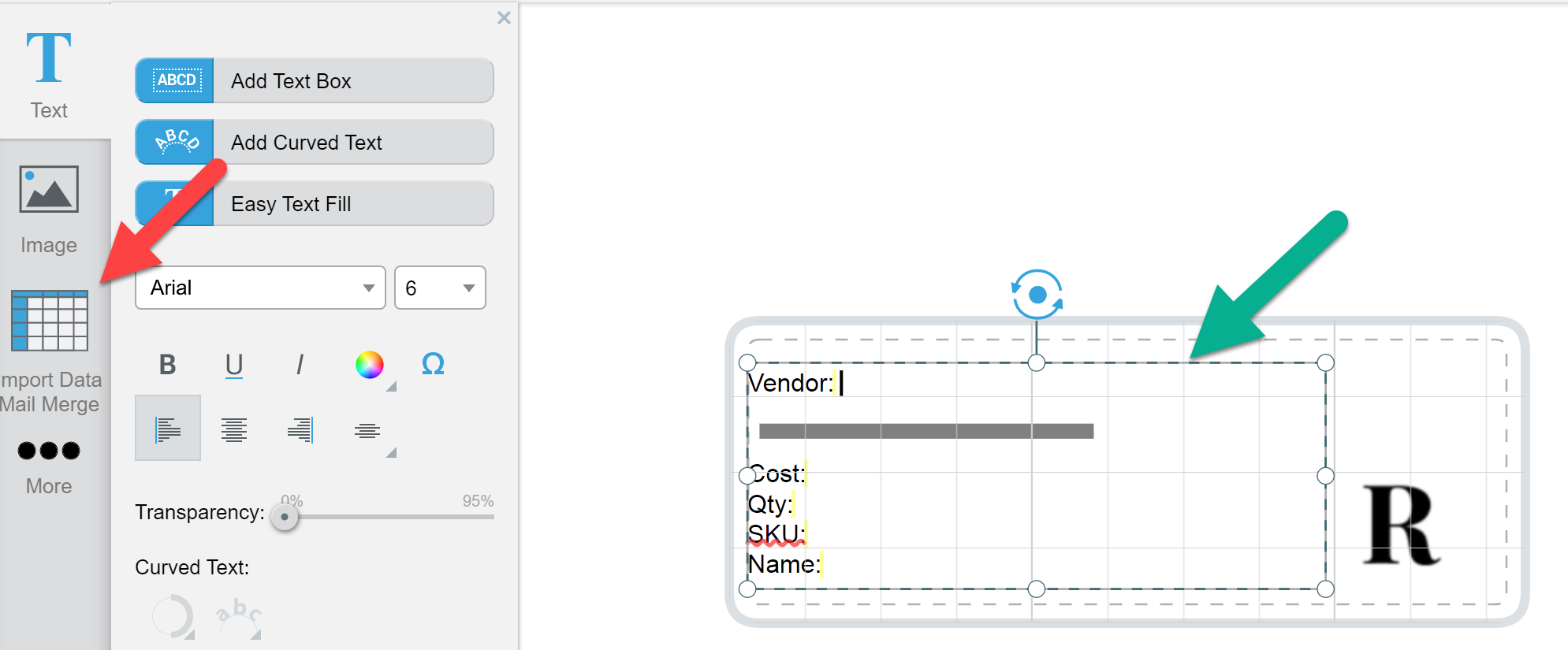
- Make sure your text box is selected in your template and click “Import Data Mail Merge”
- Choose saved spreadsheet
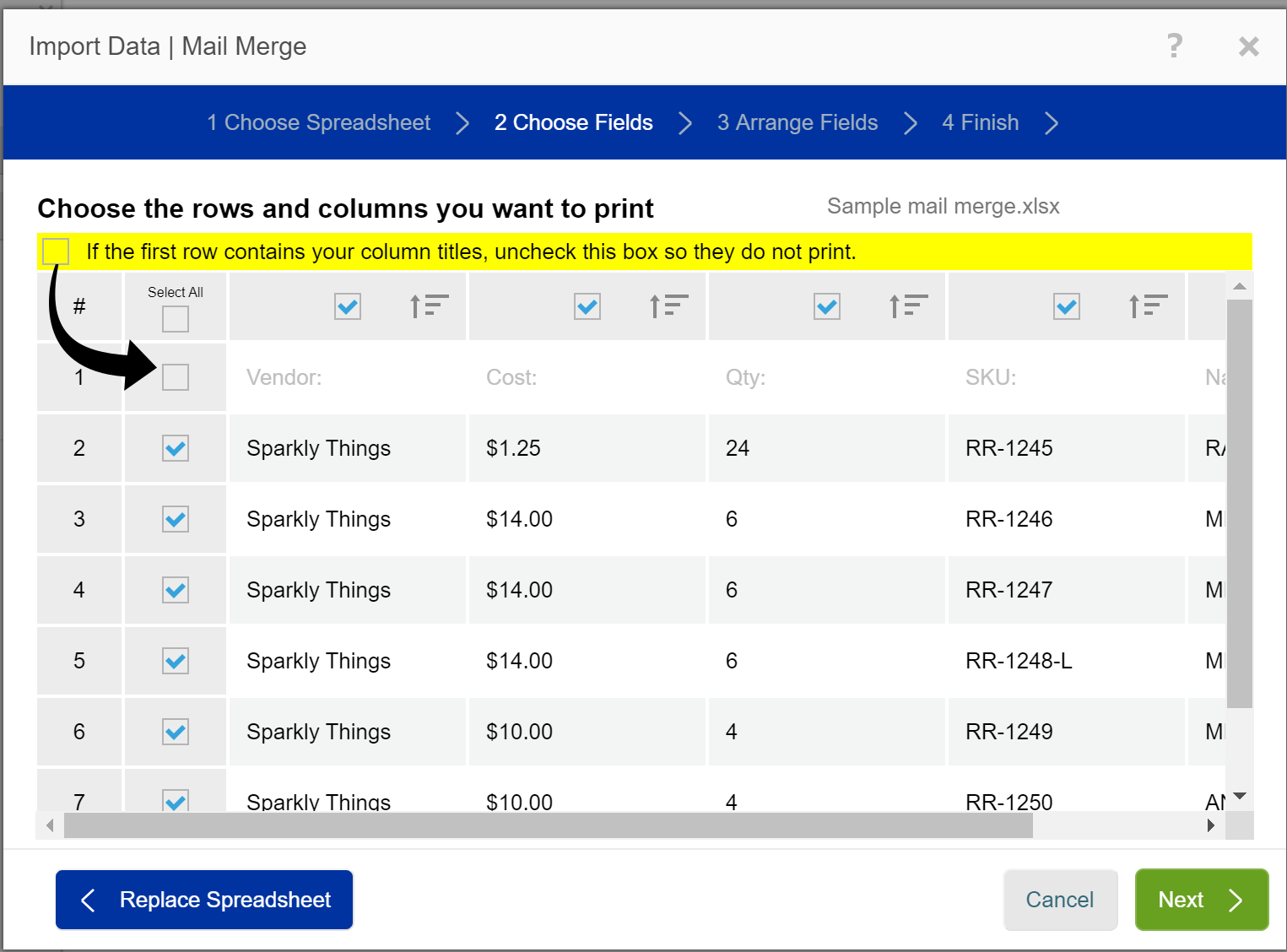
- Choose fields you want on label
- Remove first row as this is just your column titles and already on the label
- Click “Next”
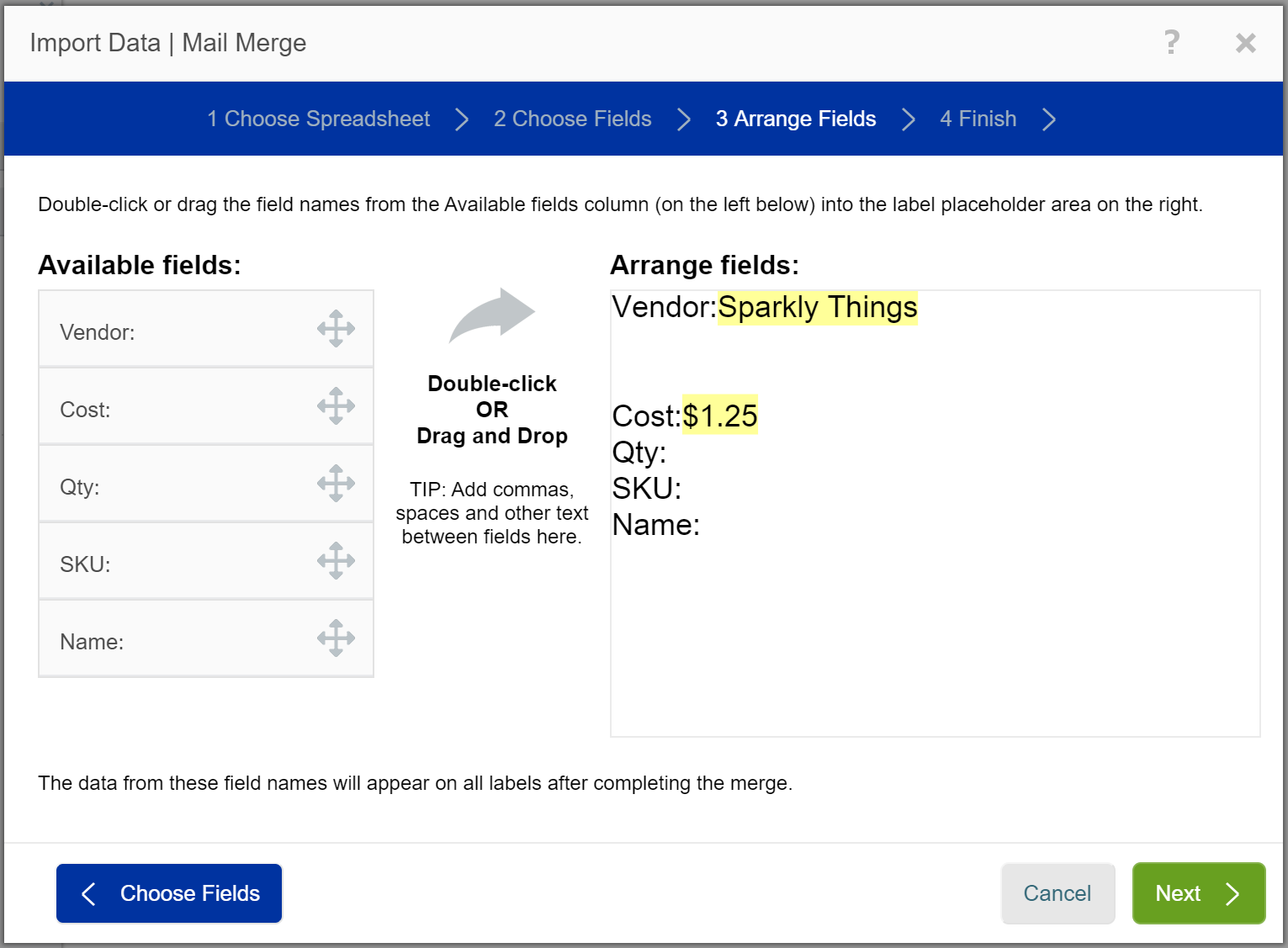
- Drag fields to corresponding labels in ‘Arrange Fields’
- Click “Next”
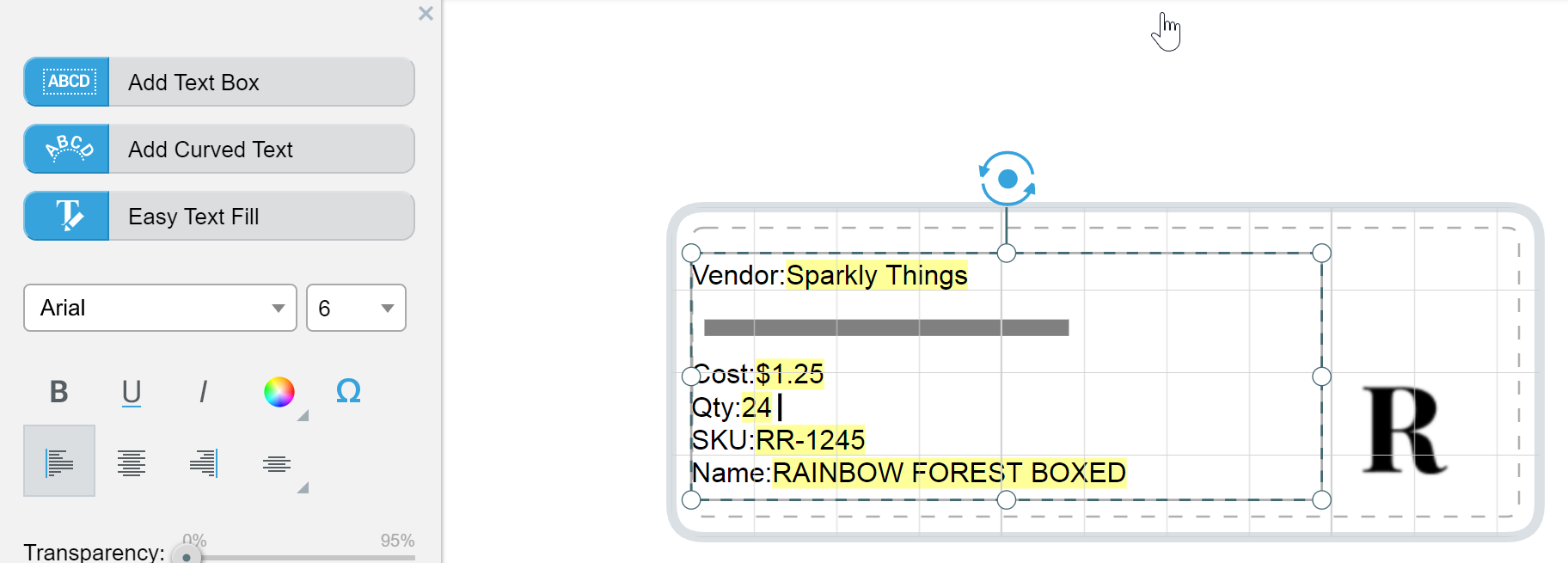
- Click “Finish”
- Format and edit as necessary
- Import Barcodes
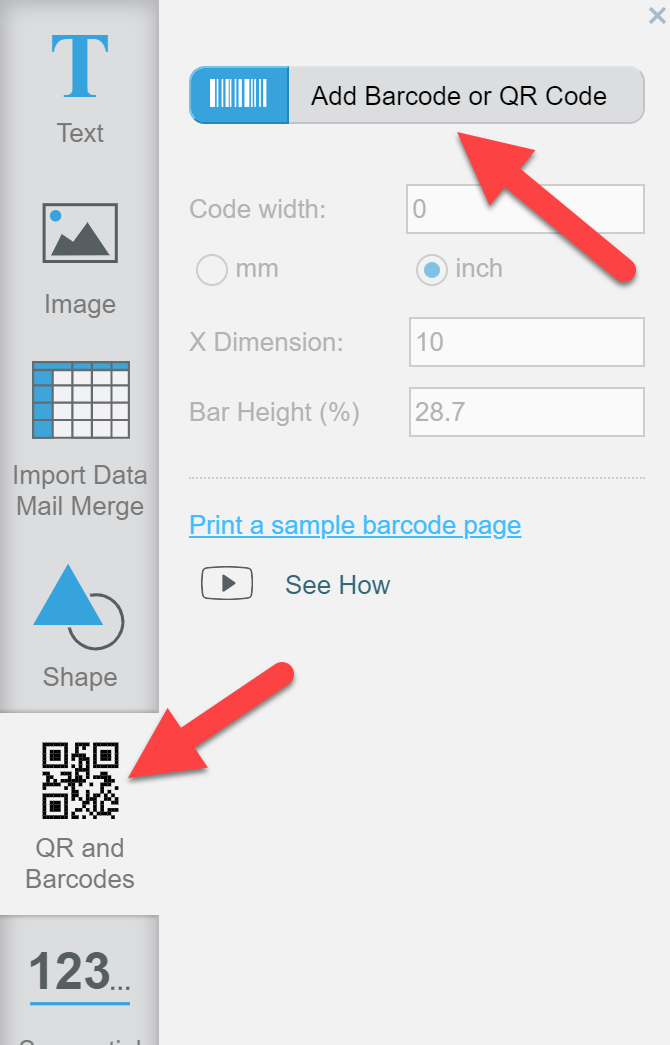
- Click “QR and Barcodes” icon
- Click “Add Barcodes or QR Code”
- Choose “Spreadsheet or Sequential Number”
- Click “Next”
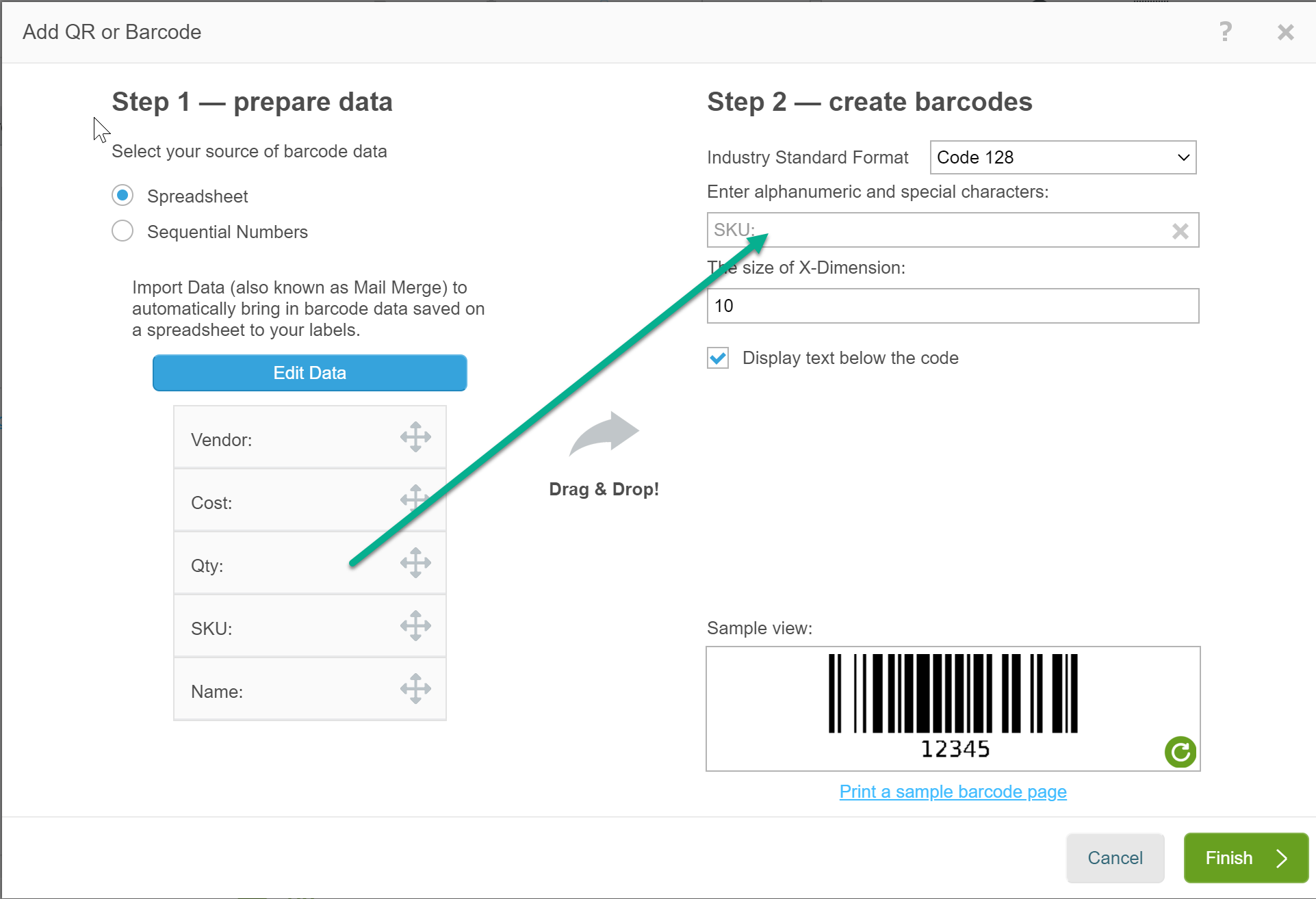
- You can select your barcode format however our recommendation would be the default of ‘Code 128’
- Drag SKU (or UPC) into box that says “Enter Alpha Numeric…”
- Click “Finish”
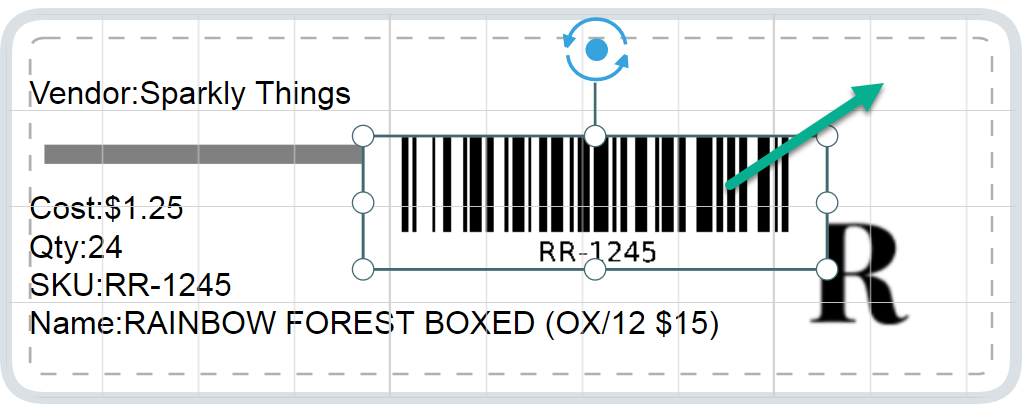
- Format and edit barcode box as necessary
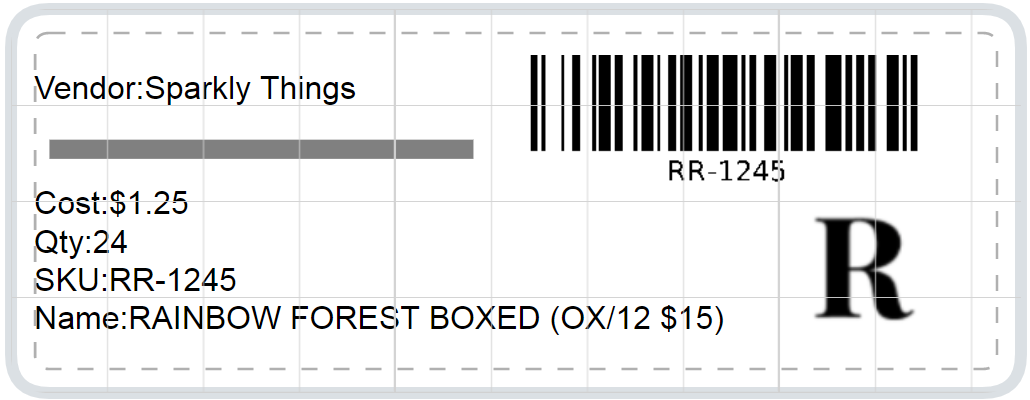
- Final Product
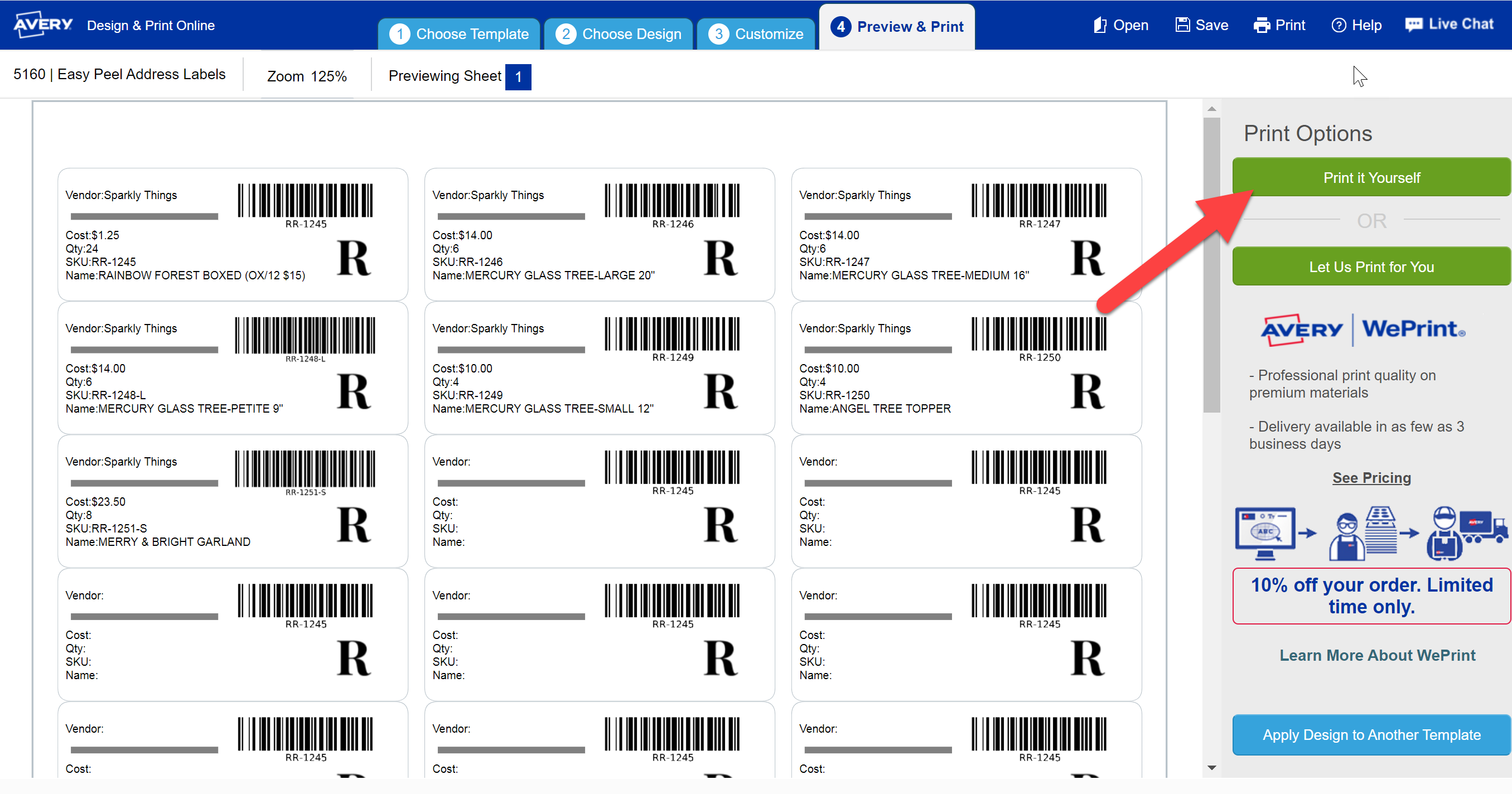
- Go to ‘Preview & Print’
- Review sheet
- Save your template
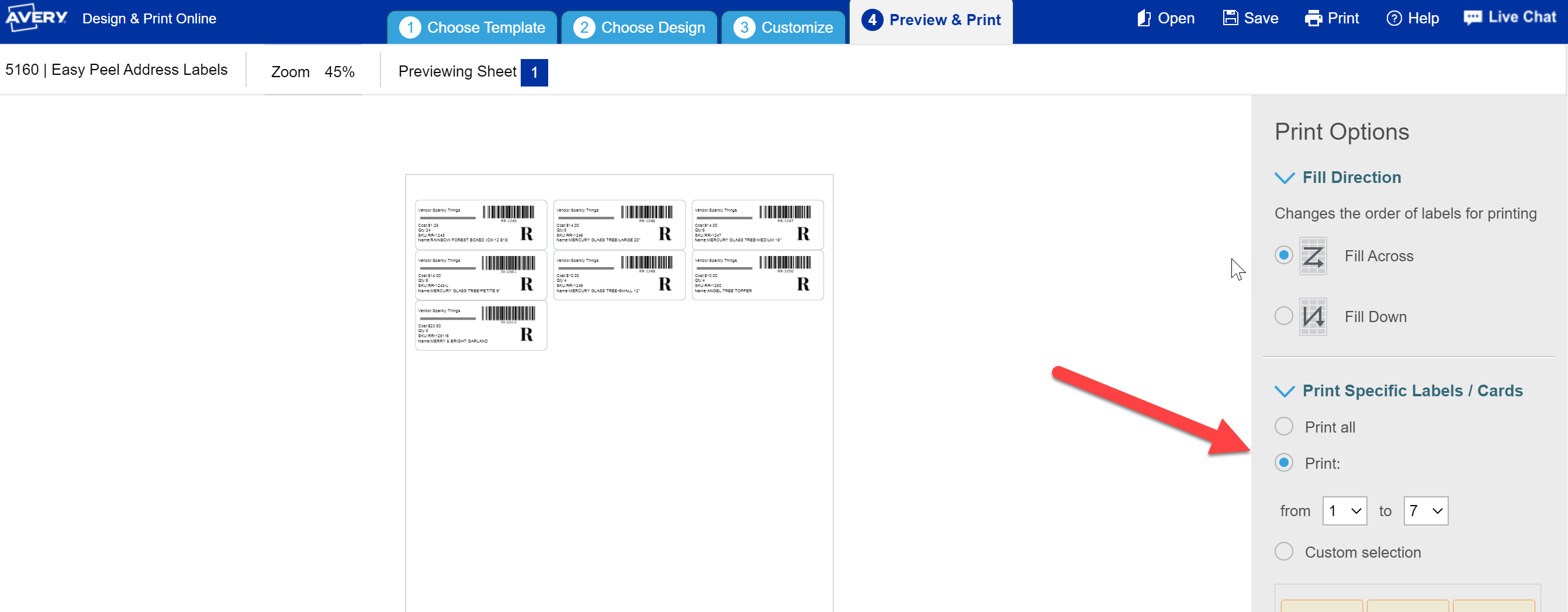
Printing specific labels?
- Only printing a few labels from the top of the page
-
-
- Select "Print from" and set range
-
- Using a label sheet with the top few labels used already?
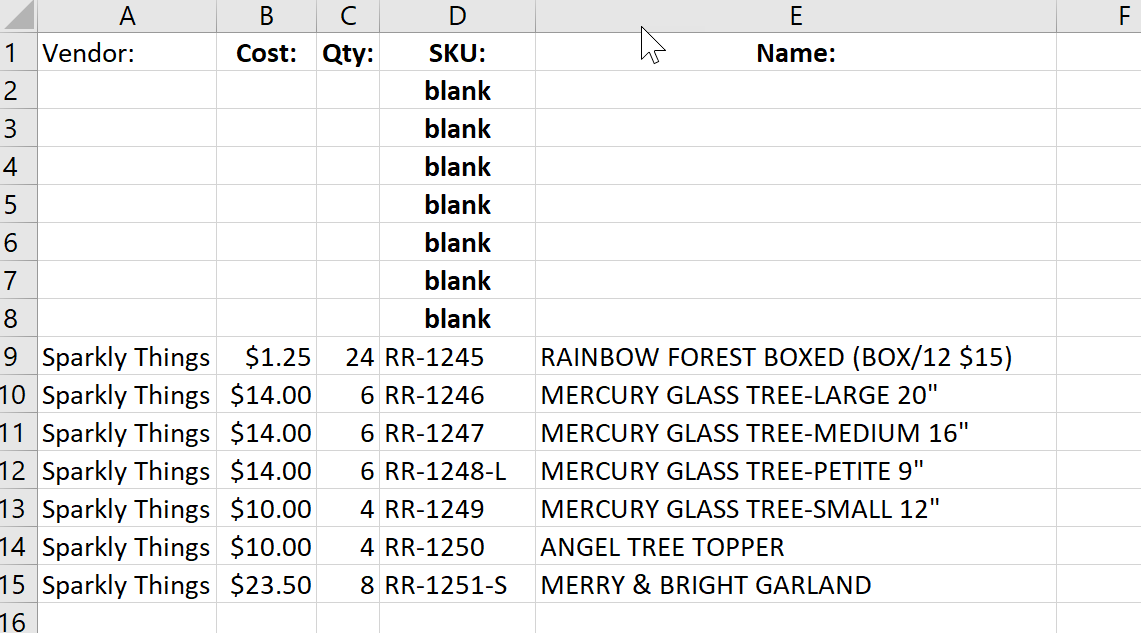
- Add rows in your excel spreadsheet to match the number of used labels on the sheet
- list "blank" in any one of the columns
- add label info below the "blank" rows
- Add rows in your excel spreadsheet to match the number of used labels on the sheet
-
-
-
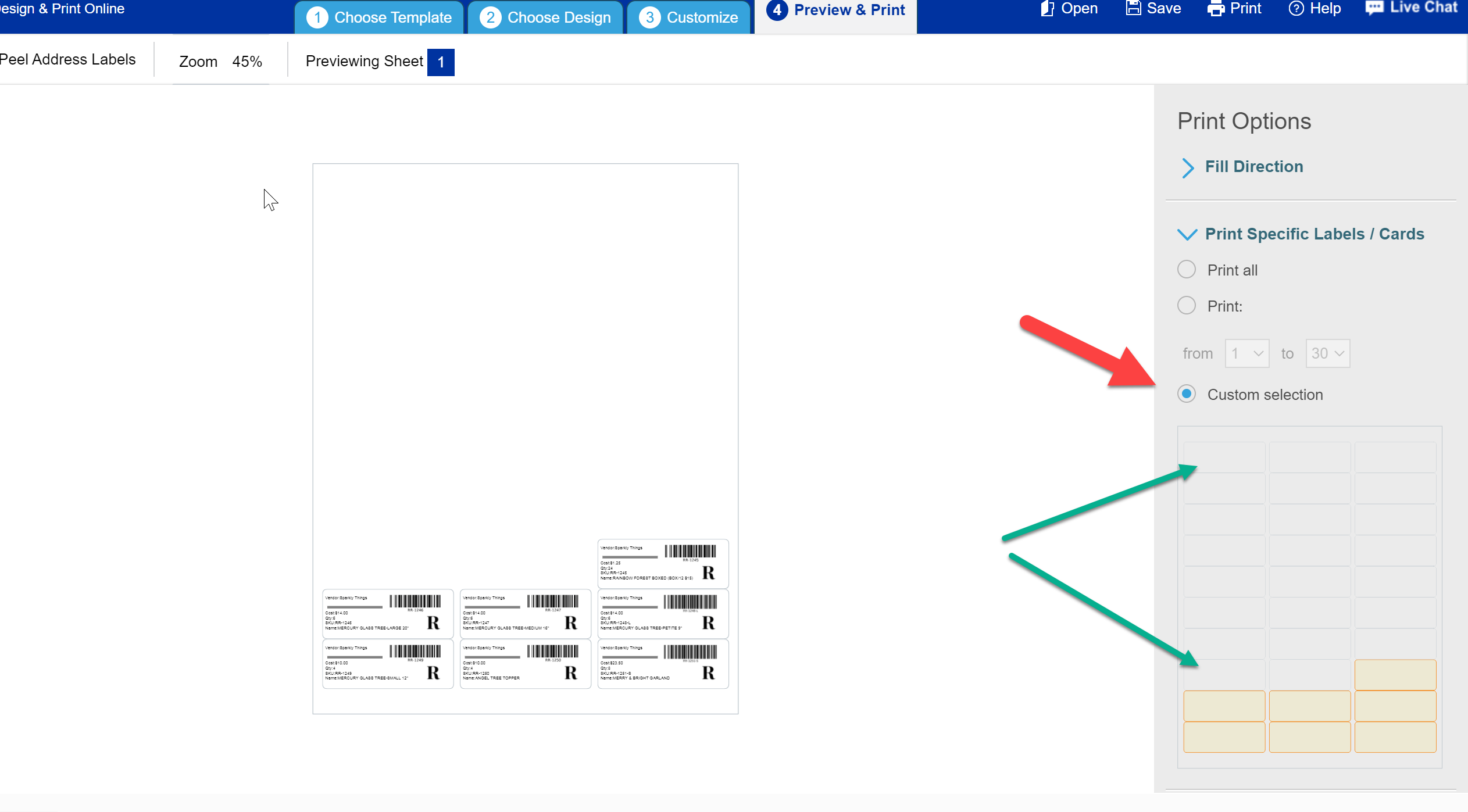
- When printing choose "Custom selection'
-
- Click on all the labels in the grid you do not want to print
-
- When printing choose "Custom selection'
-
-
Comments
0 comments
Please sign in to leave a comment.