
Do you have a buyer ready to place an order? Great! As an trade show exhibitor, you can now write orders at your booth, collect credit cards and revise orders with the app. Just follow these steps:
Click "Create Order"
After logging into shoppeobject.meetribbon.com, click on the “Create Order” Icon. You’ll navigate over to a NEW ORDER page
Select a Buyer with QR Scan or Search
To select a buyer, you can either scan the buyer's QR code. Or you can search by Name or Email or Business Account. If the buyer has their QR code handy, go ahead and scan it!
Add Items to the Cart
Once you select your buyer, search for the SKU and start adding items to your order.
If you need to add items that are not part of your collection, click “Create Custom SKU” at the top to include them in the order.
To remove an item from the cart, click “Remove” next to the item.
PRO TIP: Custom SKUs
Couldn't add a last-minute item to your collection? Click on "Create Custom SKU"
Create Draft Order
Once you’re done adding products, click “Review Purchase Order” to create a draft order.
Fill Out the PO Details
Most of the fields will be pre-filled with the buyer’s information. Update sections like a new shipping address, ship date or notes.
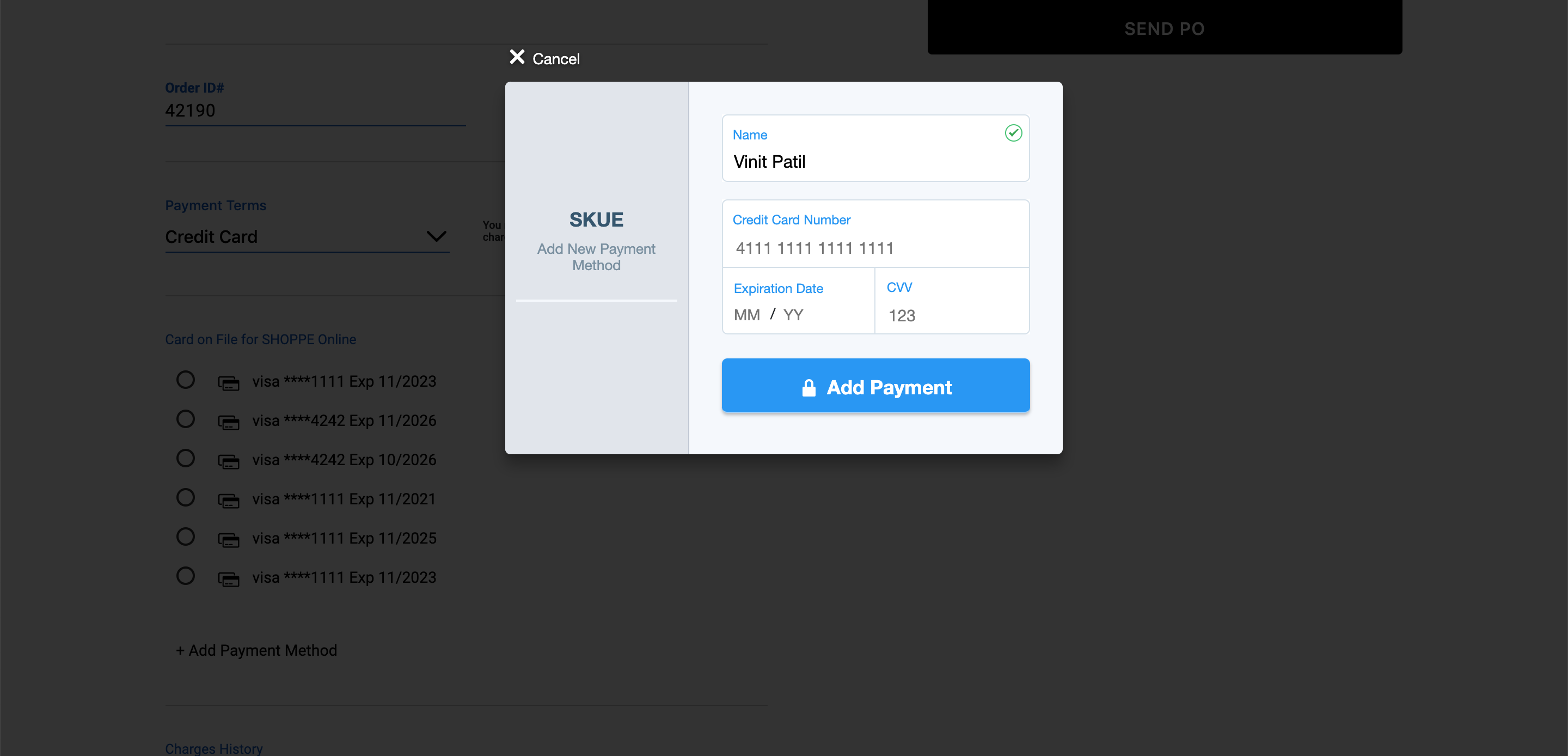
Capture Card Info
If the buyer offers a card, you can save the details (with full PCI compliance) for repeat use. Cards can be charged later after working out shipping costs ect. No need to reach out to the buyer again.
Confirm PO
Click “SUBMIT ORDER” to confirm. Both you and the buyer will receive a confirmation email.
PRO TIP: Edit Items
You can edit an order until you confirm by clicking "Edit Items"
All your orders can be managed from your Workdesk.
That's it, you're all set. Happy ordering!
Comments
0 comments
Please sign in to leave a comment.