
You can charge your customers' credit cards from within Ribbon. When you're ready to ship an order and process payment
- Go to the Purchase Order page in your workdesk.
- Choose the order you want to process
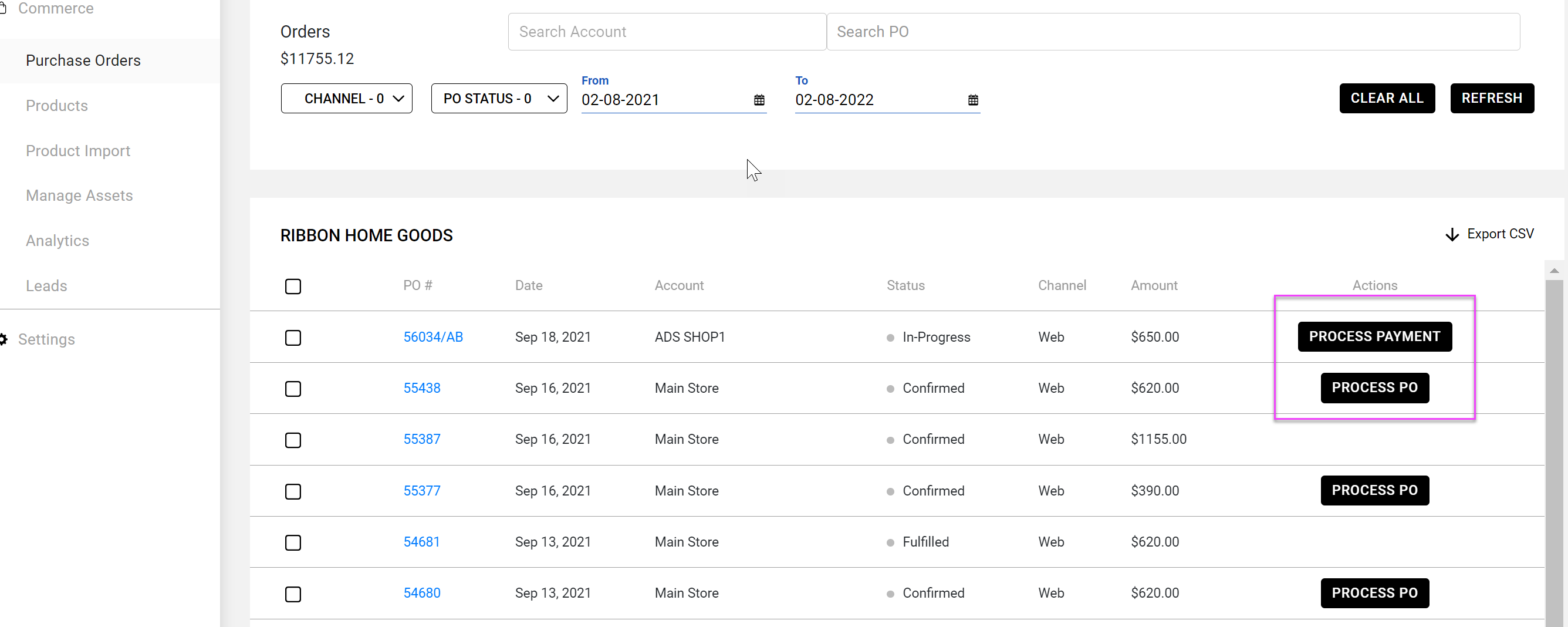
- You can choose Process PO for confirmed orders
- You can choose Process Payment for In-progress or partially fulfilled orders
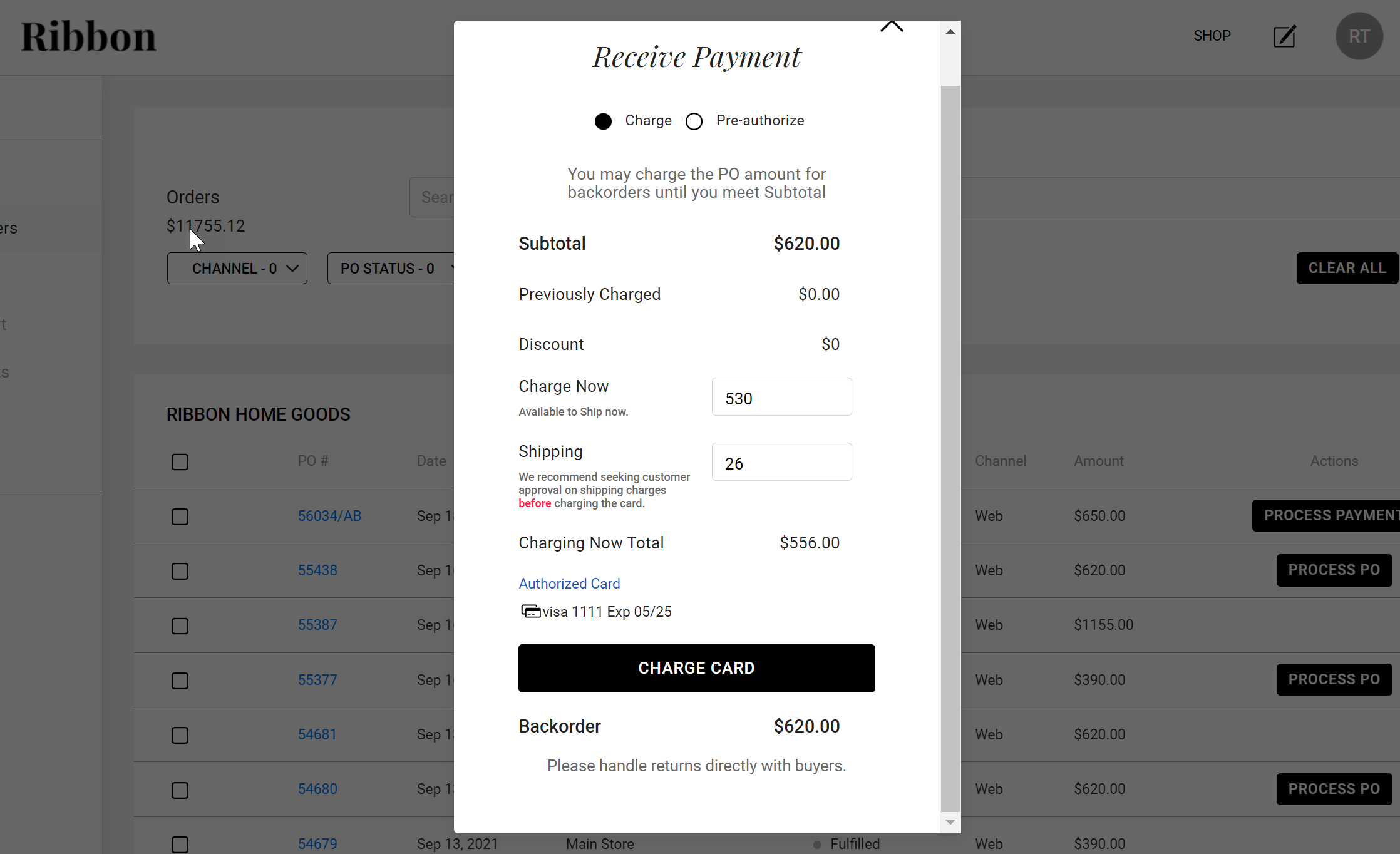
- You will see a pop-up where you can charge the card on file with the order total and add any amount for shipping.
- Fill out the necessary fields and click Charge Card.
You can also charge credit cards directly from your gateway dashboard. When you receive a PO, a customer profile is immediately created on your selected Gateway. You can find the customer based on name and last four digits of their credit card. Once you locate the customer, you can charge the associated card.
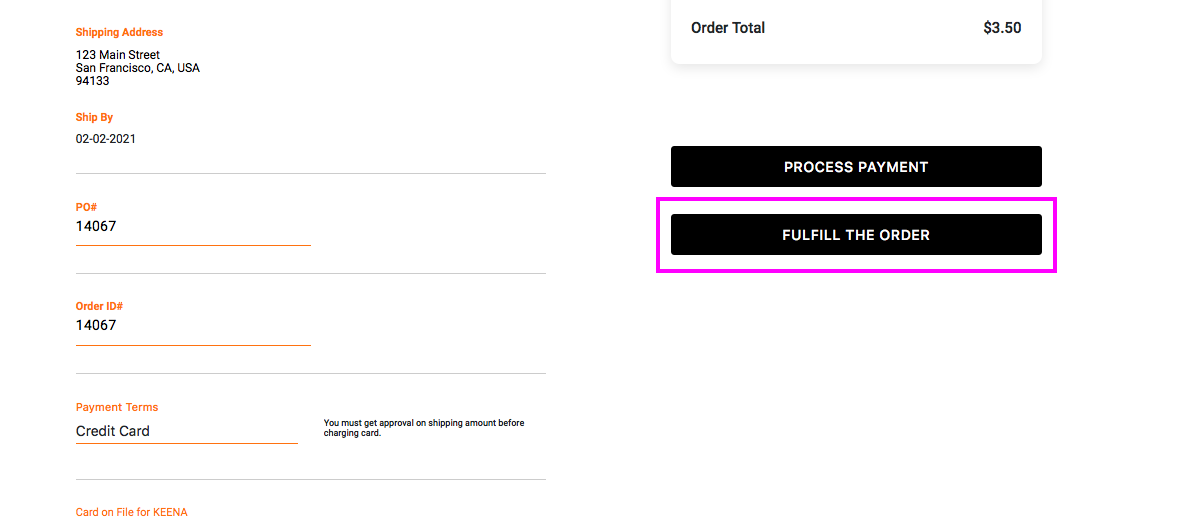
When you process a payment directly within Ribbon the order status will automatically change to Fulfilled or Partially Fulfilled. If you are not processing the payments within Ribbon, it's a good practice to manually mark POs as fulfilled or partially fulfilled after charging the card in the gateway. To mark as fulfilled, open the PO and click on Fulfill the Order.
Comments
0 comments
Please sign in to leave a comment.