
Processing POs on Ribbon starts with an email notification alerting you that a PO is confirmed. Click on the link to view the PO. Once you are ready to make the shipment, click process PO and charge the card. Here's a Step by Step overview
Step 1
View Purchase Orders on Ribbon. If the terms are See Notes, Send Payment Link, or Net 30/Net 60, then you may download or export the order and process it outside of Ribbon and then come back and mark it as Fulfilled.
If the terms are credit card then move to step 2.
Step 2
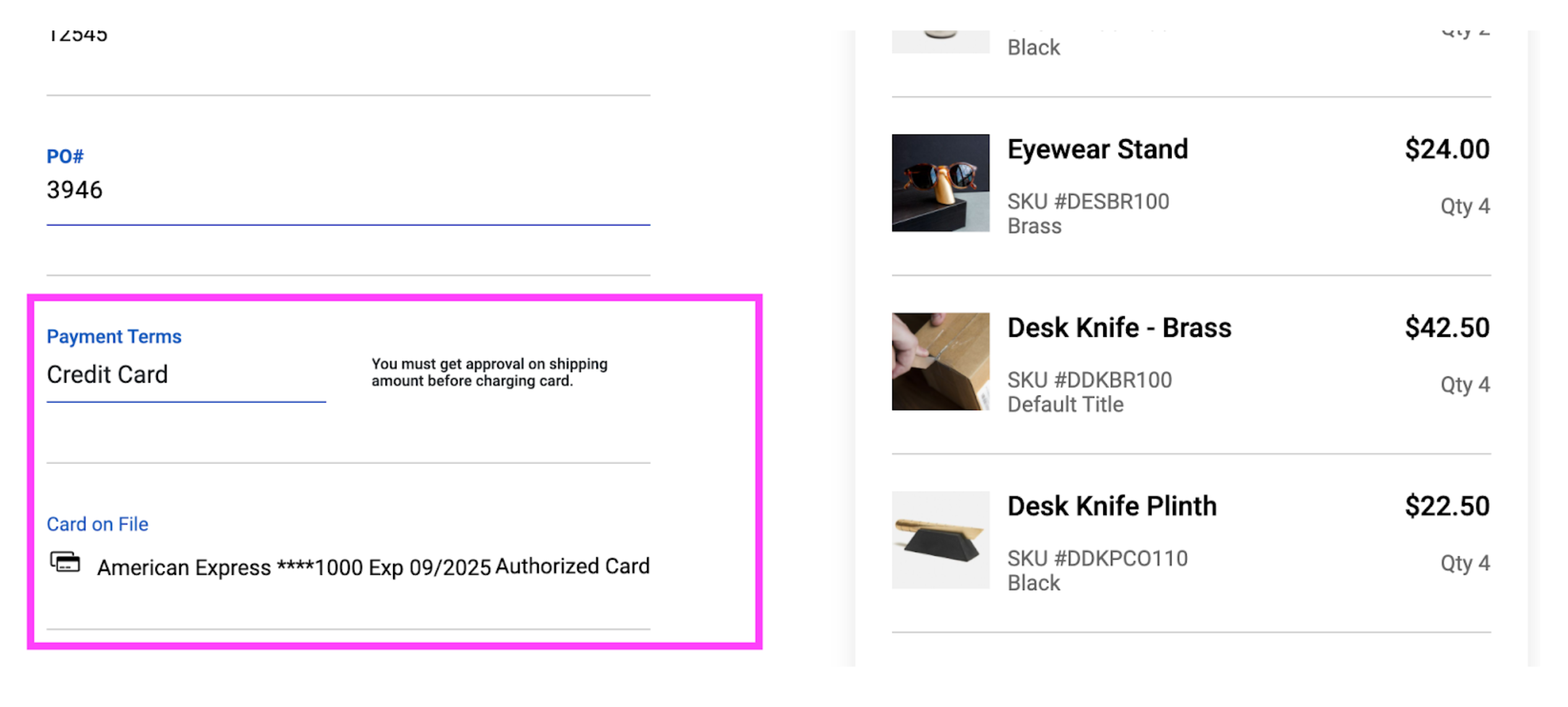
If terms are credit card, the card attached to that PO is preauthorized (and tokenized) with your Gateway. You will not at any time be able to view the 16 digits credit card number of the customer. Ribbon supports 45+ Gateway eg. Stripe, Braintree, Authorize.net . First your must connect your Ribbon portal to the New Payment Infrastructure.
Step 3
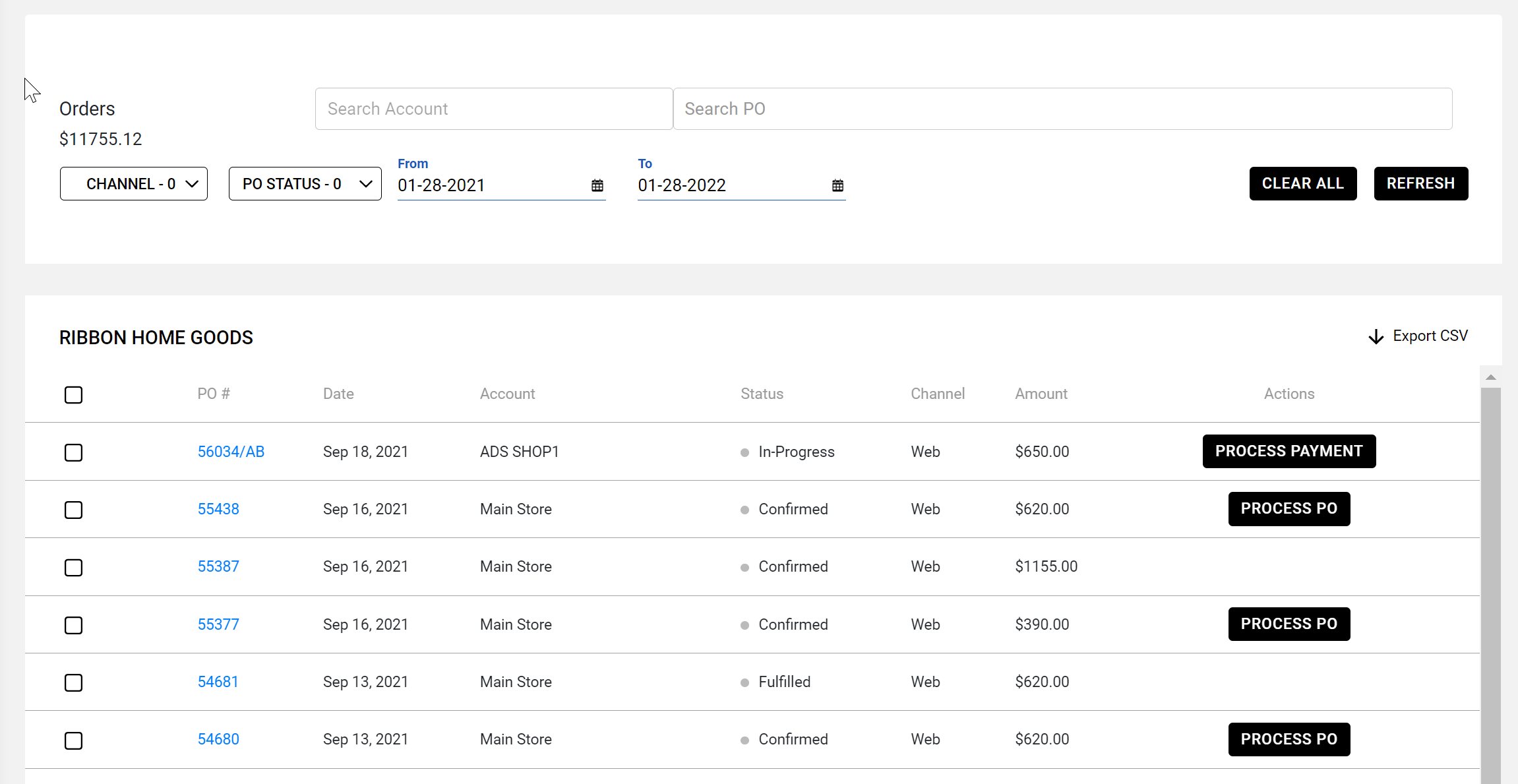
When ready to ship go to the Purchase Orders page and click on Process PO for confirmed orders or Process Payment for orders that have been marked In-Progress
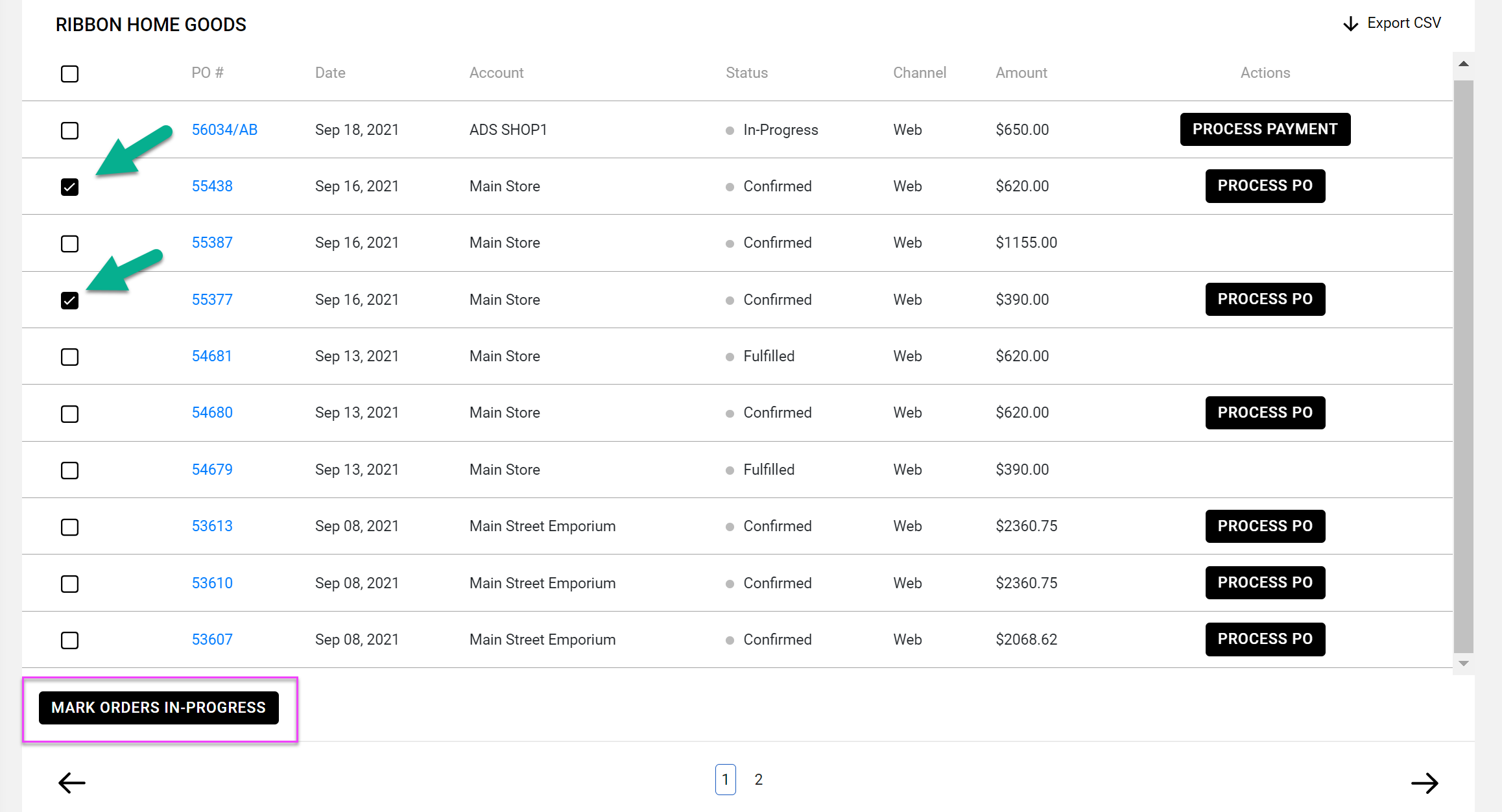
If it's going to be a while before the Ship Date, change confirmed POs to In Progress.
- Check the confirmed order(s) you want to change to In Progress
- Scroll to the bottom of the list and click Mark Orders In Progress
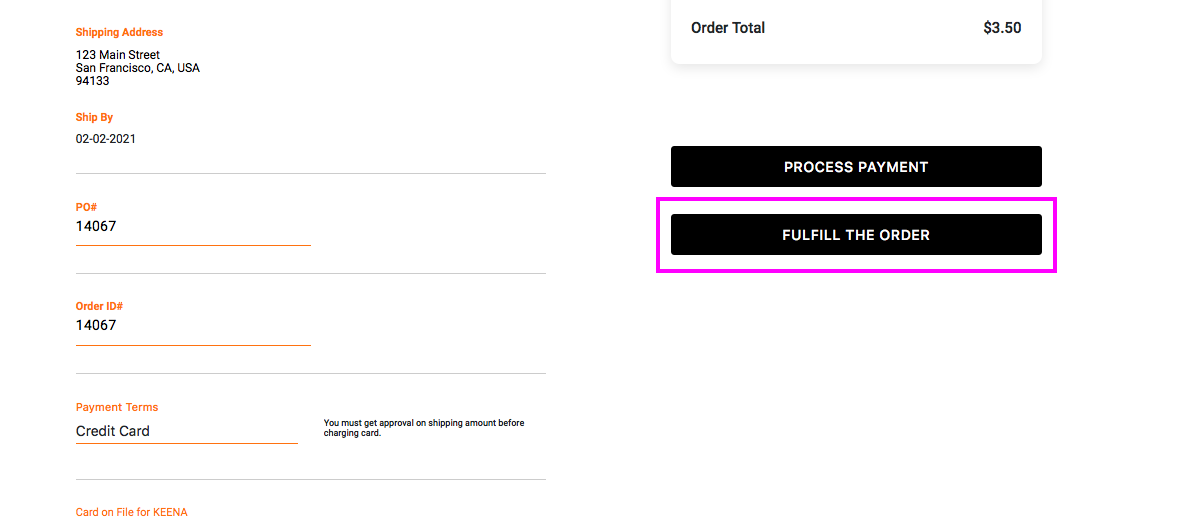
Once you are ready, charge the card and then mark the PO as Fulfilled.
Step 4
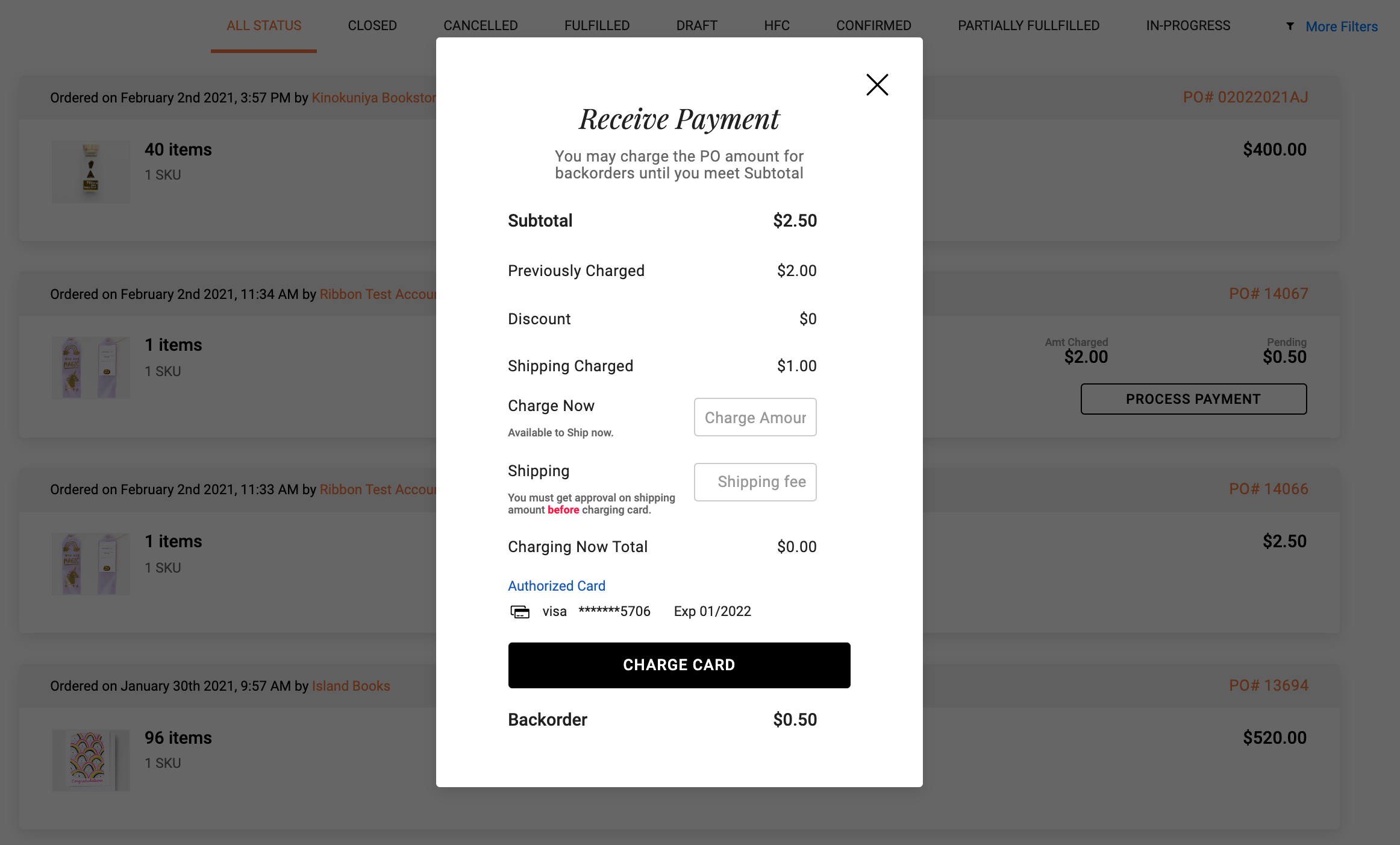
You will see a pop-up where you can Charge the card on file with the
Order total (Subtotal + Freight amount).
Fill out the necessary fields and click Charge Card.
If you do not charge for the full amount of the balance the system will mark the order as partially fulfilled, and list the backorder total at the bottom of the CC processing pop up.
Step 5 : ALT METHOD
When a customer sends you the PO, a customer profile is immediately created on Stripe or your selected Gateway. You can find the customer based on name and last four digits of the card. Once you locate the customer, you can charge the associated card.
Step 5 : MARK AS FULFILLED
Once you process the payment, the order status will automatically change to Fulfilled. If you are not processing the payments within Ribbon, iIt's a good practice to manually mark POs as fulfilled once processing is complete. To mark as fulfilled, open the PO and click on Mark as Fulfilled.
Comments
0 comments
Please sign in to leave a comment.