
Think of your profile as your virtual showroom. An attractive, well set up profile will not only draw customers to your "showroom" it will make your customers' shopping experience easy and fun. Your trade show organizer will assist you in setting up your profile.
Your virtual showroom has three parts:
- Brand Profile Page
- Brand Collection, and
- Brand Terms.
Think of your Brand Profile as your own personal, perfect showroom window, and your Brand Collection as your beautiful wholesale trade show booth. The first is public-facing, seen by anyone browsing, while the latter is concealed within your Agency's Vendor Collections, and only available for view upon login by vetted, authenticated, pre-registered buyers with Buyer Profiles. The Brand Terms are where buyer can find details about ordering from you.
It is important to tend to your profile regularly, making sure its correct before launch — as well as periodically throughout the season — ensuring everything is up-to-date, accurate, and looking as beautiful as possible!
Building your Brand Profile Page
- Log into your profile
- Click "Edit Profile"
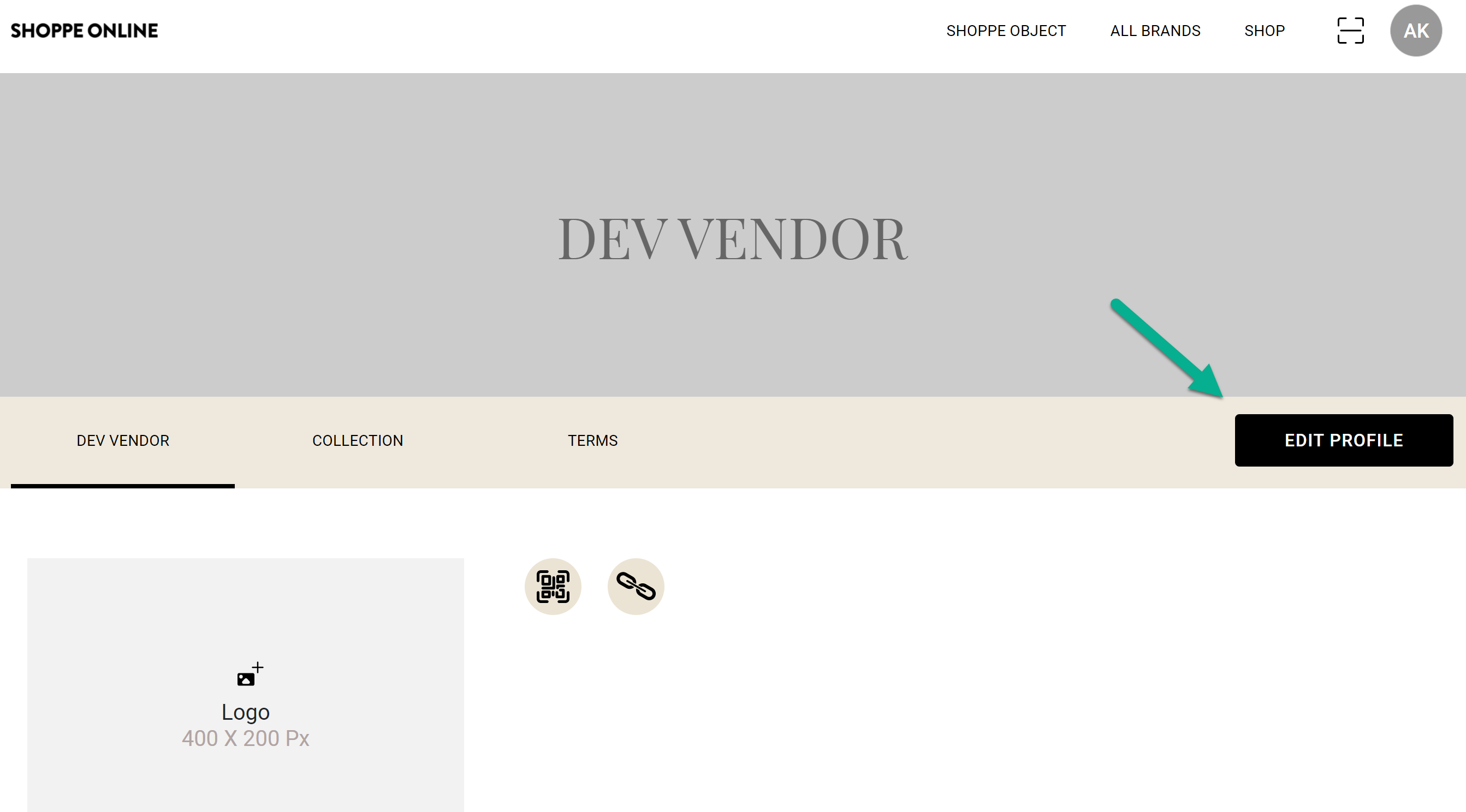
- Add text, photos, video and links
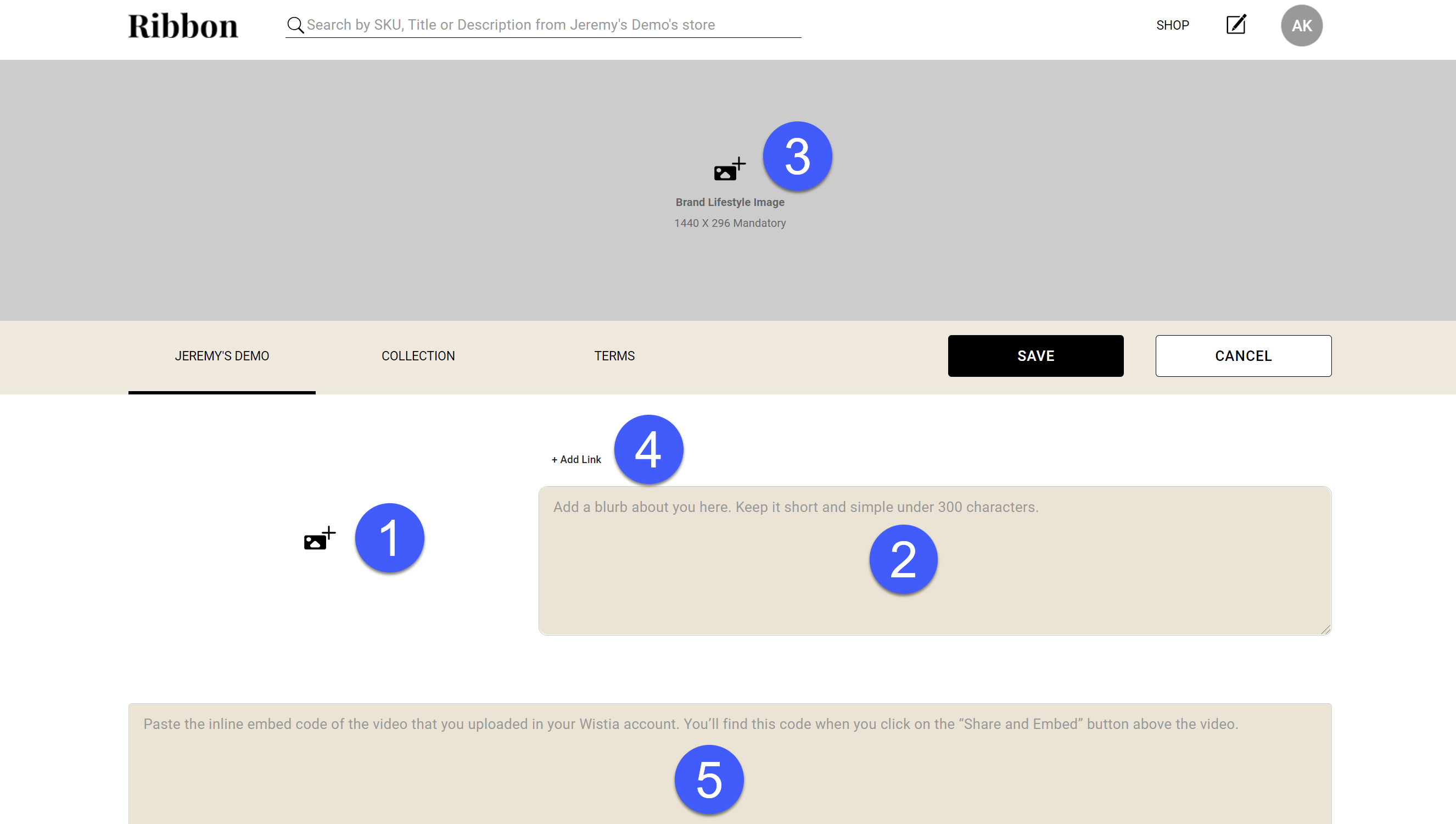
-
- Logo

- Specifications: Format can be either .png or .jpeg in 500x500 pixels.
Logos must have a solid white or transparent background.
- Specifications: Format can be either .png or .jpeg in 500x500 pixels.
- Brand Description

- Two to three sentences about your brand. Think of this as your elevator pitch; a concise boilerplate meant to quickly engage viewers!
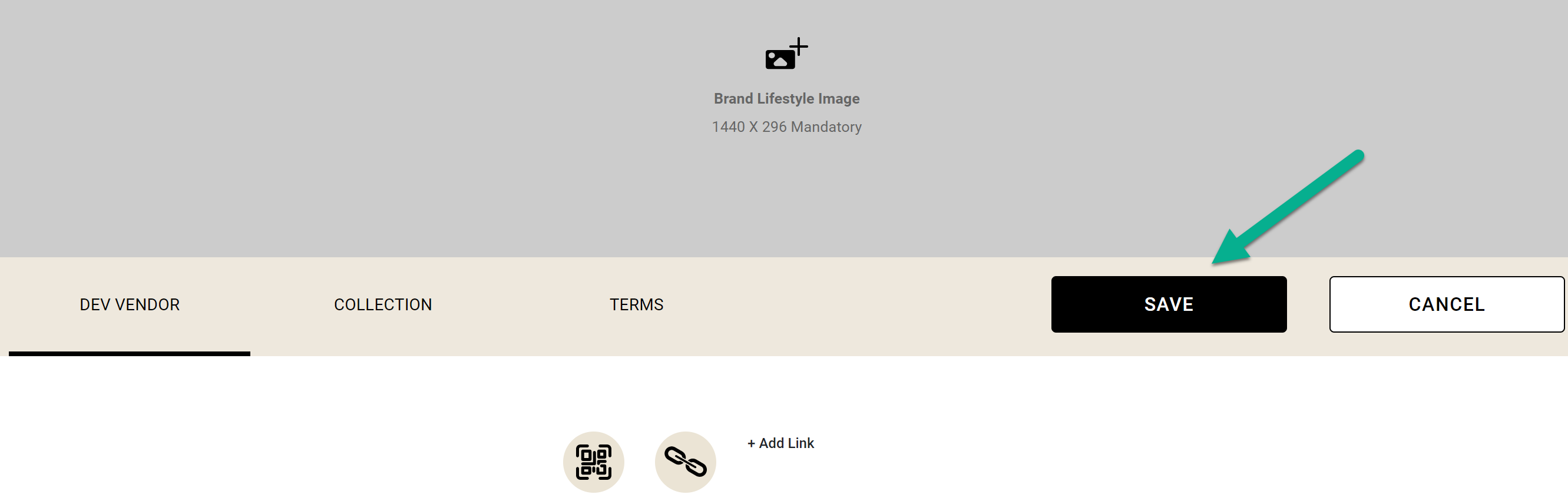
- Brand Lifestyle Image

- Specifications: Recommend size 1440 x 296 pixels in height, jpeg or png format.
- Drag and drop or click in box to upload file
- File name should not have any spaces or special characters
- Instagram Link

- Click on +Add Link and paste link URL
- Brand Lifestyle Video
 .
.
- A promotional video in a prominent space on your Brand Profile page. It is important to utilize this space wisely; we encourage you to produce and post a compelling video that’s attractive and evocative of your brand, and not too long — 1 to 5 minutes max!
- Brand Profile Video must be hosted on our chosen video hosting software, Wistia!
- Set up your free account via the link above
- Customize the color and branding of your video
- Embed your link directly into your profile!
- Logo
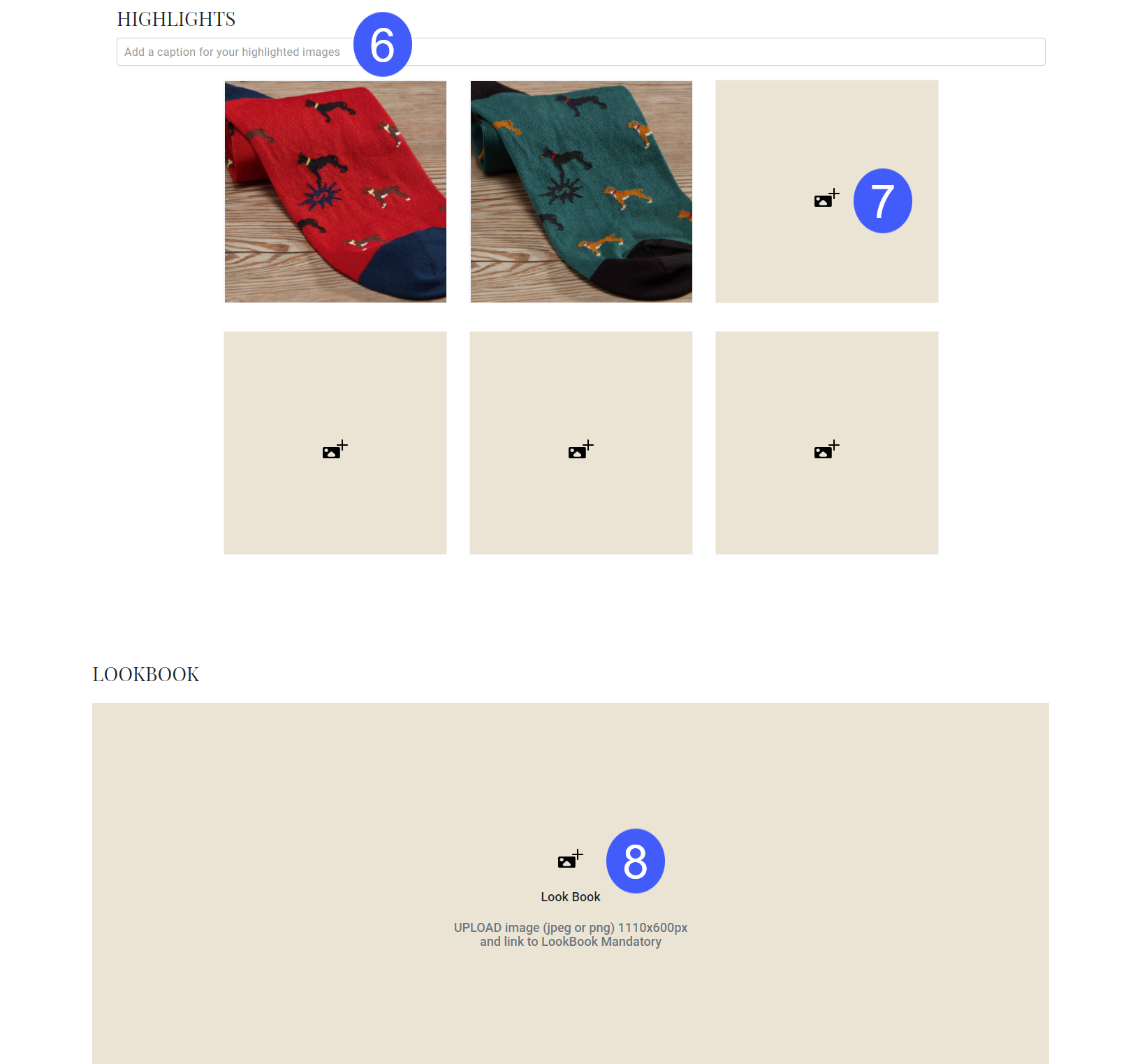
-
- Highlights
- Text

- What’s new? What are you featuring this season? Here’s your chance to give buyers insight on your newest collection, your most defining products, or a quick snapshot of your overall assortment.
- "Highlights" images
- Merchandise these six image boxes to showcase your best, most compelling products, front and center. These six images should give buyers a reason to click through to your complete Brand Showroom, so pull them in! These images can link to products within your Collection.
- File requirements
- Filename cannot contain spaces or special characters and must be .png
- File should be square (if not it will be automatically cropped to fit)
- Adding images

- Click on
 in Highlights box
 - Drag image file into pop up window underneath Add Image
- Add URL link to Product Description in Ribbon
- Click on
- Text
- Lookbook

- Add your lookbook image and the URL to where your catalog is hosted online
- File size 1110x600 (jpeg or png)
- Click on in Highlights box
- Drag image file into pop up window underneath Add Image
- Add URL link to catalog
- Click on
- Highlights
- Click "Save"
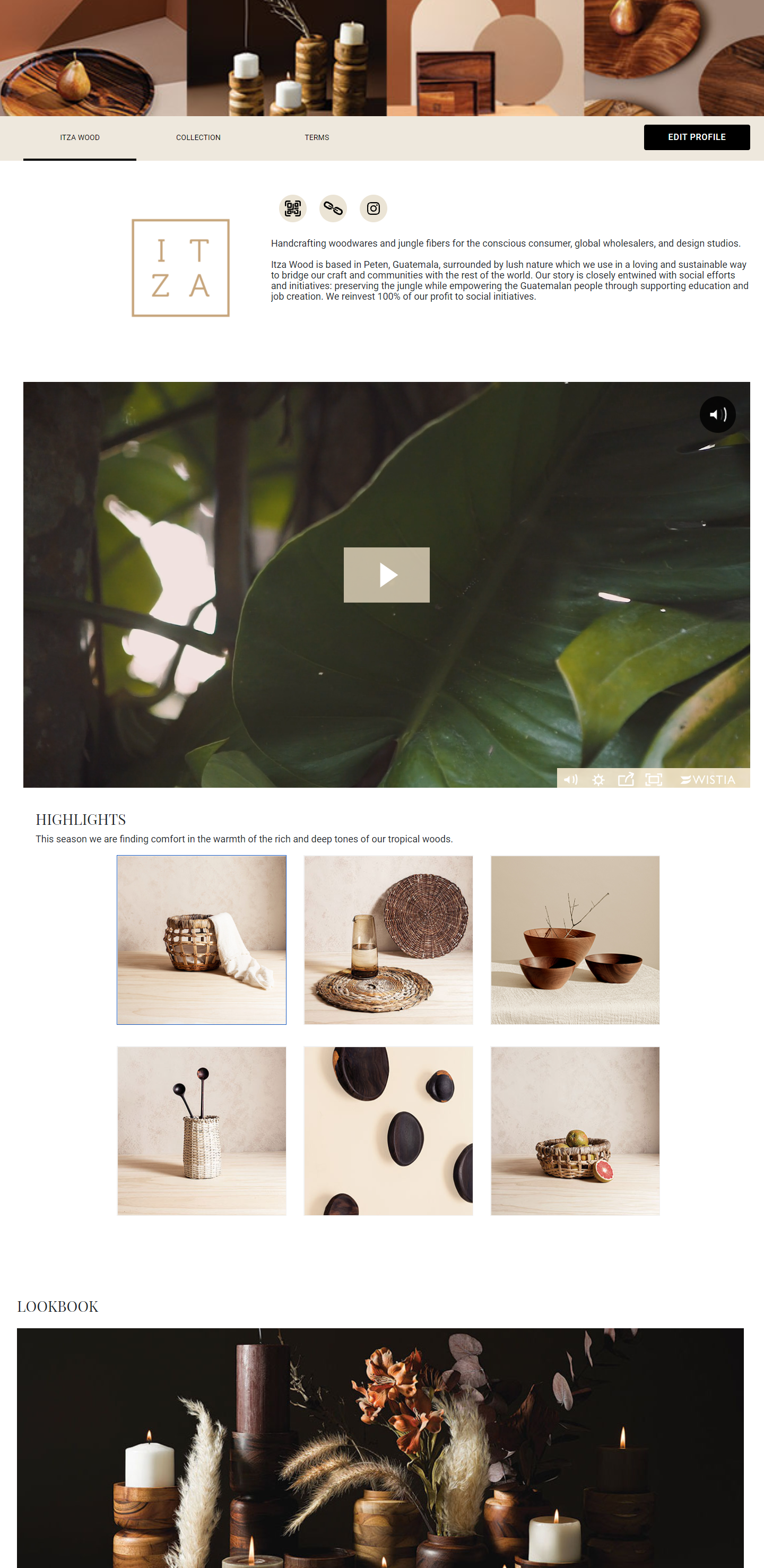
Here is an example of a well made Brand Profile
Building you Brand Collection Pages
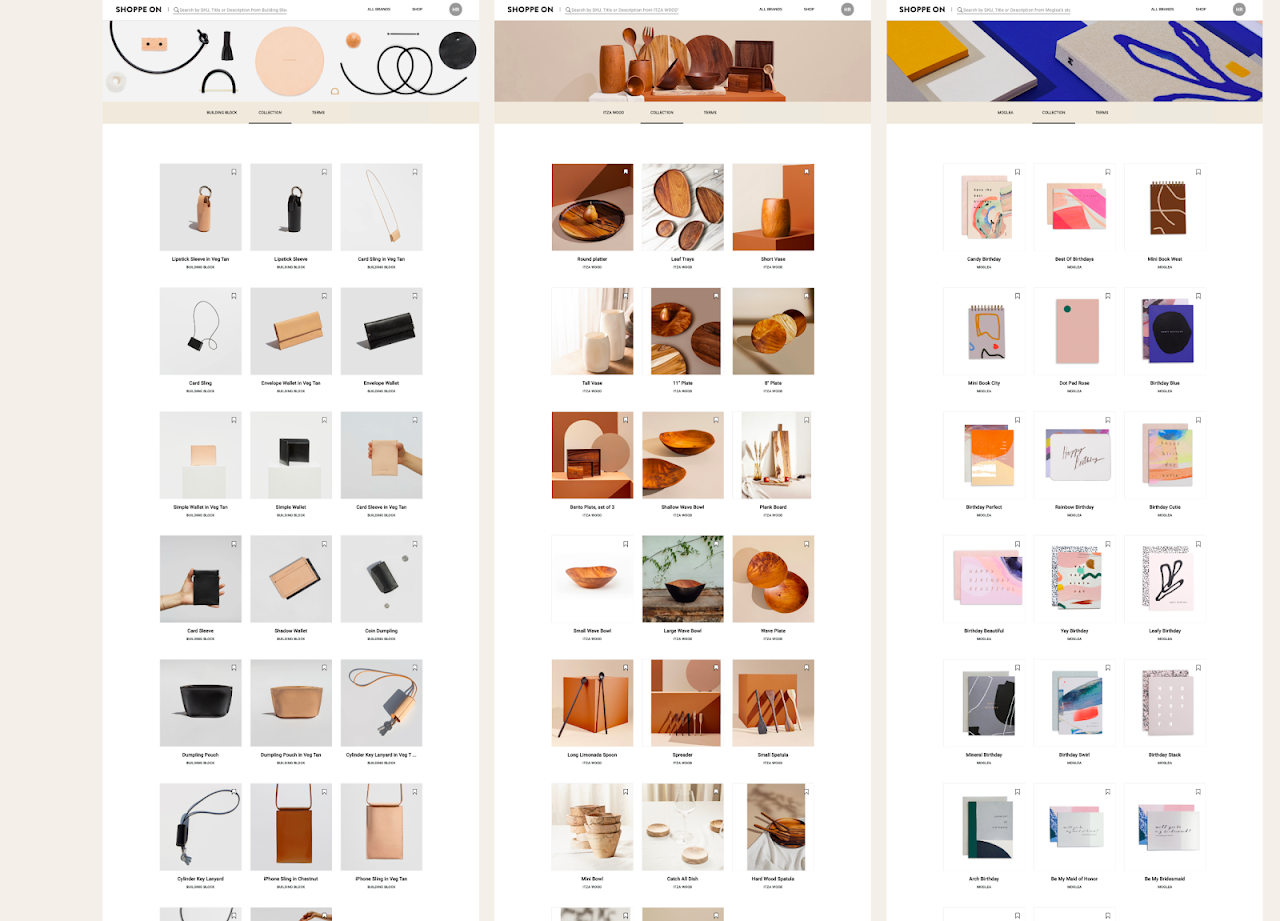
Your Brand Collection is how your products are displayed. and all information buyers will need in order to place orders. This is the most important step in setting up your profile and it involves a few steps.
To build an attractive collections page refer to our Product Import tutorials.
Here are a few examples of well made Brand Collection pages.
Building you Brand Terms Page
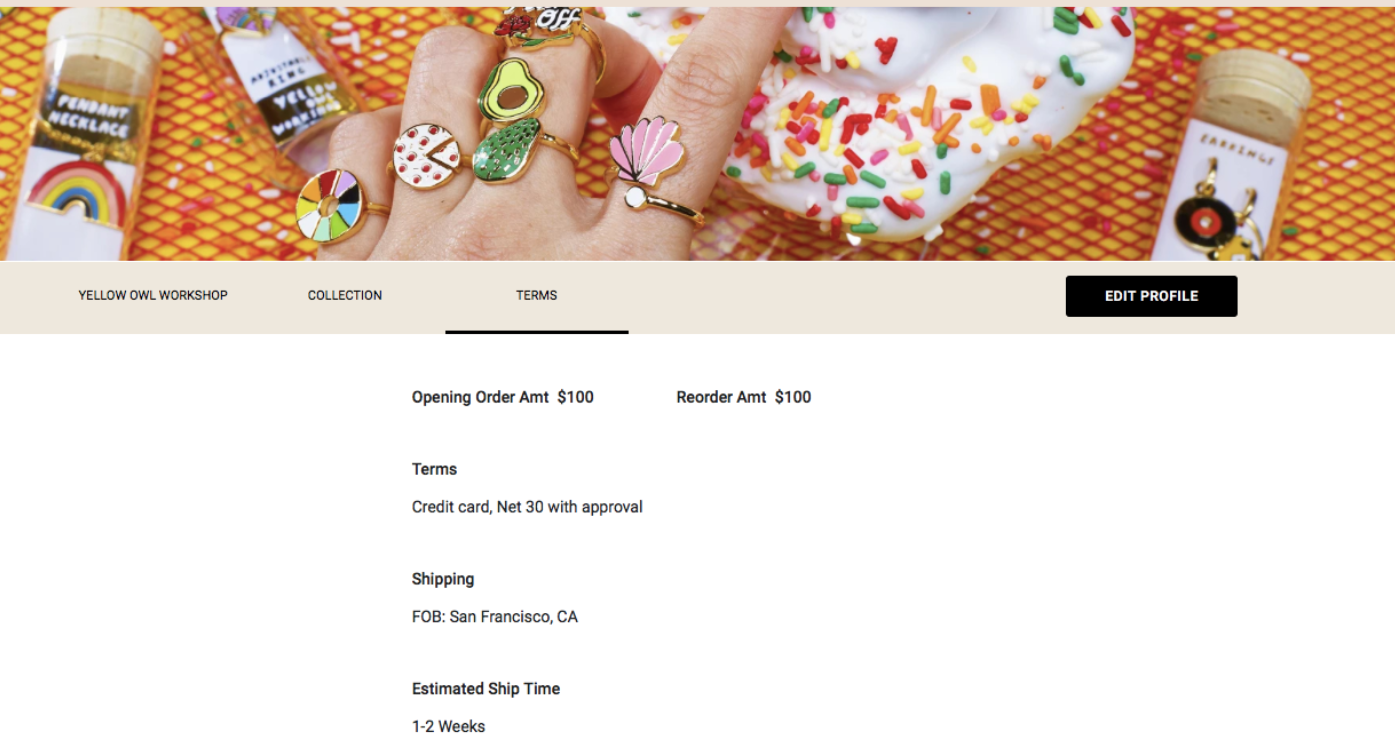
Your Brand Terms page is where buyers can find what they will need to know to place orders, including opening order amount (for new customers), re-order amount (for existing accounts), terms, and shipping information
- Click "Edit Profile"
- Click on "Terms"
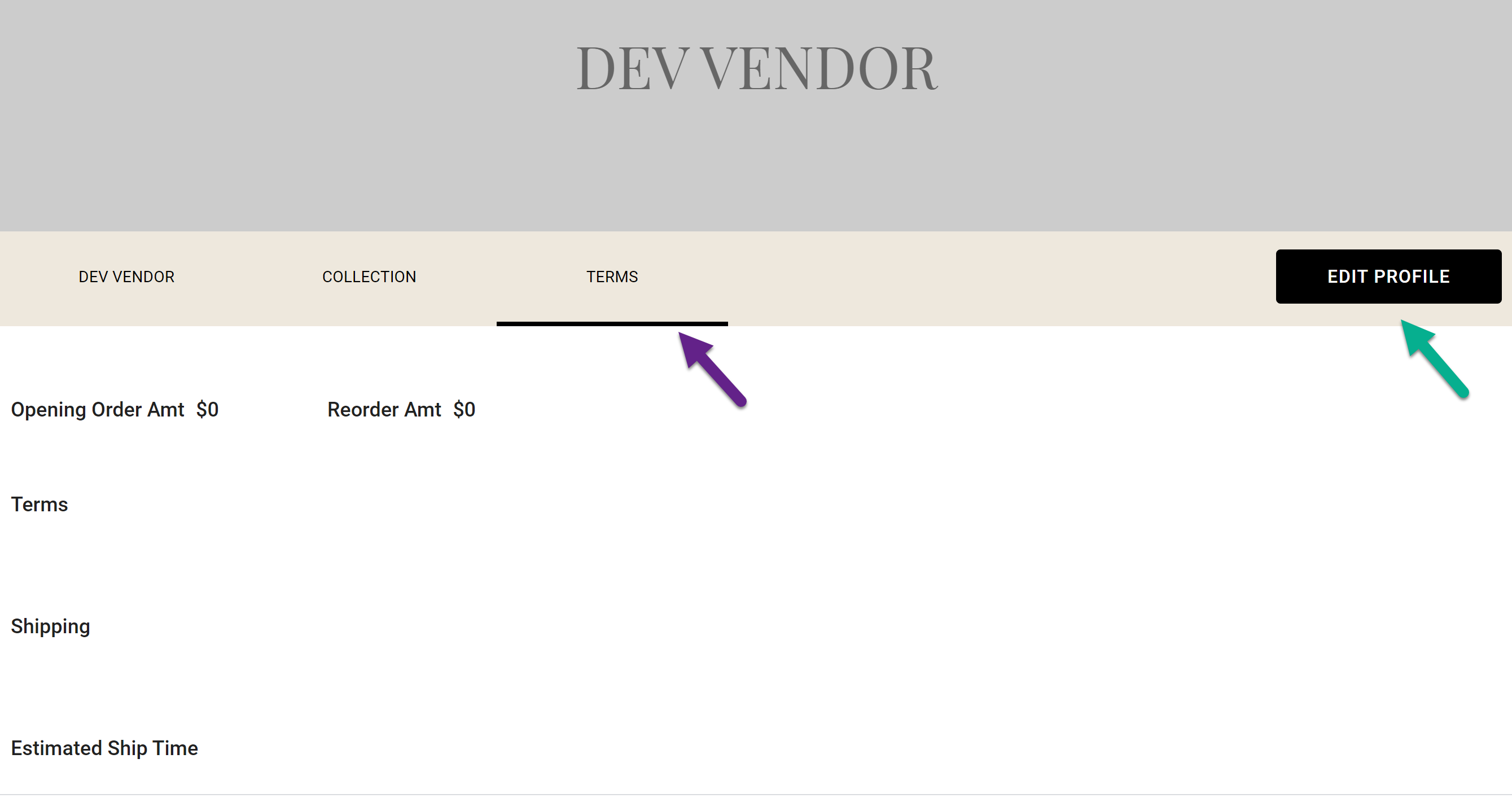
- Fill in appropriate fields
- Click "Save"
Here is an example of a completed Brand Terms page
Comments
0 comments
Please sign in to leave a comment.