
Changes to your Collection may take some time to display on your live Collection page.
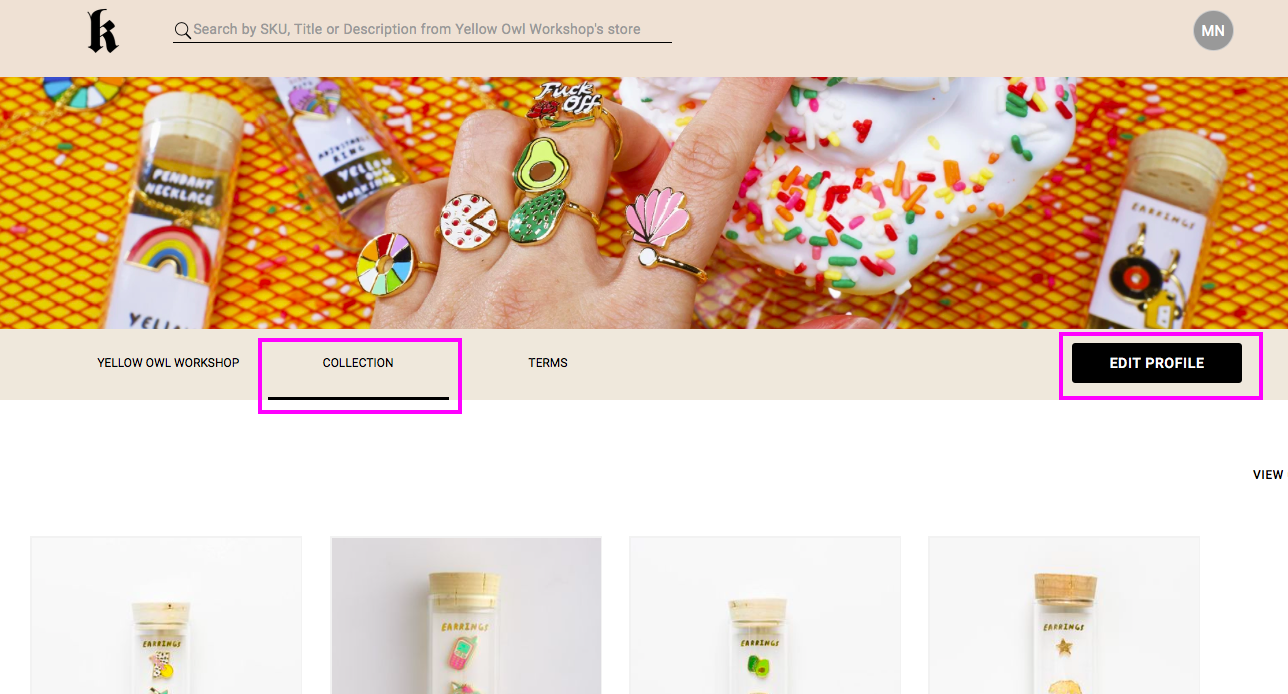
You may preview your changes by clicking on Edit Profile and selecting the Collection tab.
If your images are not showing up properly, please check the following and try to re-upload your CSV:
- Images need to be in one column titled "Image URLs"
- Multiple images for the same product should be in multiple rows one below another
- Make sure image URLs are showing as actual web links in the CSV. You can check if a link is valid by pasting into a browser.
- Image URLs can contain alphanumeric and dashes. No other special characters are allowed.
Make sure:
- Your image link is a valid url
- Even if it's a valid url, make sure it doesn't redirect to another url. I.e., make sure when the image loads, the url remains the same.
NOTE: Recently Dropbox made a change that has impacted the ability to view their images on Safari. While we cannot control any changes made by 3rd parties, we are offering some suggestions on how you can make sure your customers can view your collection on Safari.
Here is a link to a discussion on the dropbox forums if you'd like to read more:
Here is what you can do to make sure your Ribbon site is optimized for viewers using Safari
- Replace individual images by editing each product and dragging and dropping a new image
- Replace all dropbox image links with image links to your hosted images on the CSV (from your website is the preferred method)
- Contact me about alternative image hosting options within Ribbon
How to check your product file for images that might be affected:
- Export your product file
- Check for any dropbox links that are for published products. Any products that have a Status of 2 are deleted and can be disregarded
If you continue to have issues, please contact the helpdesk.
Comments
0 comments
Please sign in to leave a comment.