
Think of the Workdesk as your dashboard for viewing your purchase orders, managing your product collection and accessing your profile settings.
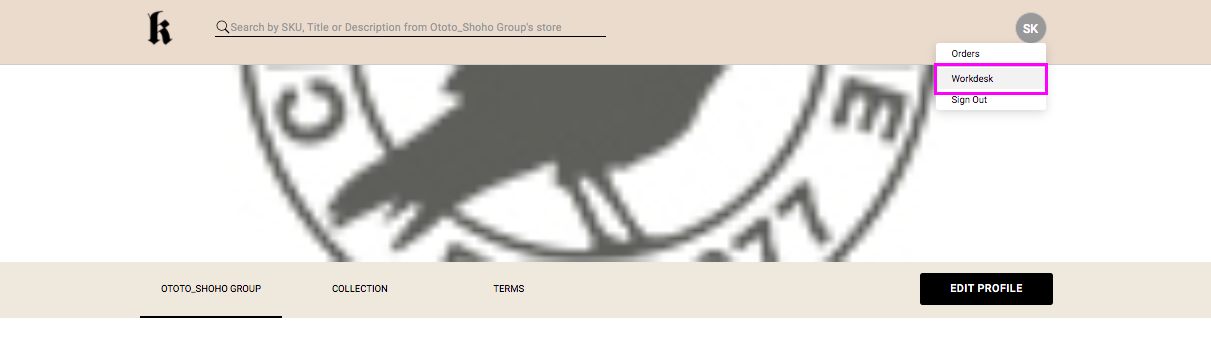
Log onto your Workdesk by going to the gray profile circle at the top right of your screen and clicking Workdesk. This will take you directly to the Purchase Orders section of your Workdesk.
Purchase Orders
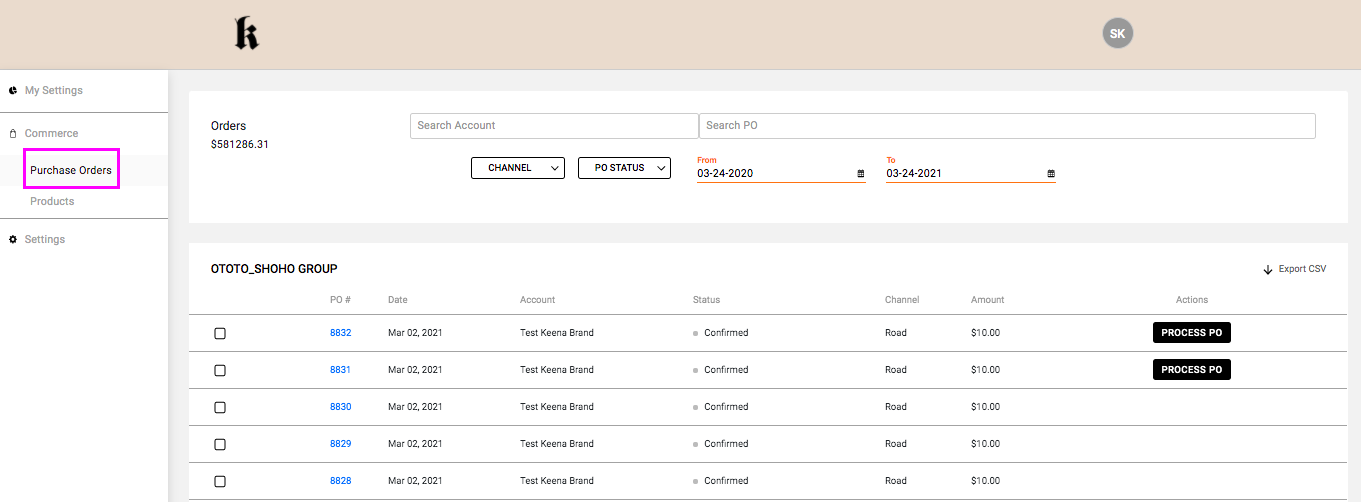
In this section you can view your orders, and using the filters at the top of your order list, you can narrow them down based on date range, channel, order status, PO #, etc. You can also use the search bar to search by account name.
Products
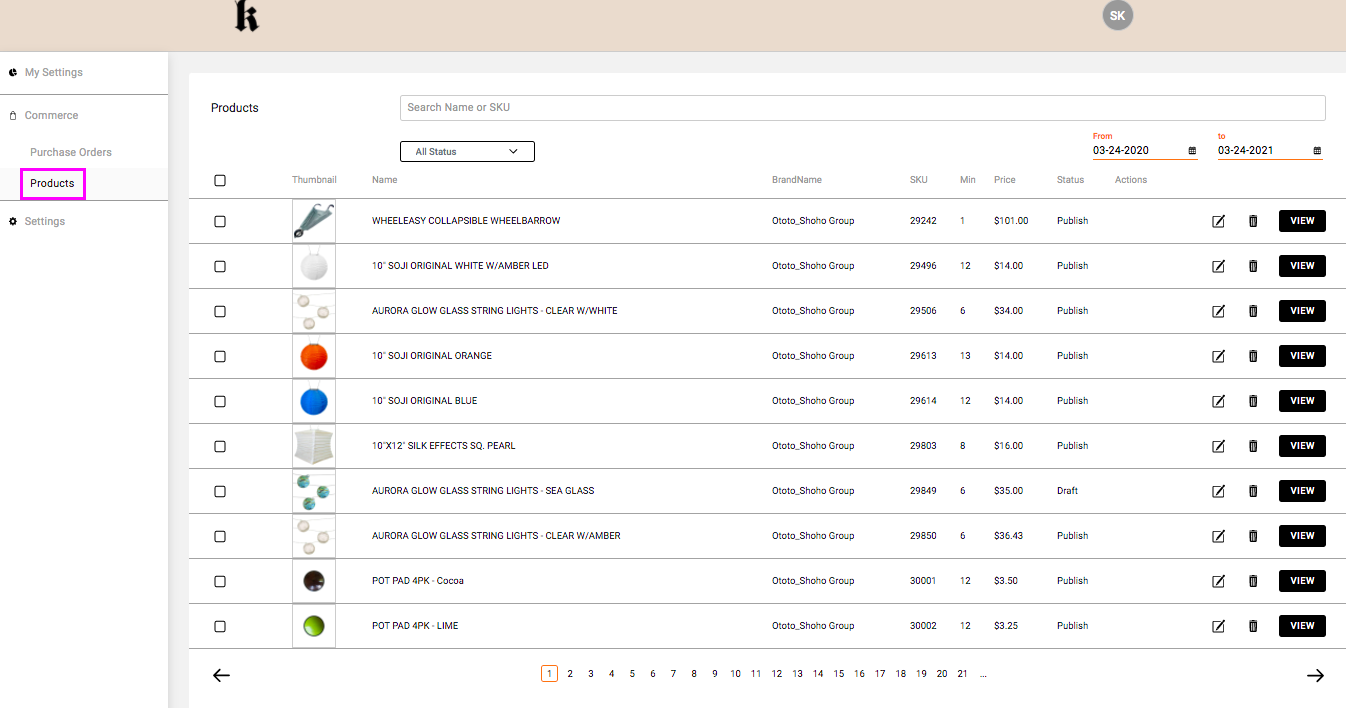
In the Products Section of your Workdesk, you will see a list view of the products in your collection. You can use the search bar at the top to look for a specific SKU or Product Name and you can also use the drop down menu to filter by status (Published, Draft, Deleted, Hidden, Discontinued).
From here, you can click on any individual product to open the detailed view and make any edits or changes as well as delete your products. All the fields within the highlighted box are editable. Once your changes have been made you can Publish, Save Draft or Delete.
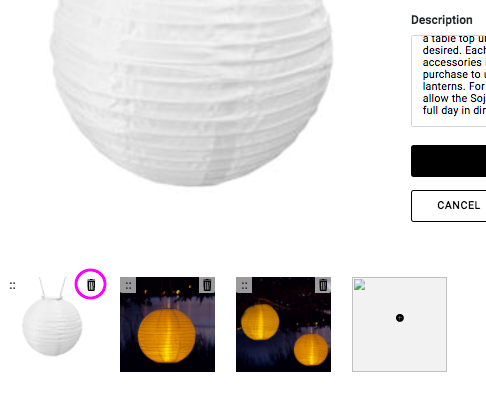
You can also edit the images. To do so:
- Select the image by clicking the thumbnail
- Then click on the Image shown above the thumbnails. This will prompt you to select a different image from your device to replace the existing image.
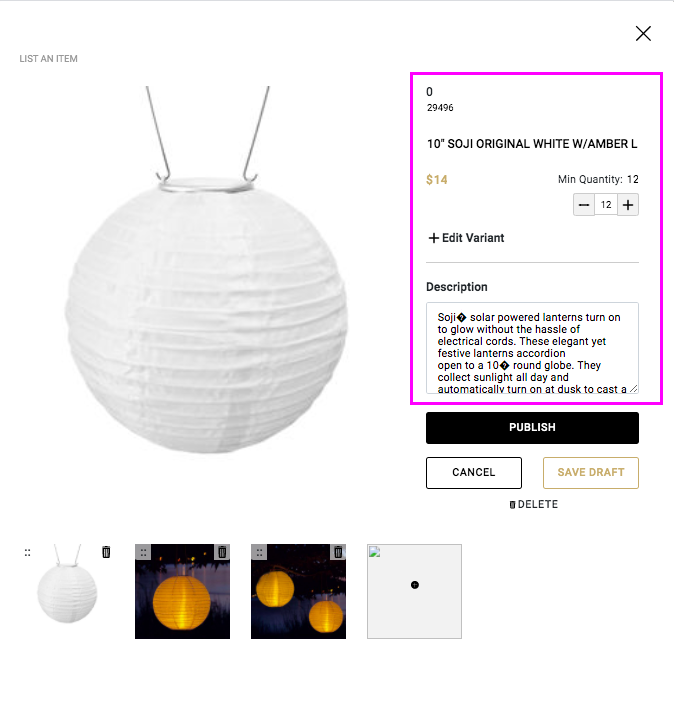
To delete an image click the small  icon at the top right corner of the thumbnail itself.
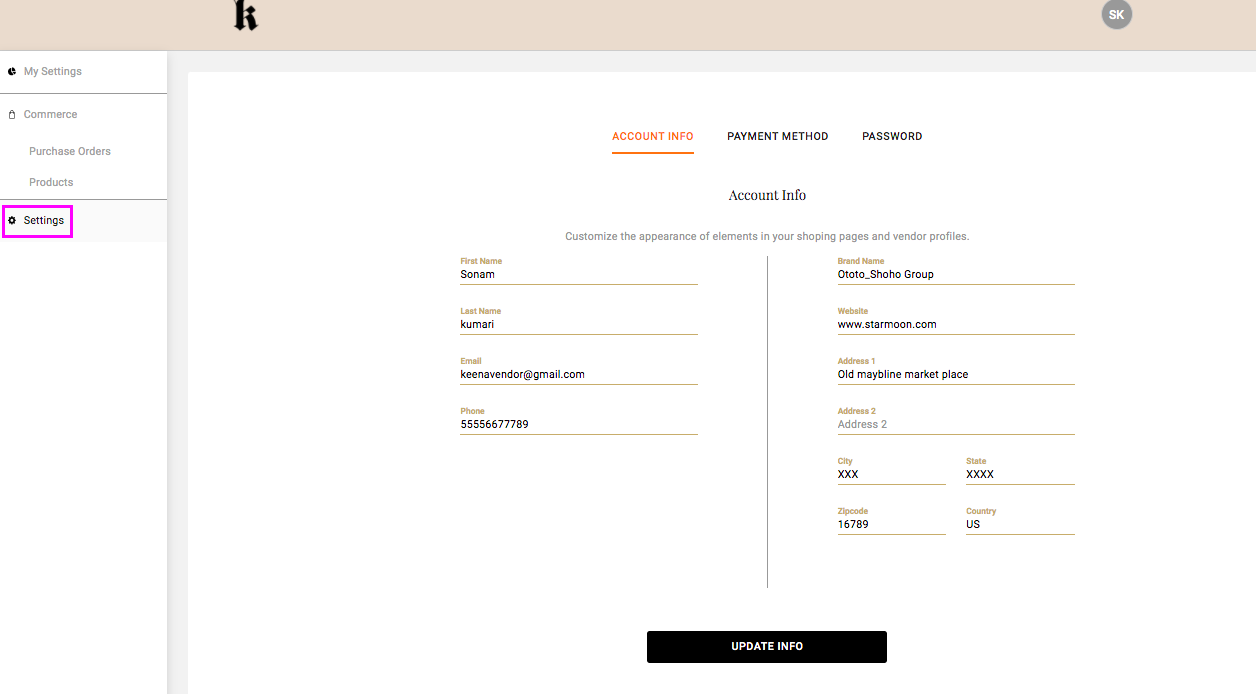
Settings
Under the Settings section of your Workdesk you will find your Profile Information. You can update your Account Info, Payment Method (Payment Gateway) and Password by selecting the appropriate tab at the top, entering the updated information and clicking Update Info.
Comments
0 comments
Please sign in to leave a comment.