
Authorize.net is one of the 50+ Gateways supported Ribbon. Integrating your authorize.net account enables you to receive credit cards in a PCI Compliant way and use the cards for repeat charges.
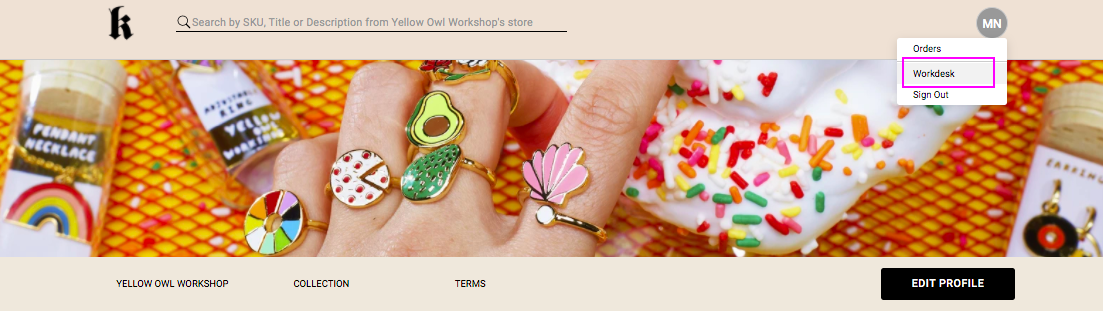
To integrate your authorize.net account with Ribbon select Workdesk from your profile icon
Once on the Workdesk, select Settings on the left-hand sidebar, and navigate to Payment Method on the main screen
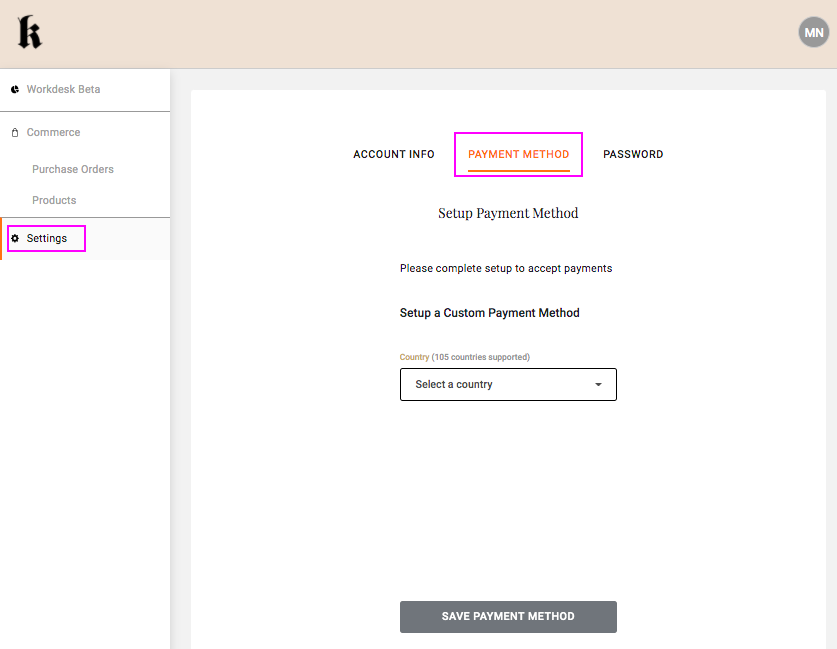
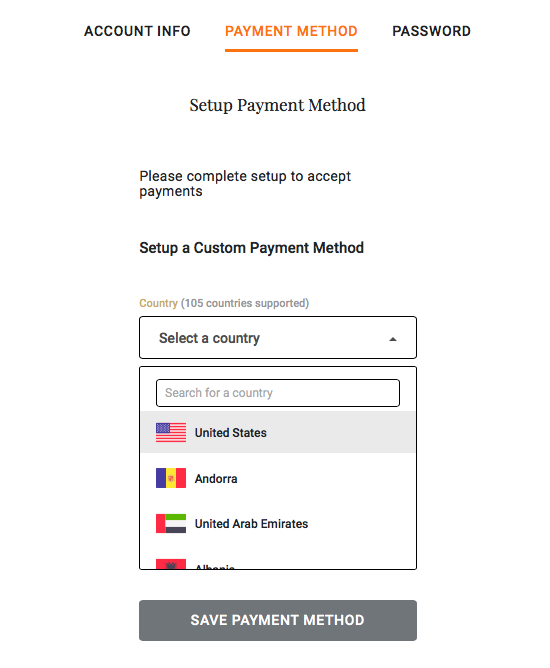
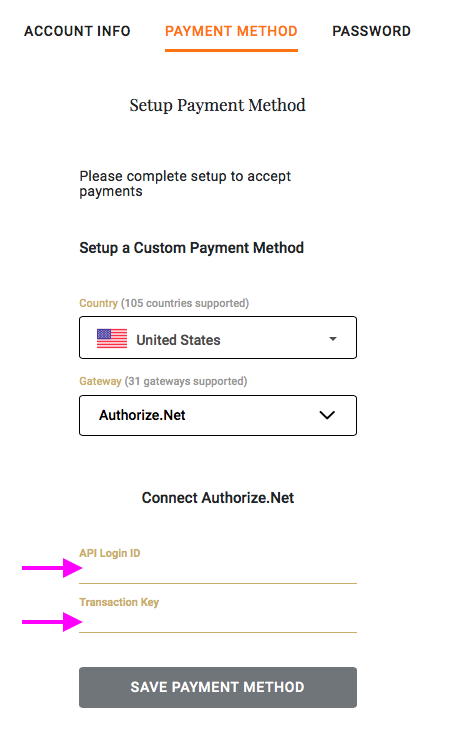
Select your country from the dropdown menu.
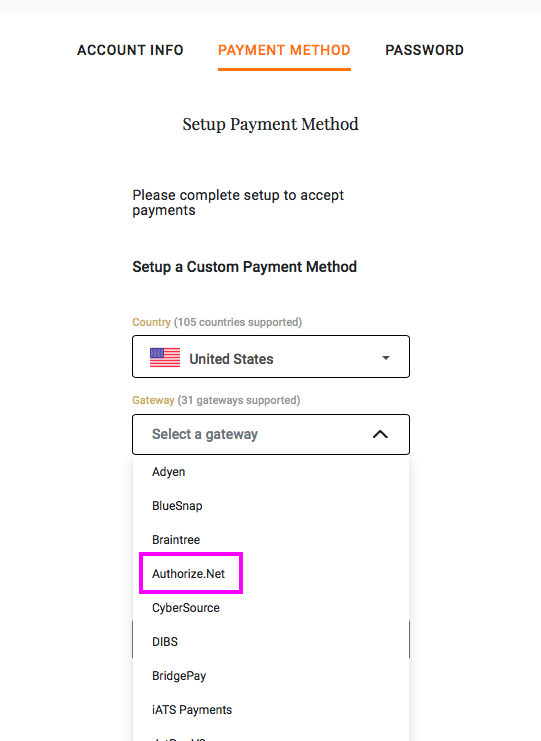
Then select authorize.net from the drop-down list.
Enter your Authorize.net credentials. These can usually be found in the settings sections of your Authorize.net account. And click on Save Payment Method.
NOTE: Authorize.net will create a $0 transaction and refund the amount to validate new cards. This is part of their standard operating procedure.
How to create a Transaction Key
- Log into the Merchant Interface.
- Click Account from the main toolbar.
- Click Settings in the main left-side menu.
- Click API Credentials & Keys.
- Select New Transaction Key.
- Note: When obtaining a new Transaction Key, you may choose to disable the old Transaction Key by clicking the box titled, Disable Old Transaction Key Immediately. You may want to do this if you suspect your previous Transaction Key is being used fraudulently.
- Click Submit to continue.
- Request and enter PIN for verification.
- Your new Transaction Key is displayed.
Be sure to store the Transaction Key in a very safe place. Do not share it with anyone, as it is used to protect your transactions.
Additional info can be found here:
https://support.authorize.net/s/article/How-do-I-obtain-my-API-Login-ID-and-Transaction-Key
Comments
0 comments
Please sign in to leave a comment.