
When exporting a product (or any) file as a CSV, if there are any cells that contain a number with leading zeros, those zeros will not save. An example of this would be exporting a product to CSV where the SKU is 005500, the export will save it as 5500, dropping the leading zeros.
There is a solution! Here is a step by step process on how to export a file that has leading zeros.
Note: Depending on your computer and version of excel there can be several ways to do this. Below is the easiest. In the rare occasion this does not work, reach out to help@meetribbon.com and we can guide you through alternate processes for your setup.
- Export your product file from Ribbon as normal.
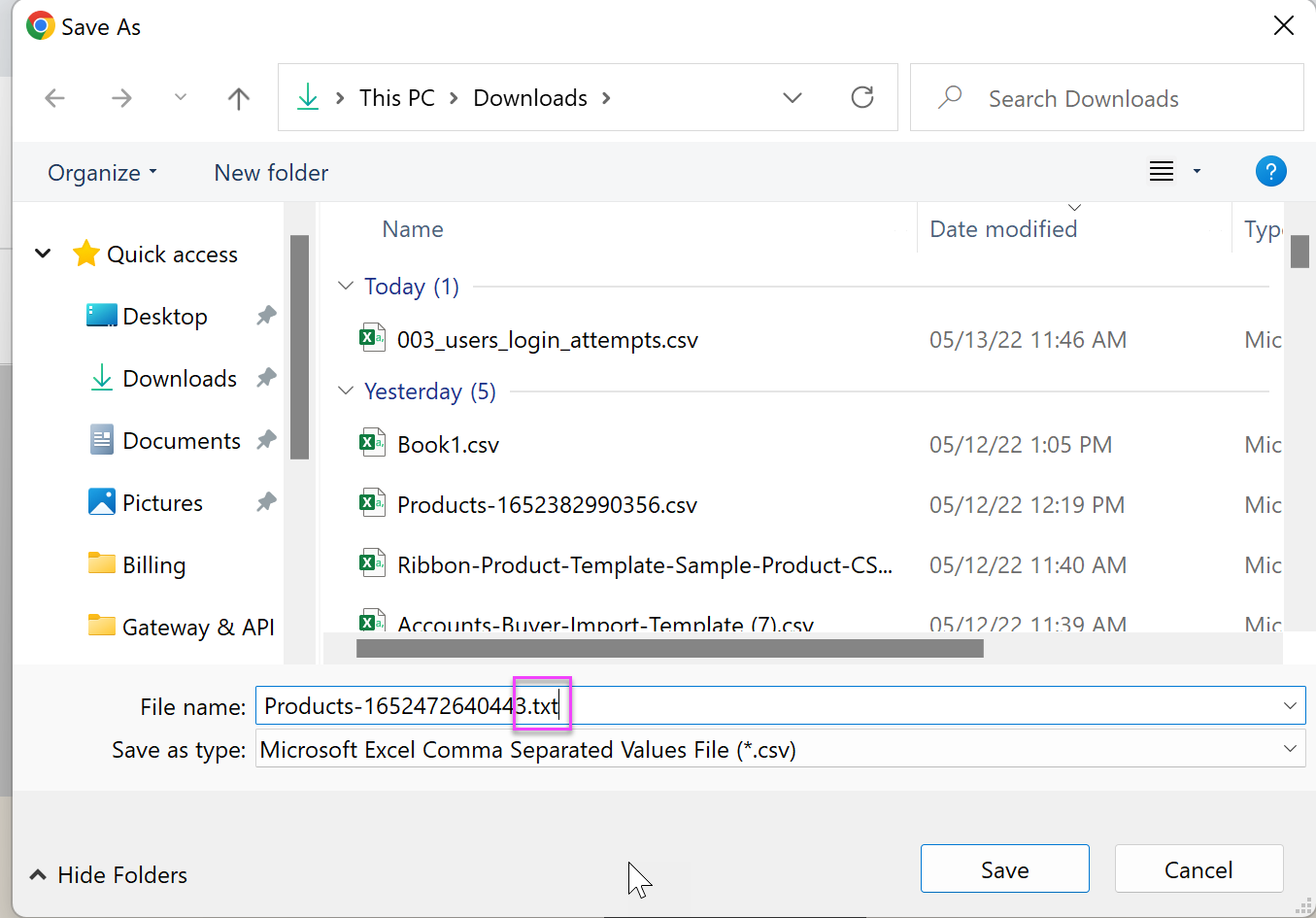
- Save the product file as a .txt file
- In the "Save As" pop up window, replace the .csv with .txt in the "File Name" bar
- Click Save
- Open a new excel spreadsheet
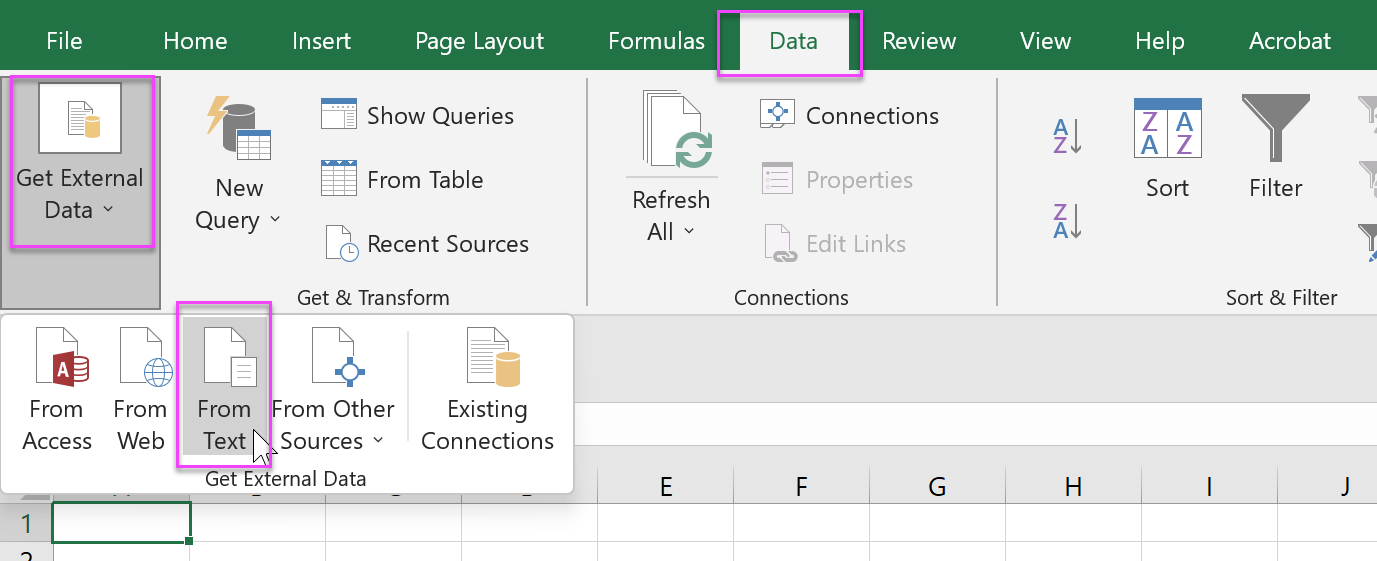
- Go to the Data tab
- Click Get External Data
- Click From Text
- In the pop up, select the .txt file you just saved and import
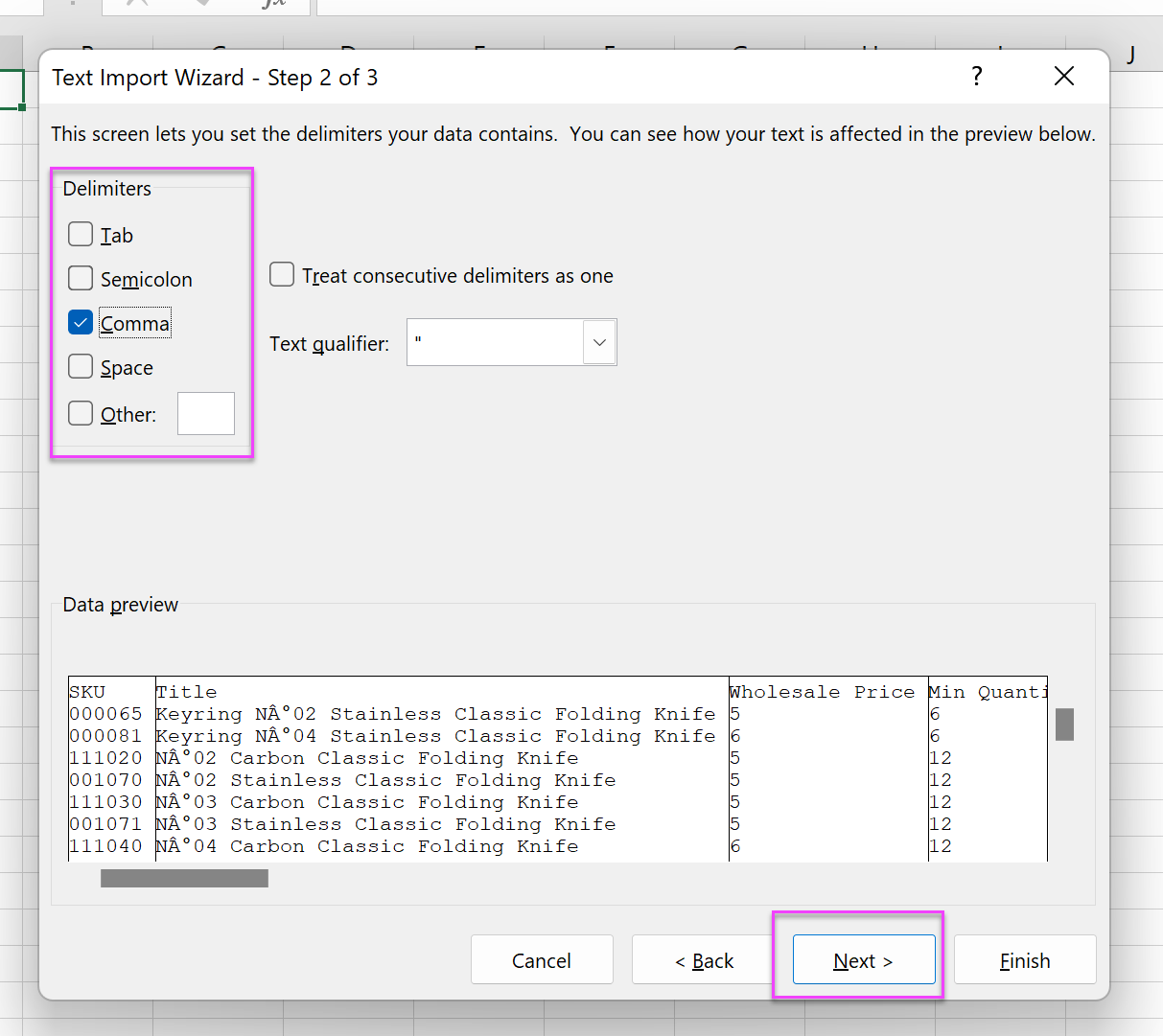
- A Text Import Wizard will appear
- Make sure "Delimited" is selected
- Click Next
- Select Comma as your only delimiter
- This will set the columns correctly
- Click Next again
-
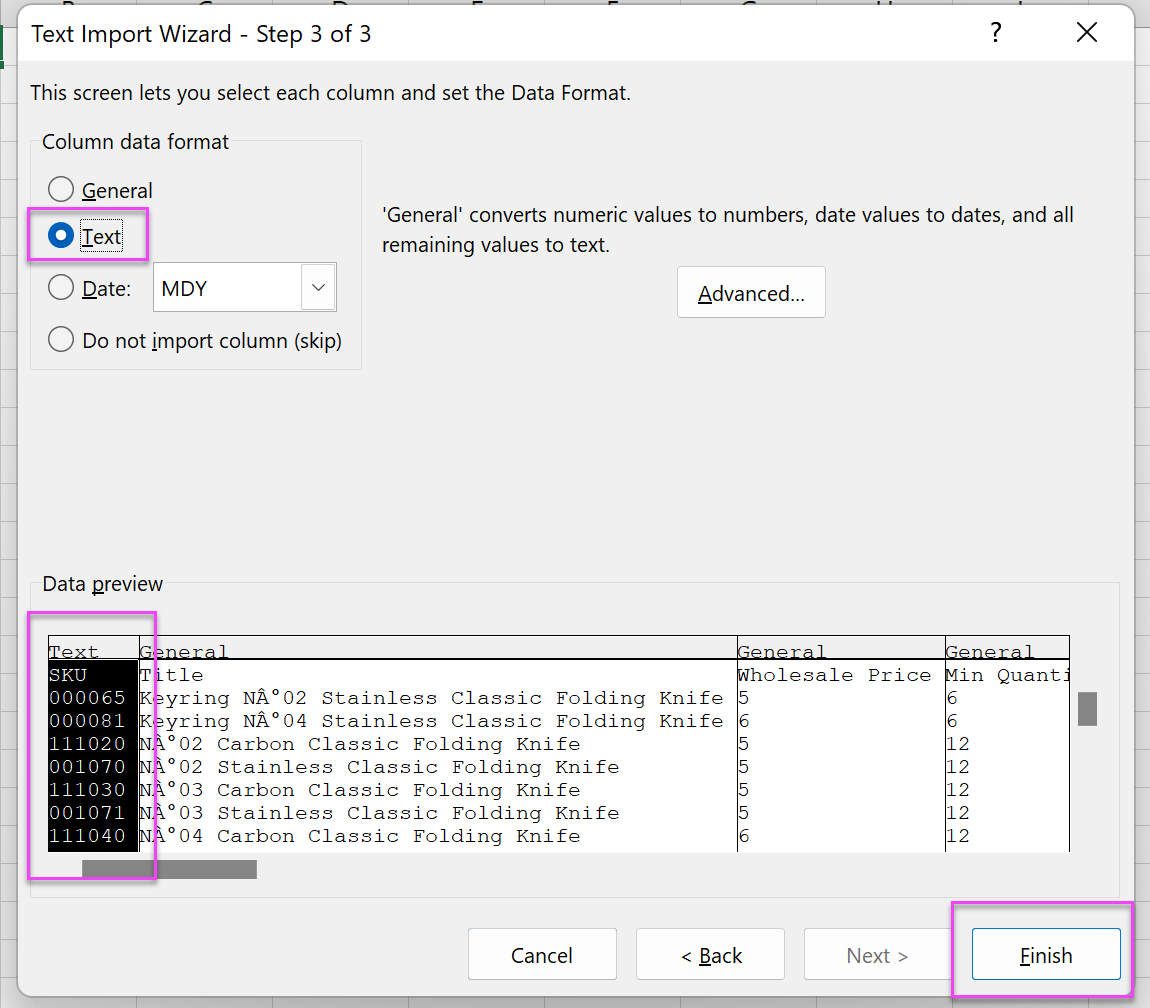
- Select the column that contains leading zeros
- Select Text as your column data format
- Click Finish
- Click OK in the next pop up to import data into your existing worksheet
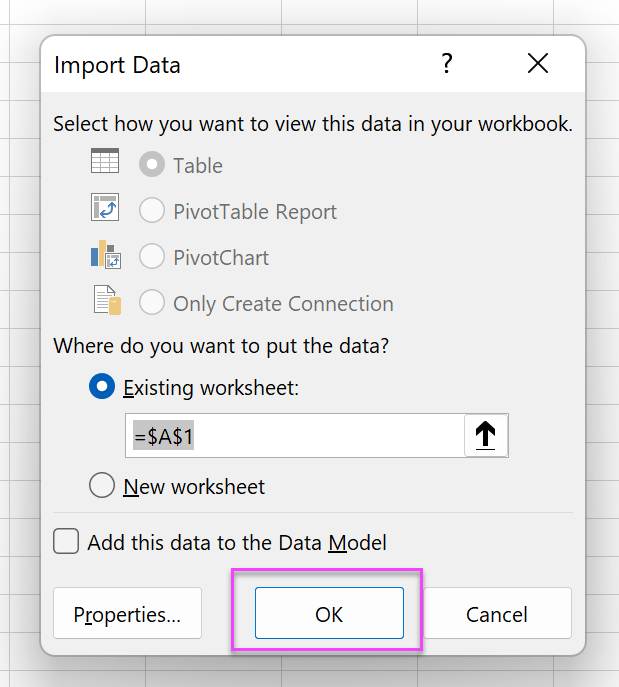
- Your data will populate in your excel spreadsheet
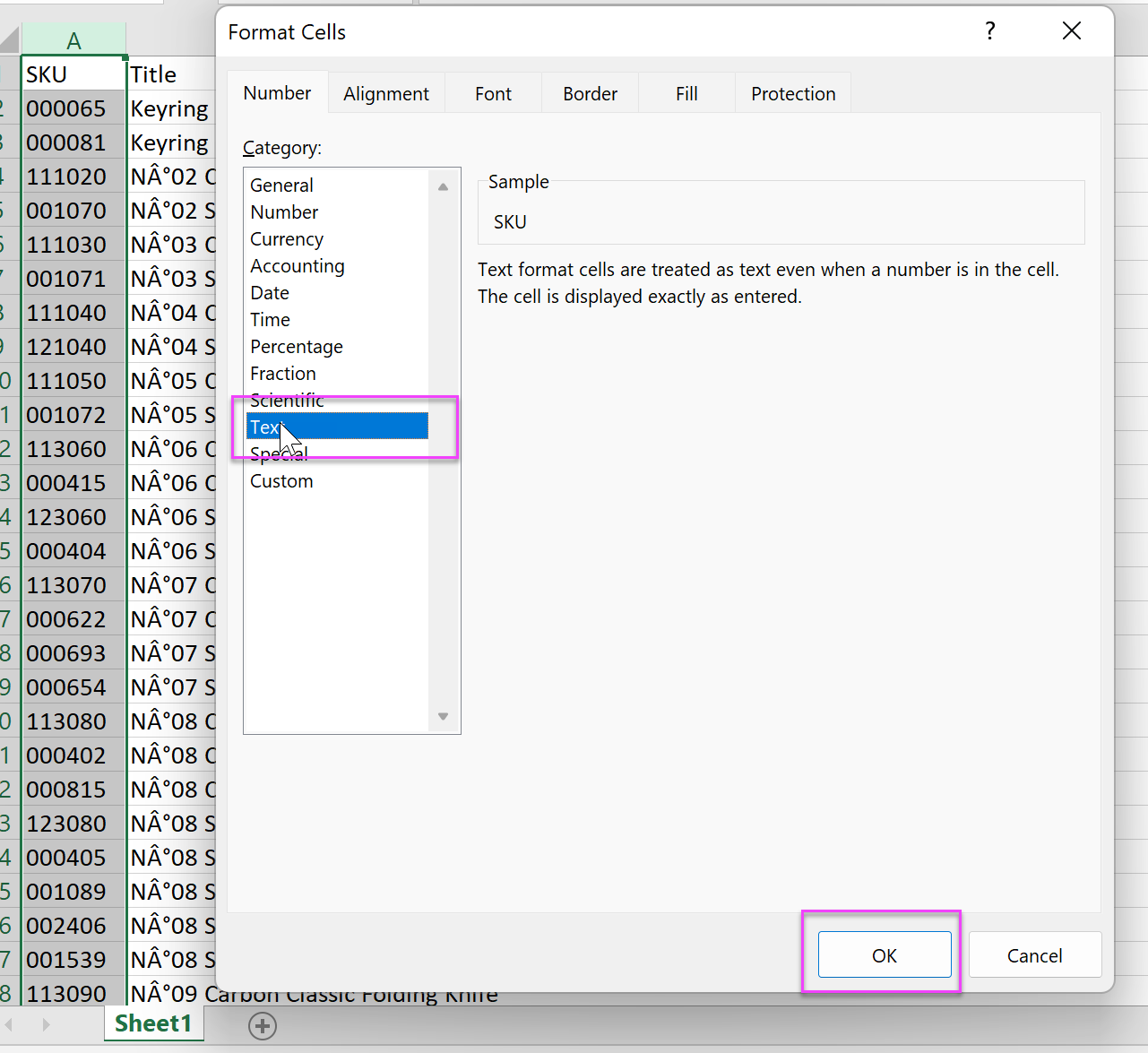
- Format the column with the leading zero to text
- Highlight the column with leading zero values
- Right click
- Choose Format Cells
- Select Text in the pop up
- Click OK
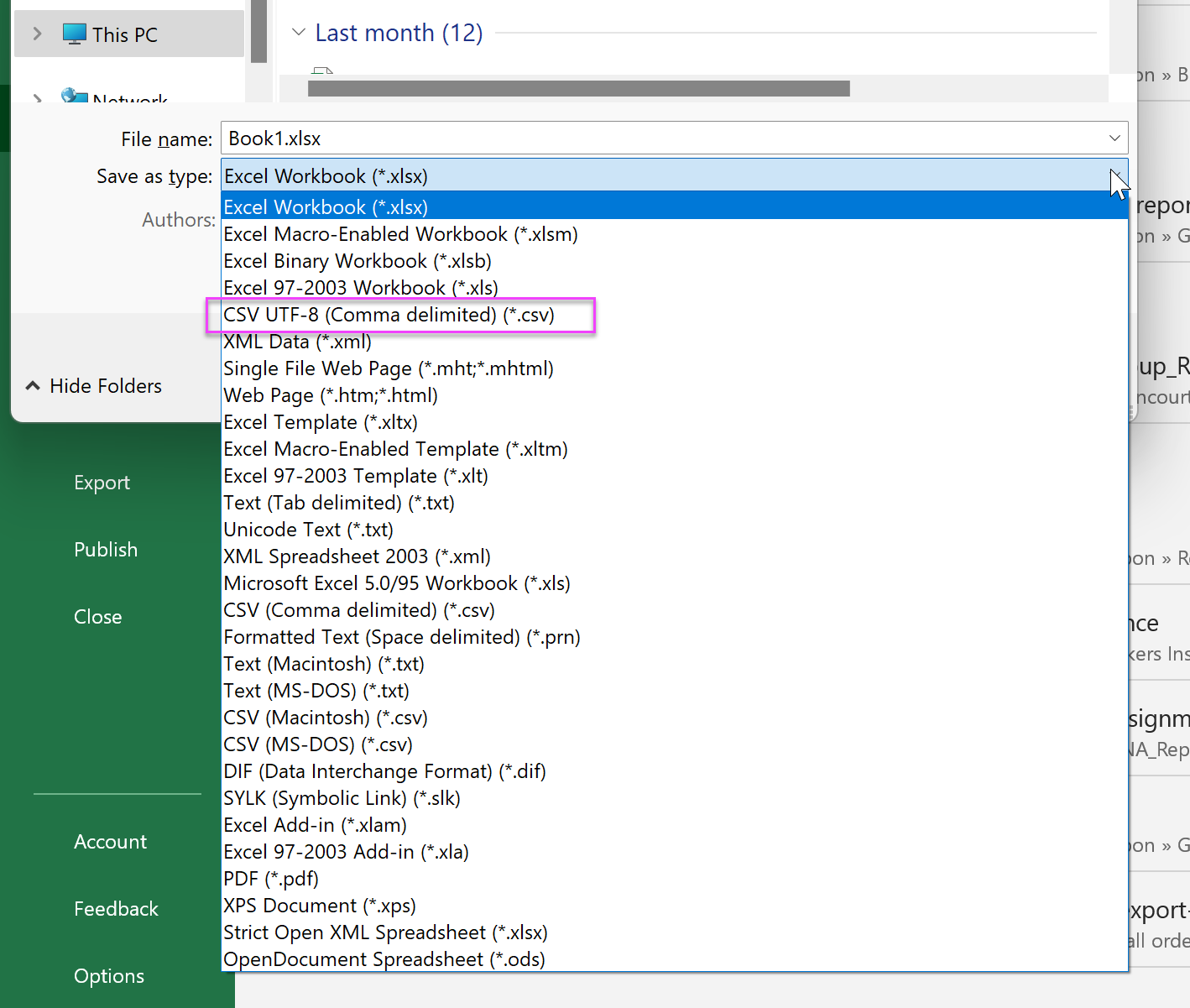
- Finally Save As your excel worksheet as a CSV UTF-8
- This will preserve your leading zeros and create a uploadable CSV
Comments
0 comments
Please sign in to leave a comment.