
Adding billing and shipping addresses
When manually adding a new account or vendor's address info, use the "+Add New Billing Address" and "+ Shipping Address"
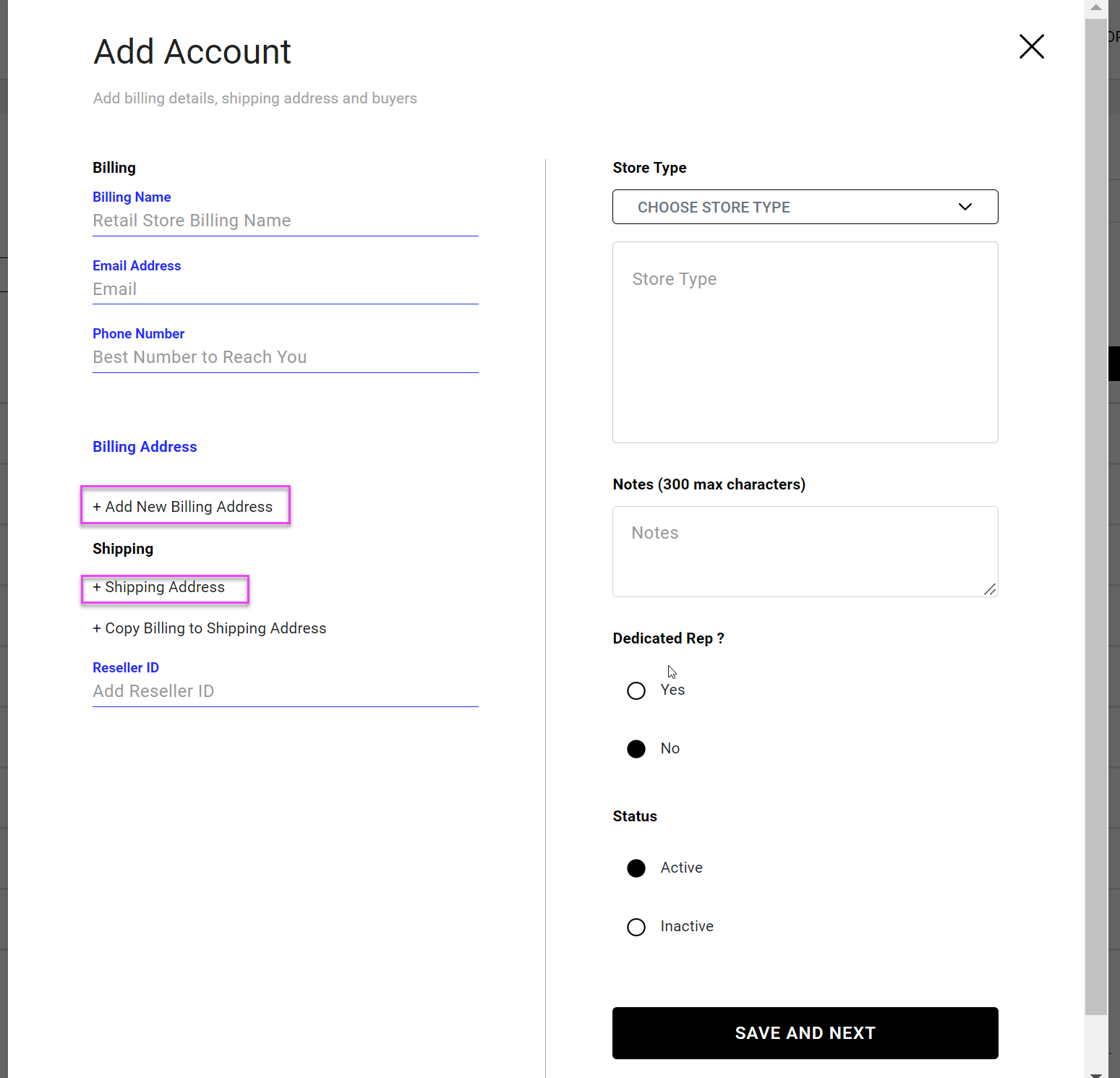
This will bring up the Add New Address pop up.
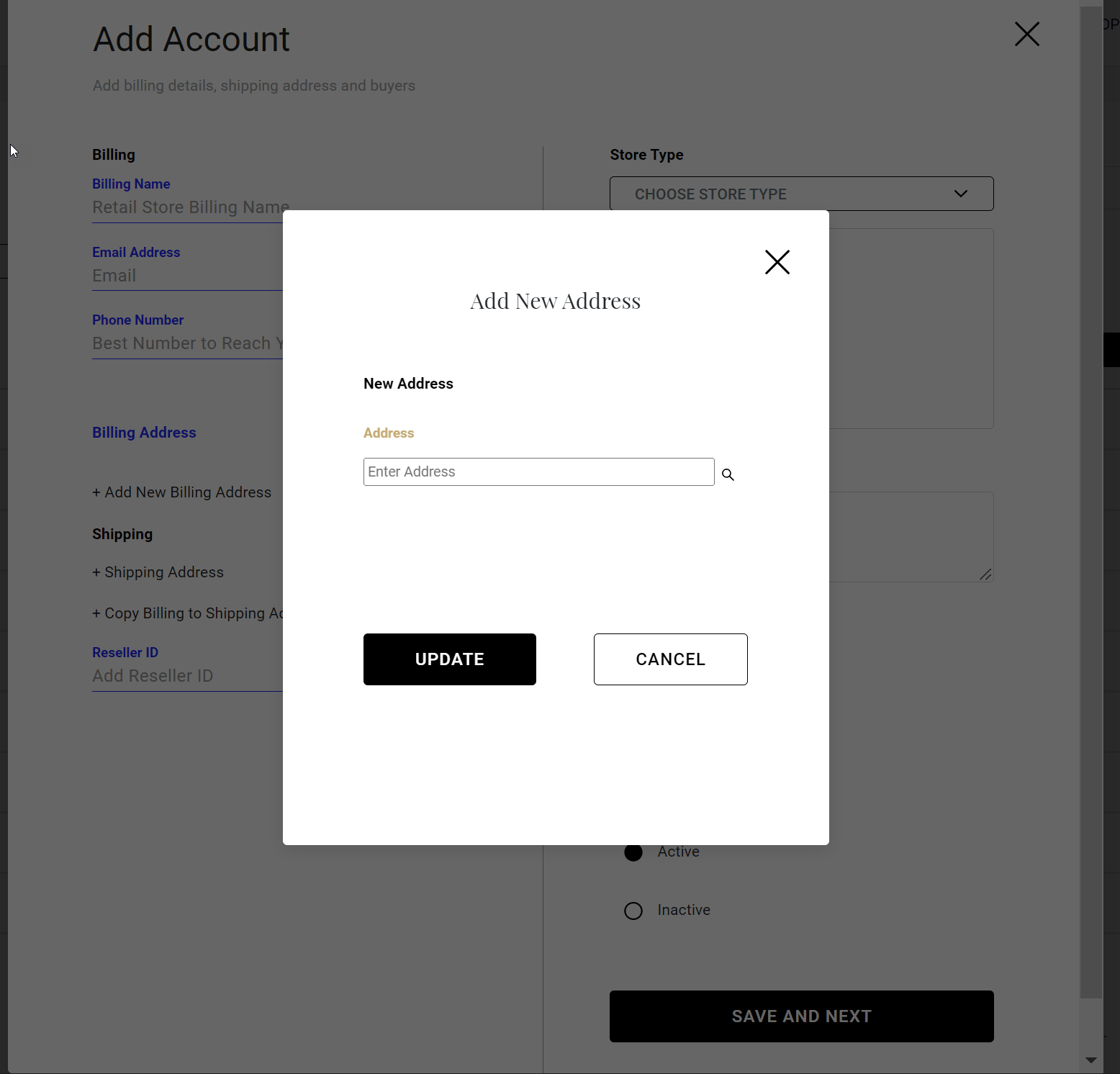
Begin typing the address and the system will auto populate the address. Select the correct address in the drop down.
Note: If the address does not appear in the drop down, or the zip does not match you can still enter the address manually. Begin with the city, state or zip and you will be able to add/edit the address in the next screen.
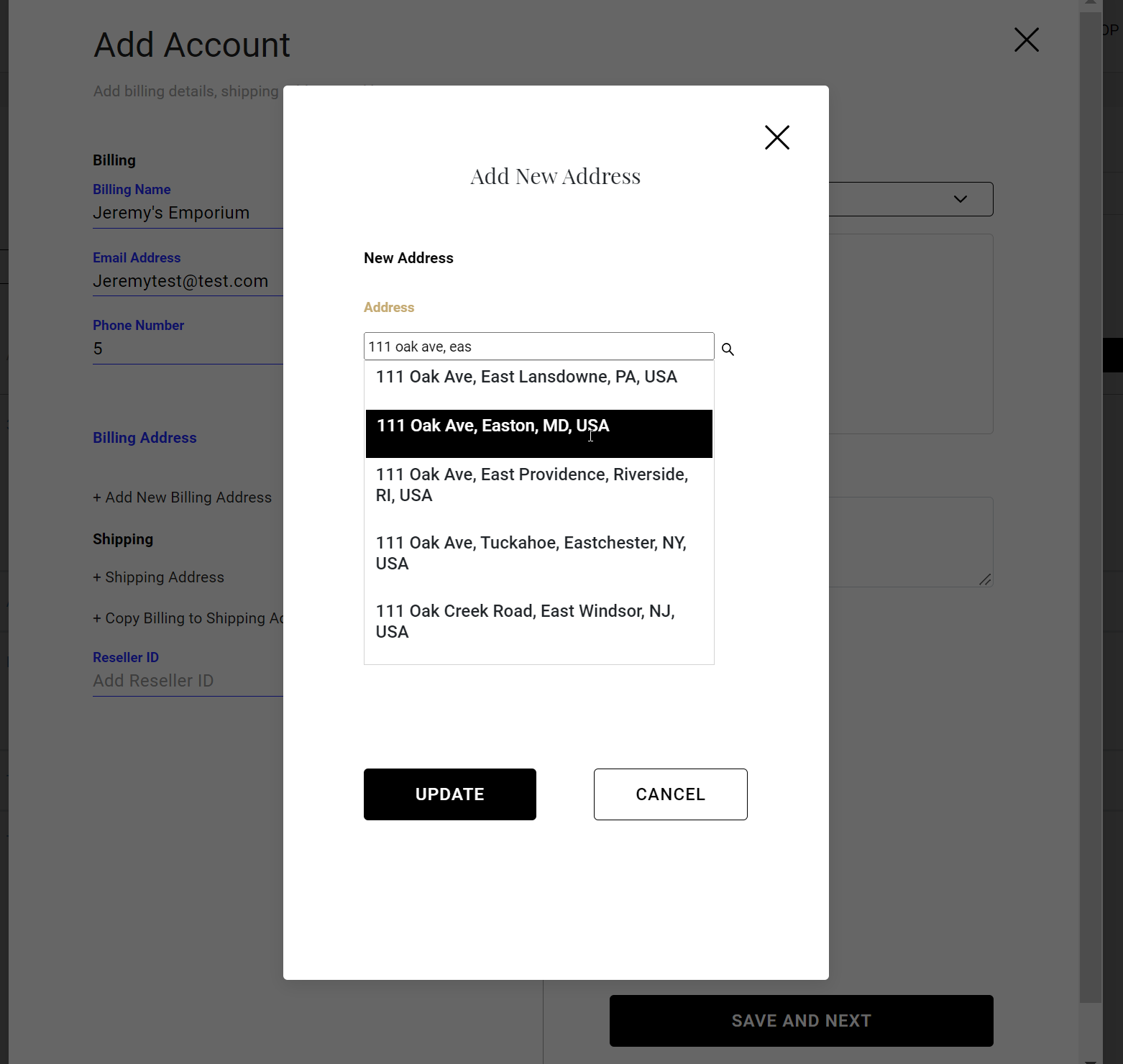
If the address is correct, click Update.
If the address is incorrect or if you need to add a Suite # make your edits and click Update
If the City is incorrect, click the "pad and pen" next to the city to edit that.
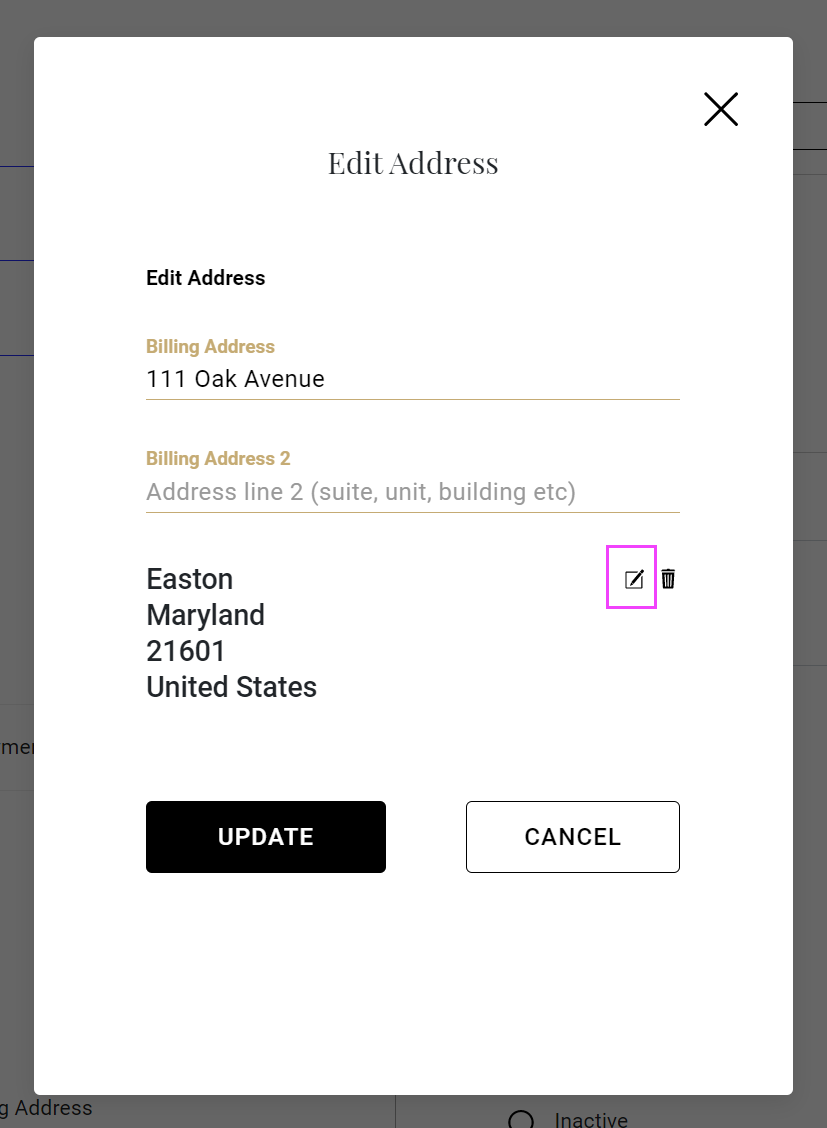
Note: You are able to edit city, state and zip for only international address by clicking the "pad and pen" icon next to the city. This is the window that will appear.
Make your edits and click Update
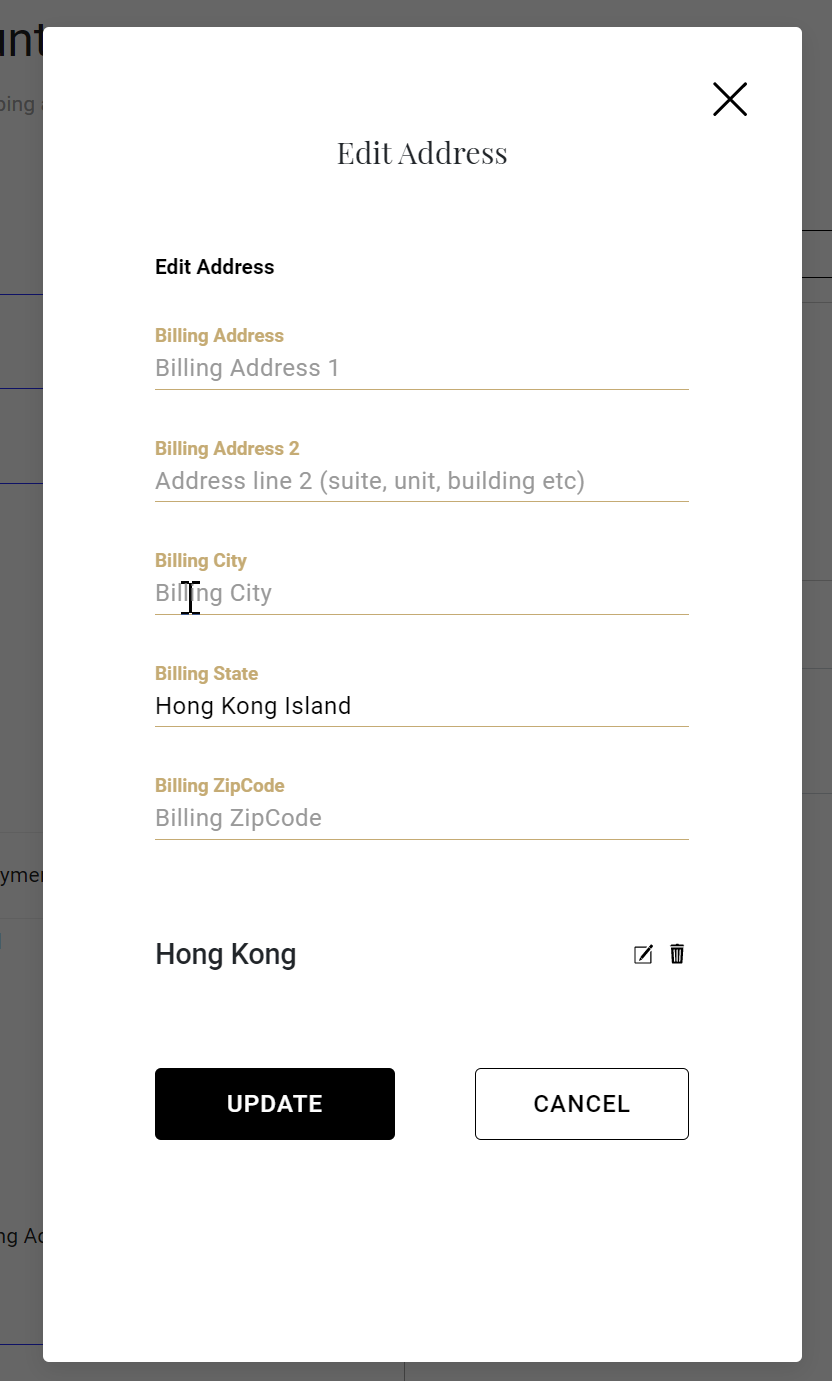
Editing Addresses
When editing addresses, weather in the account/vendor edit screen or PO review screen you click on the Pad & Pen icon next to the address.
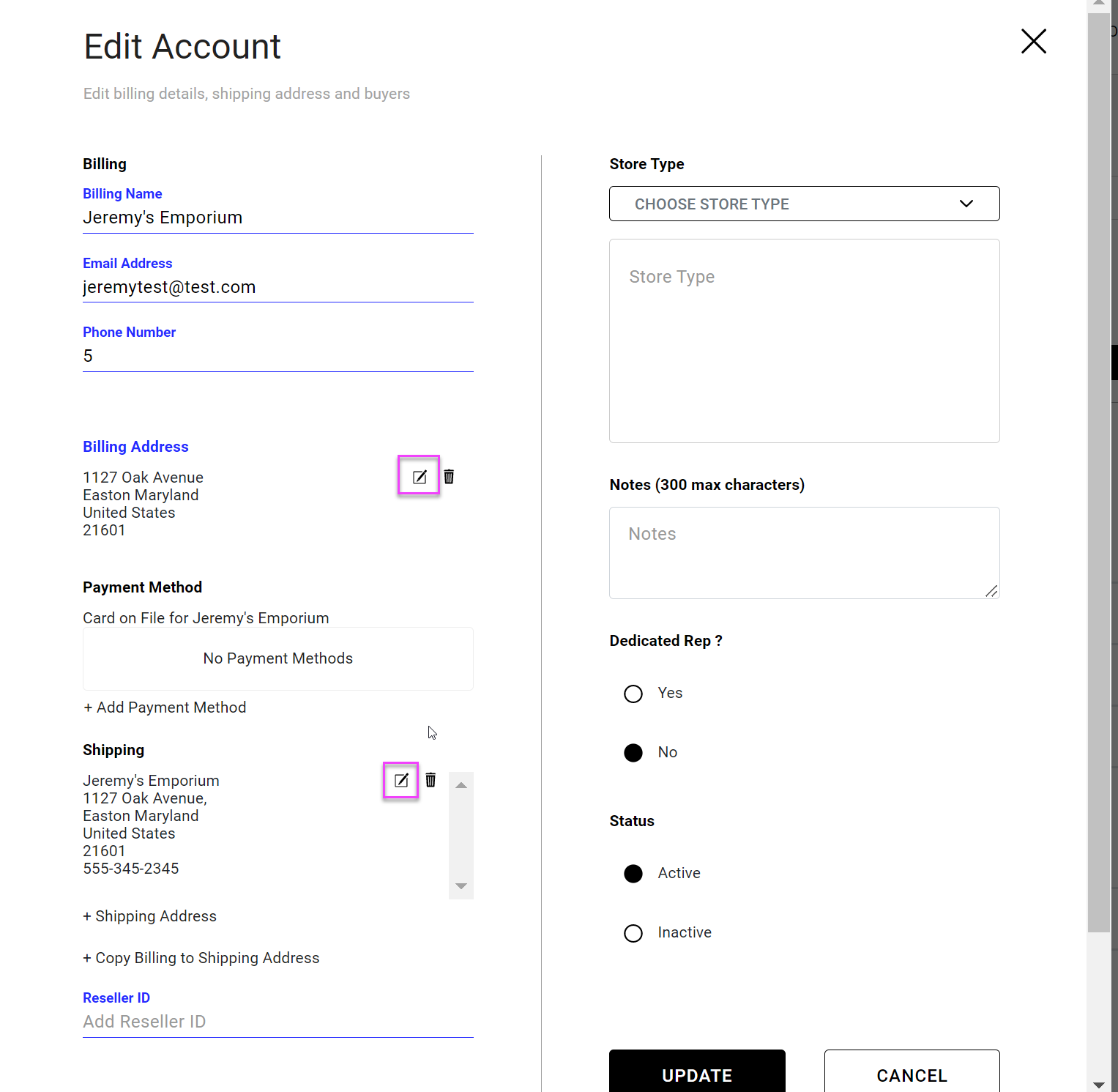
Follow the same edit instructions as above.
Click Update on the edit account screen so changes take hold.
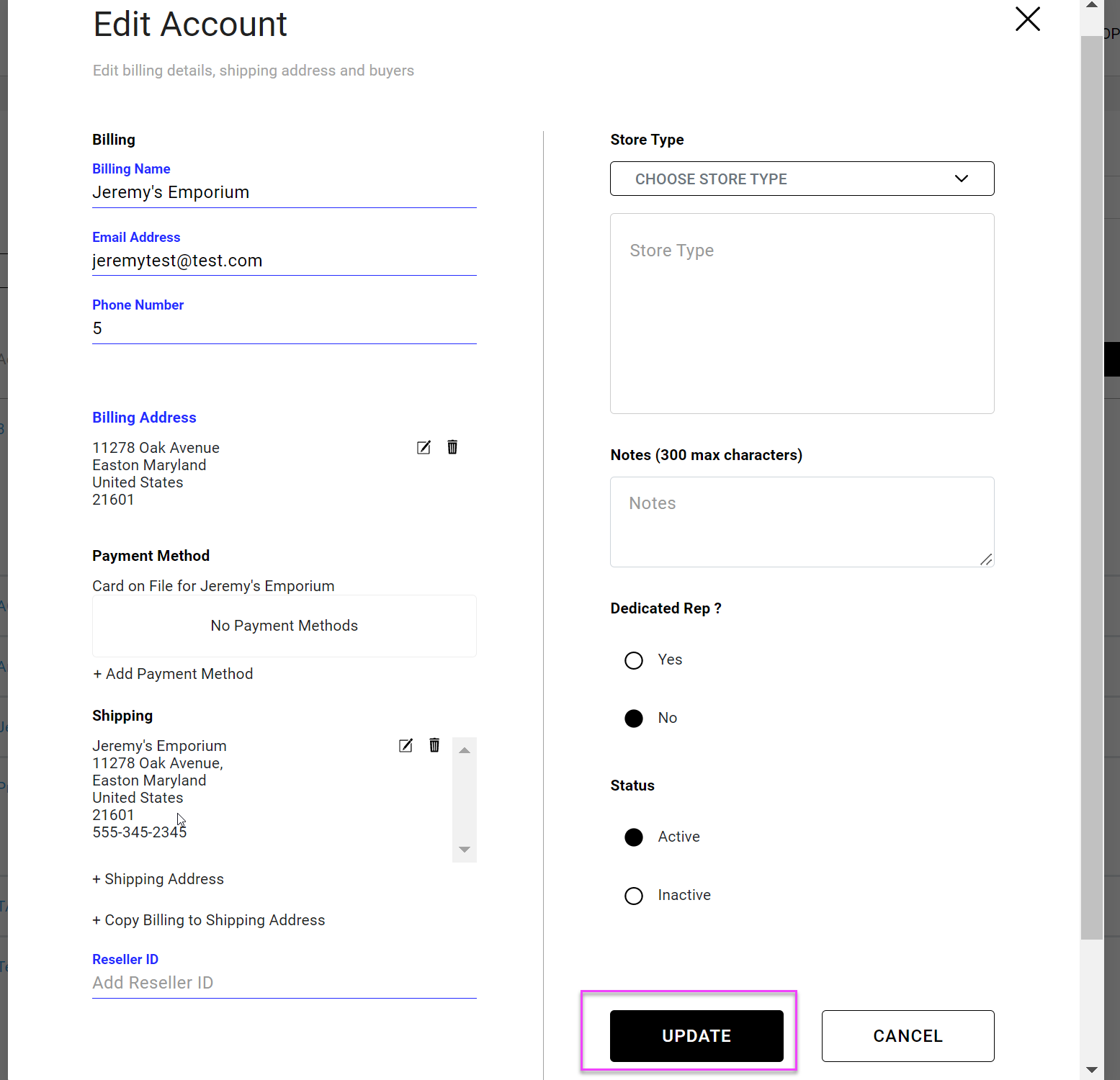
If you do need to make changes to State or zip for US addresses delete the existing address and then click "+Add..." to enter correct address.
Comments
0 comments
Please sign in to leave a comment.