
Yes! Any orders you yourself write or your Sales Rep writes on your behalf will appear on your Orders page. You can review them and make adjustments or confirm them, which will notify your Sales Rep so that they may review and submit your order to the vendor.
avigate to your Orders page by clicking on Orders.
This will direct you to your Orders page. You can use the PO status dropdown filter to select the Draft status from the specified status (All Status, Closed, Cancelled, Fulfilled, Draft, HFC, Confirmed, Partially Fulfilled, In-Progress). You may also specify a date range by using the Date filter.
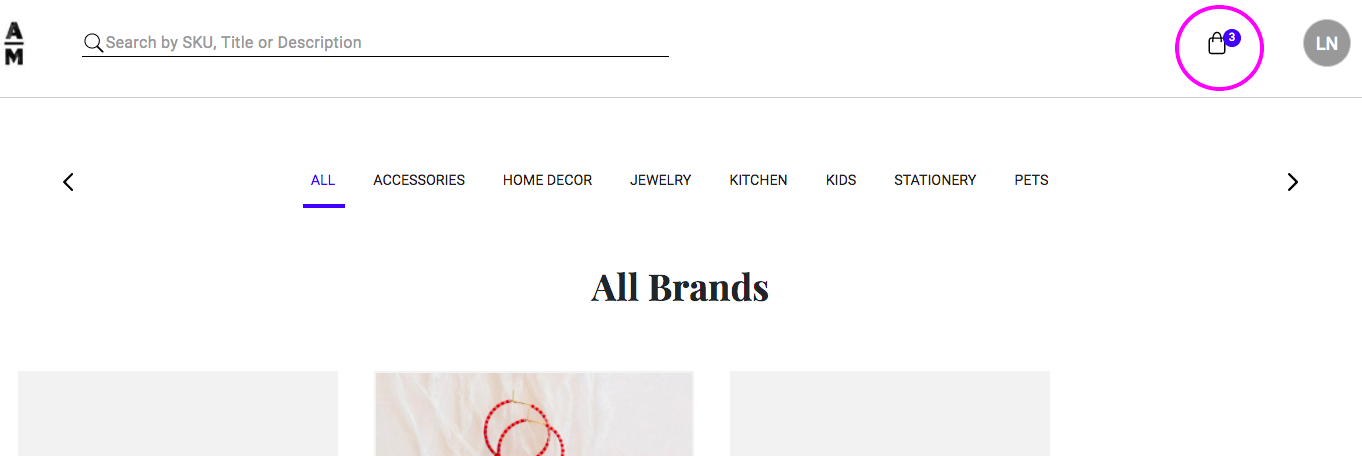
You may also access any orders you are working on quickly by clicking on the shopping bag icon at the top right.
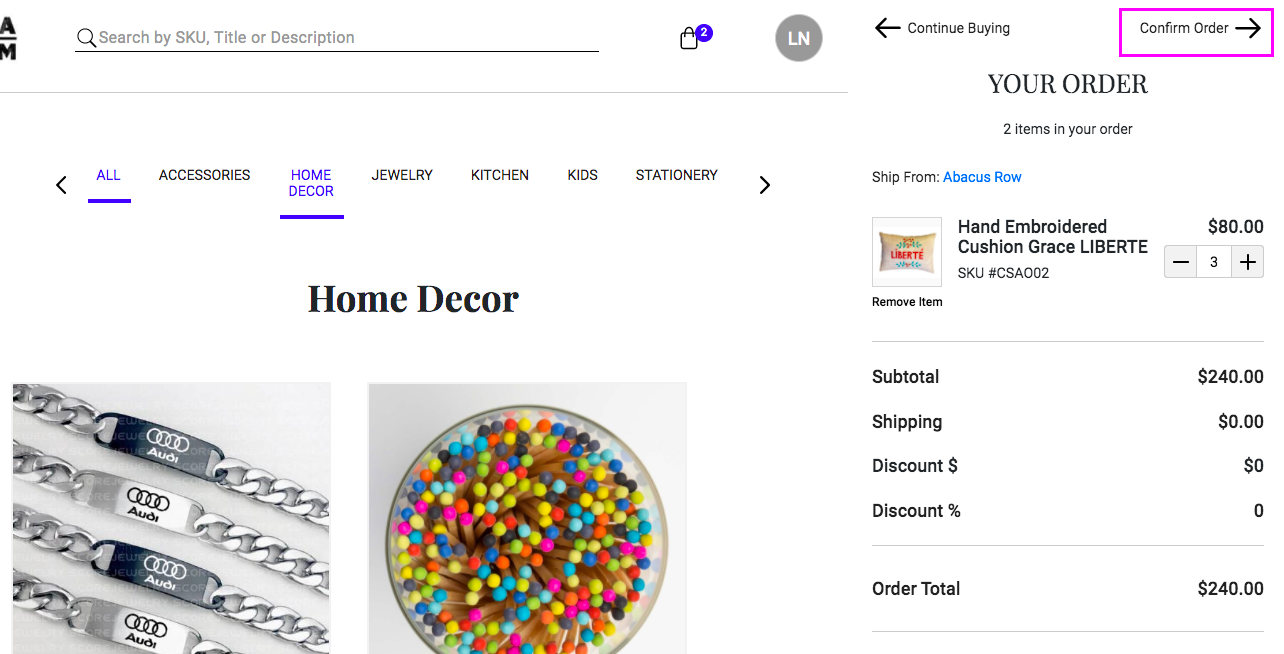
This will open up a view of the orders that are currently in your shopping bag, on the right side of your screen. From there, you can click Confirm Order.
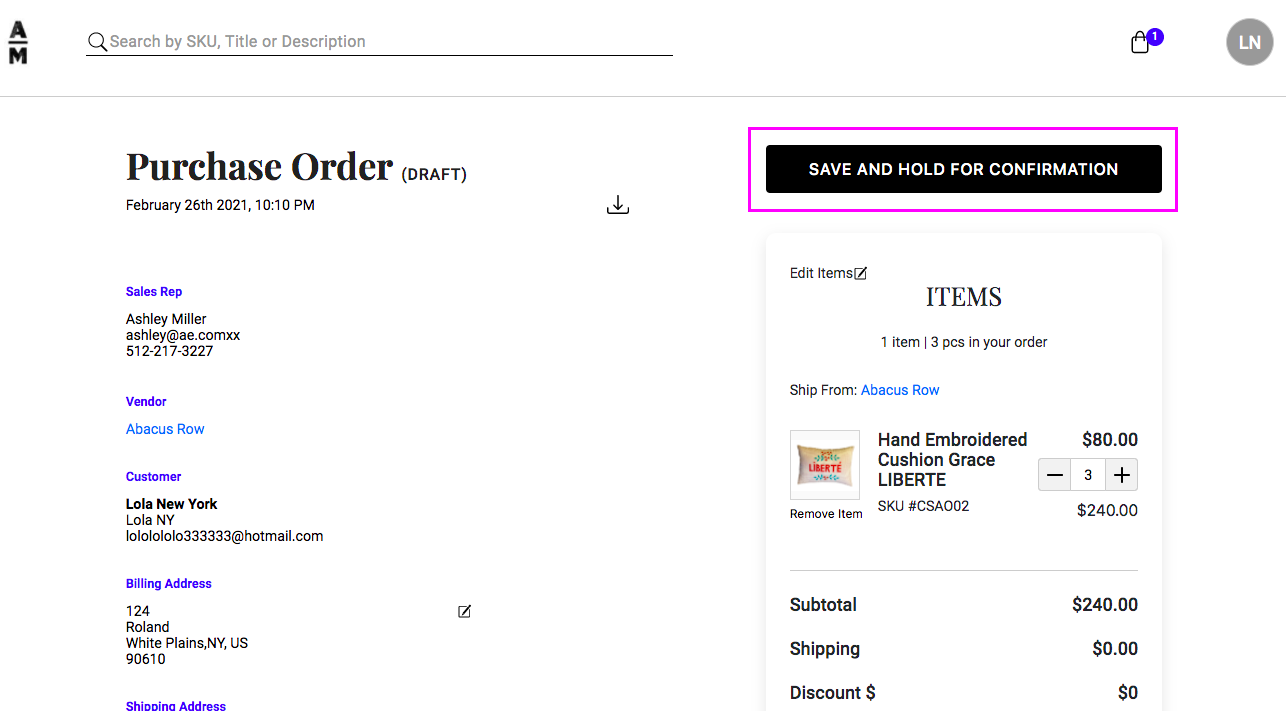
This will open the Purchase Order. You can review all the details and, once ready, click Save and Hold for Confirmation to send the order to your Sales Rep.
Comments
0 comments
Please sign in to leave a comment.