
This will take you through the basic steps to enter invoices into the commission module. Invoices are entered in "Batches". You can categorize and date range a batch however would work best for your records and payment schedule.
Entering a new batch
- To start go to the Commissions page on the workdesk
- Click Start New Report
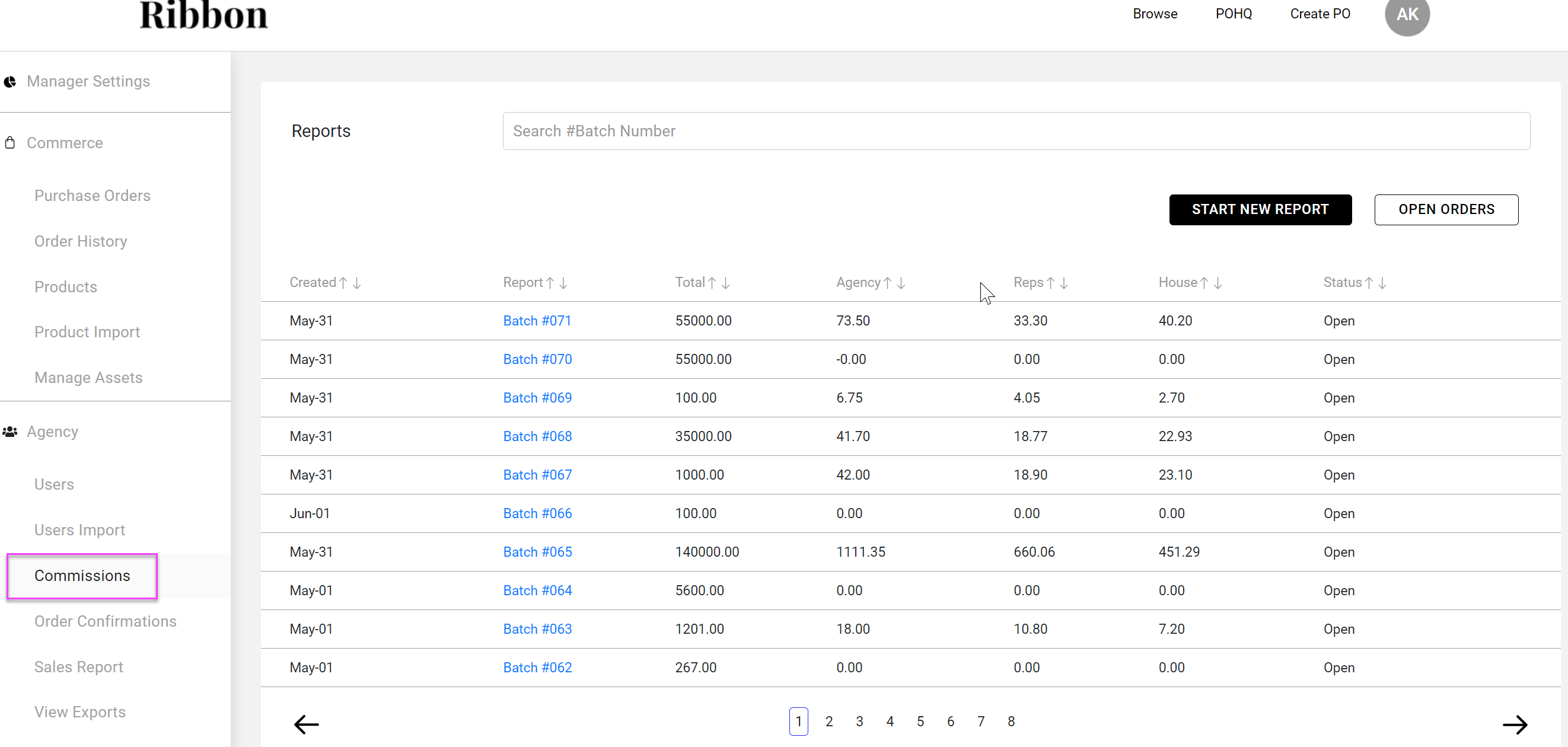
- This will bring up a New Report pop-up window
- Assign a date range for the batch
- Click Start Report
Entering Brands into the batch
- Click on the new batch number to start entering vendors and invoices
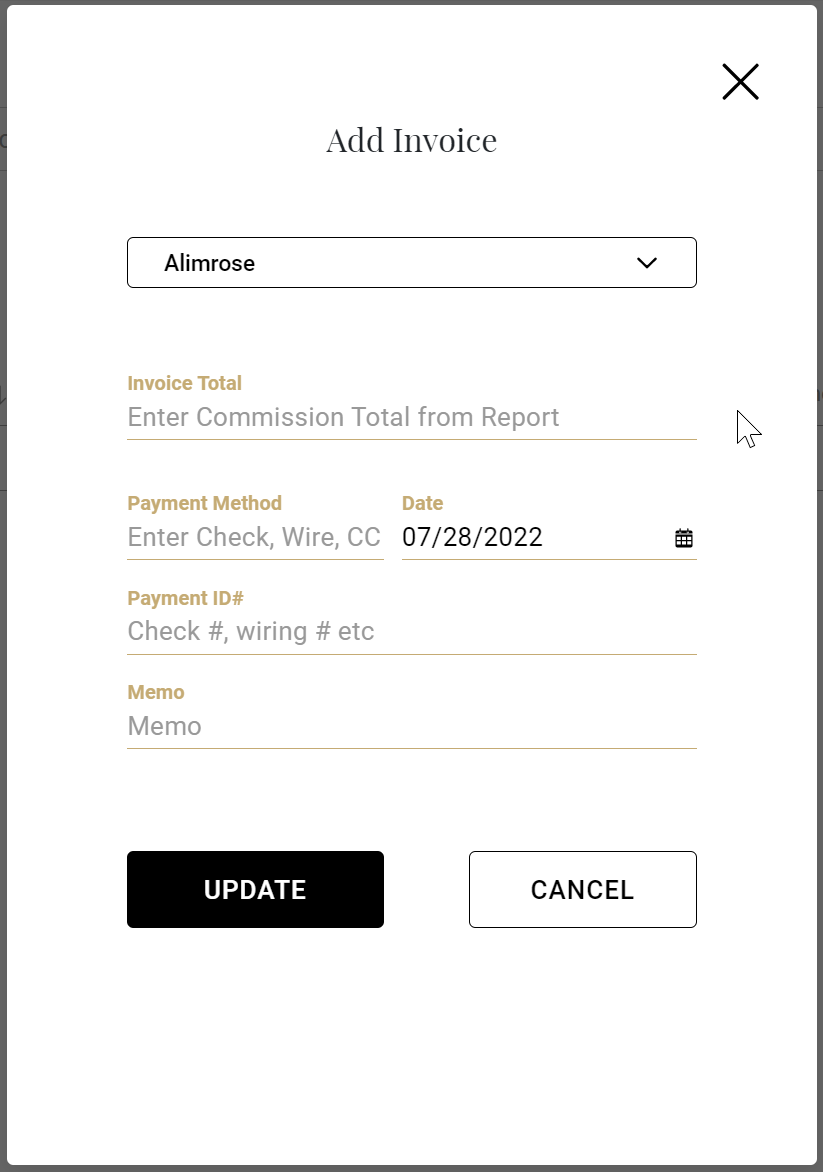
- Click Add Brand
- Select a brand from the drop-down
- Enter the total of the Commission report you are working with
- Enter Payment method, date, Payment ID (optional), and a memo (optional)
- Click Update
Entering Invoices into a brand (existing PO)
- A pop-up will appear for you to enter your first invoice
- After that you can enter invoices from the brand screen by clicking Add Invoice
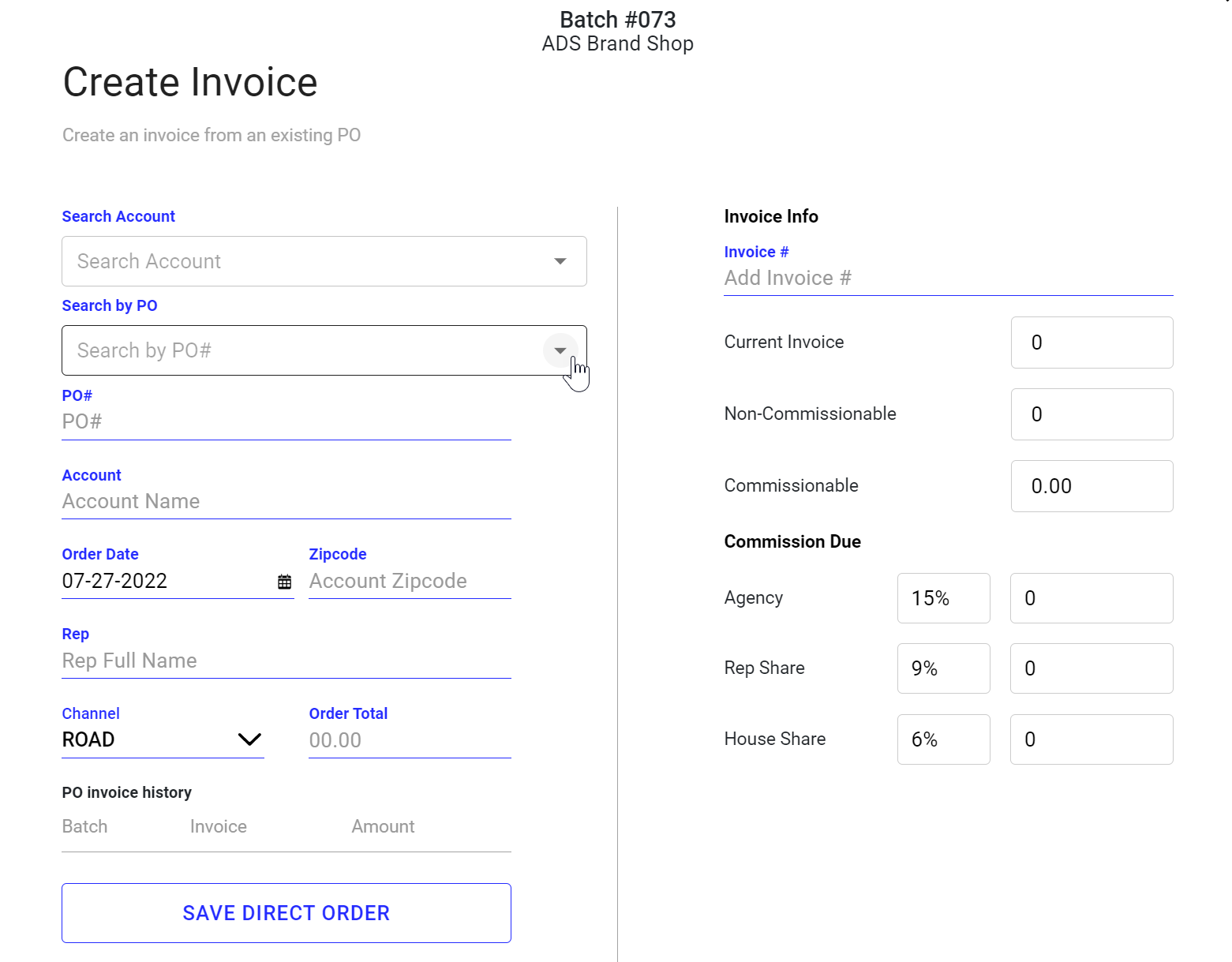
- Search by the PO#
- You can also search by account if you cannot find the PO#
- The information for the PO will auto-fill
- Enter invoice #
- Adjust the invoice details or % if needed
- Click Save
- Search by the PO#
Entering Invoices into a brand (Direct order without existing PO)
- Manually enter PO and account information
- Enter order total
- Click Save Direct Order
- Look up newly created PO in Search by PO dropdown and select it
- Enter invoice # and adjust invoice details or % as needed
- Click Save
Closing the Batch
- Go into the batch you want to close
- Click Close Batch
- When prompted click Yes, Close
- Note: Once closed you cannot edit the batch any further
- Note: Information for a closed batch can be found in the batch under clicking View Details
Editing
- Editing a brands information
- Go to the brand's page
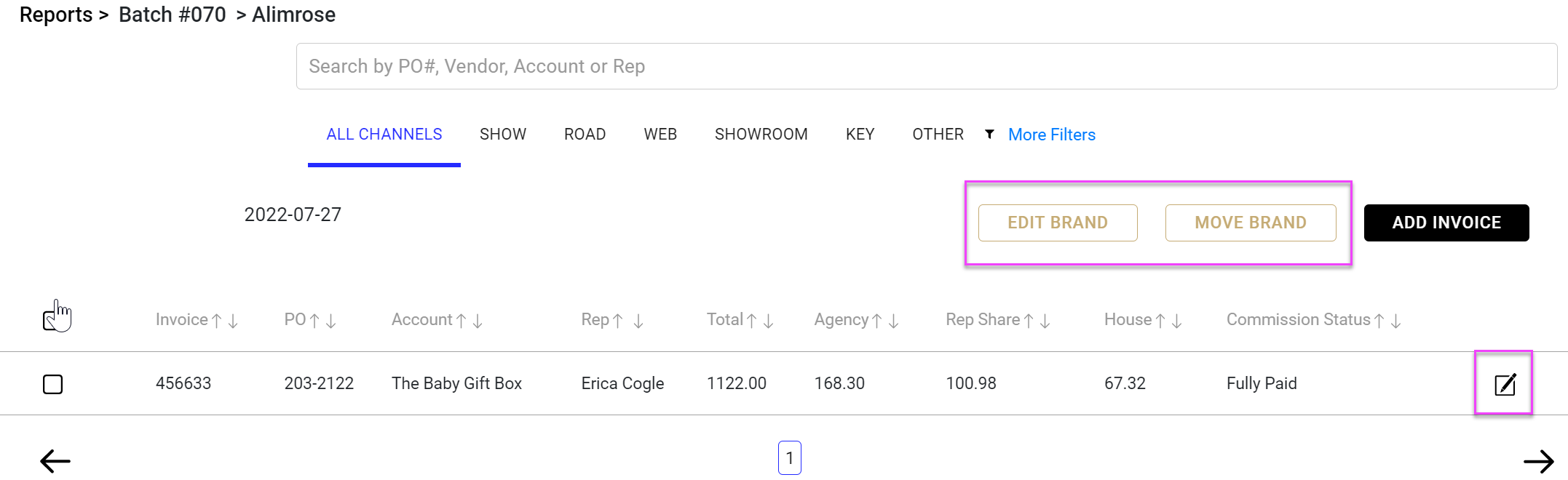
- Click Edit Brand
- Make your changes in the pop-up screen and click Update
- Moving a brand (and all invoices attached) from one batch to another
- Go to the brand's page
- Click Move Brand
- Select the batch you want to move the brand to in the pop-up and click Move Brand
- Editing an invoice entry
- Go to the brand page
- Click on the pad & pen icon to the left of the invoice you want to edit
- Make your edits in the pop-up screen and click Save
Reports
- Open Order Report - This will allow you to export a list of all orders that still have commission money outstanding
- In the batch list page click Open Orders
- Add a label for the report (optional)
- Set the date range (by ship date) for the orders you want to be exported
- Click Export - You will be given an export id number
- To download your report
- Go to View Exports in your workdesk
- Locate the export id and click the down arrow to the right
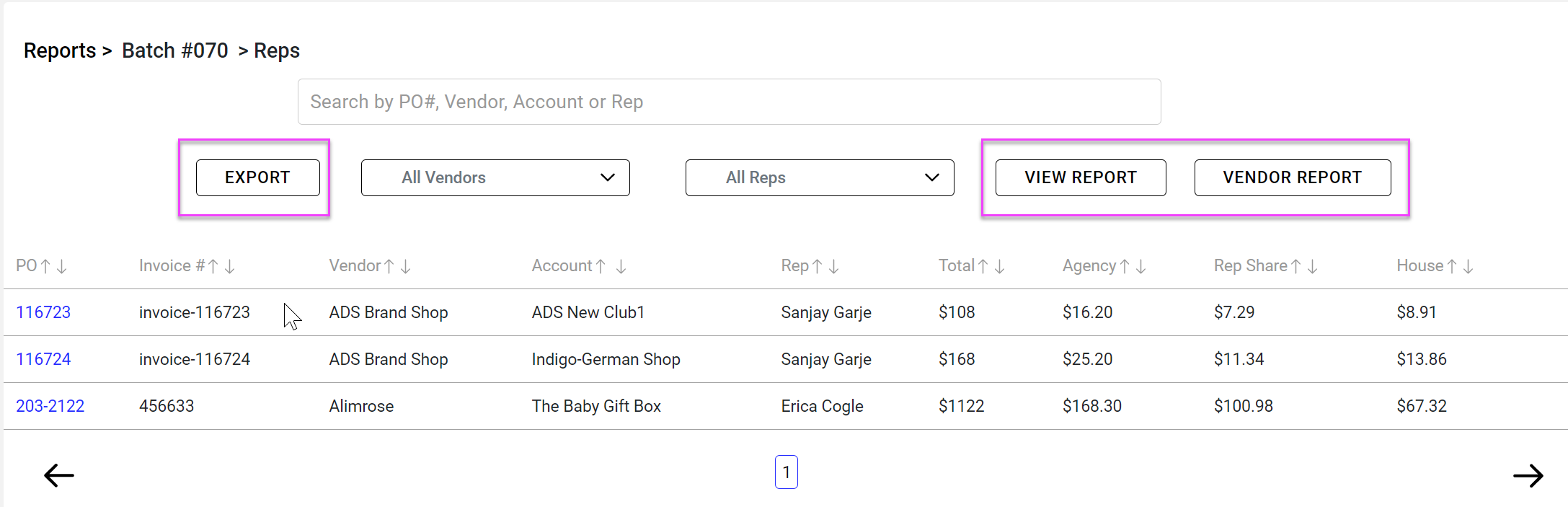
- View Details - This shows all invoices recorded in the current batch
- Go to the batch you want
- Click View Details
- From here you can sort by vendors and/or reps or search for specifics
- Export to a CSV file
- View a report by rep (View Report)
- View a report by vendor (Vendor Report)
- Note: This is also how you view information for closed batches
Comments
0 comments
Please sign in to leave a comment.